Skip to content
TechBone
OnePlus

OnePlus: Turn Off Pop-up on Keypress in Gboard

Every tap on the on-screen keyboard shows a small popup with the letter you just pressed, and on some OnePlus phones this becomes distracting while typing fast in WhatsApp or email. The feature comes from Gboard's key preview setting, not from OxygenOS itself. You can turn it on or off anytime without touching autocorrect or other typing settings.

6 min7 steps
VersionAndroid 10 · Oxygenos 10

Step by step

1 / 7

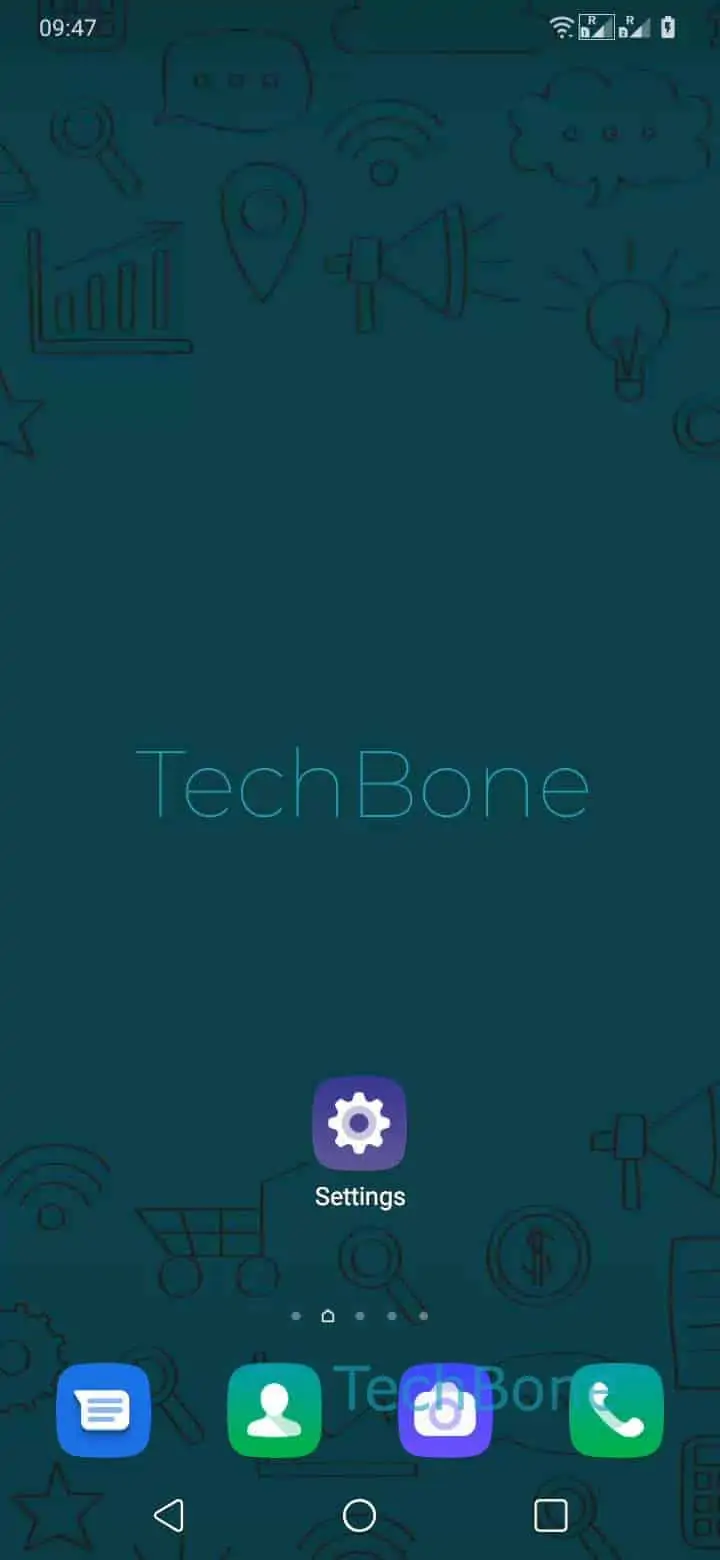
Step 1 of 7: Open the **Settings**

1

Open the Settings

Live simulator

Android 10 · Oxygenos 10
Enable or Disable Pop-up on Keypress – Oxygenos 10: step 1 – Open the Settings
Open the Settings
1 / 7

Scroll or use the buttons for the next step

Feedback

Was the guide correct?

Help others: confirm the path or report a problem.

45

Confirmations

Forum verified this path

OnePlus

Enable or Disable Pop-up on Keypress auf OnePlus

The little preview bubble that pops up above each key you tap is part of Gboard's key preview, not a OnePlus-specific feature. OxygenOS ships Gboard as the default keyboard, so the setting lives inside the keyboard app rather than in the general system typing menu.

Most people notice this popup while typing fast in chat apps, since every tapped letter briefly appears larger above the keyboard. Some find it helpful for confirming accuracy on a small screen, others see it as visual clutter that slows down typing.

To change it, go to Open the SettingsTap on SystemTap on Languages & inputTap on Virtual keyboardTap on GboardTap on Text correctionEnable or disable Popup on keypress.

Turning the toggle off removes the key preview immediately, with no restart needed. Autocorrect, word suggestions, and swipe typing keep working exactly as before, since the popup is a purely visual effect.

If you use a different keyboard app instead of Gboard, this setting will not apply, and you need to check that app's own typing or keyboard preferences.

Frequently asked questions

No. The Popup on keypress toggle only controls the visual key preview. Autocorrect and word suggestions are separate options inside the same Text correction menu.

Compatible devices

Tap your device — opens its hub with matching guides.