
OnePlus
Print a PDF File via Wi-Fi auf OnePlus
Printing a PDF directly from a OnePlus phone depends on the built-in Android print service finding a compatible printer on the local network. If the phone and the printer are not connected to the same Wi-Fi, the print dialog shows no available device, even though the printer itself is online.
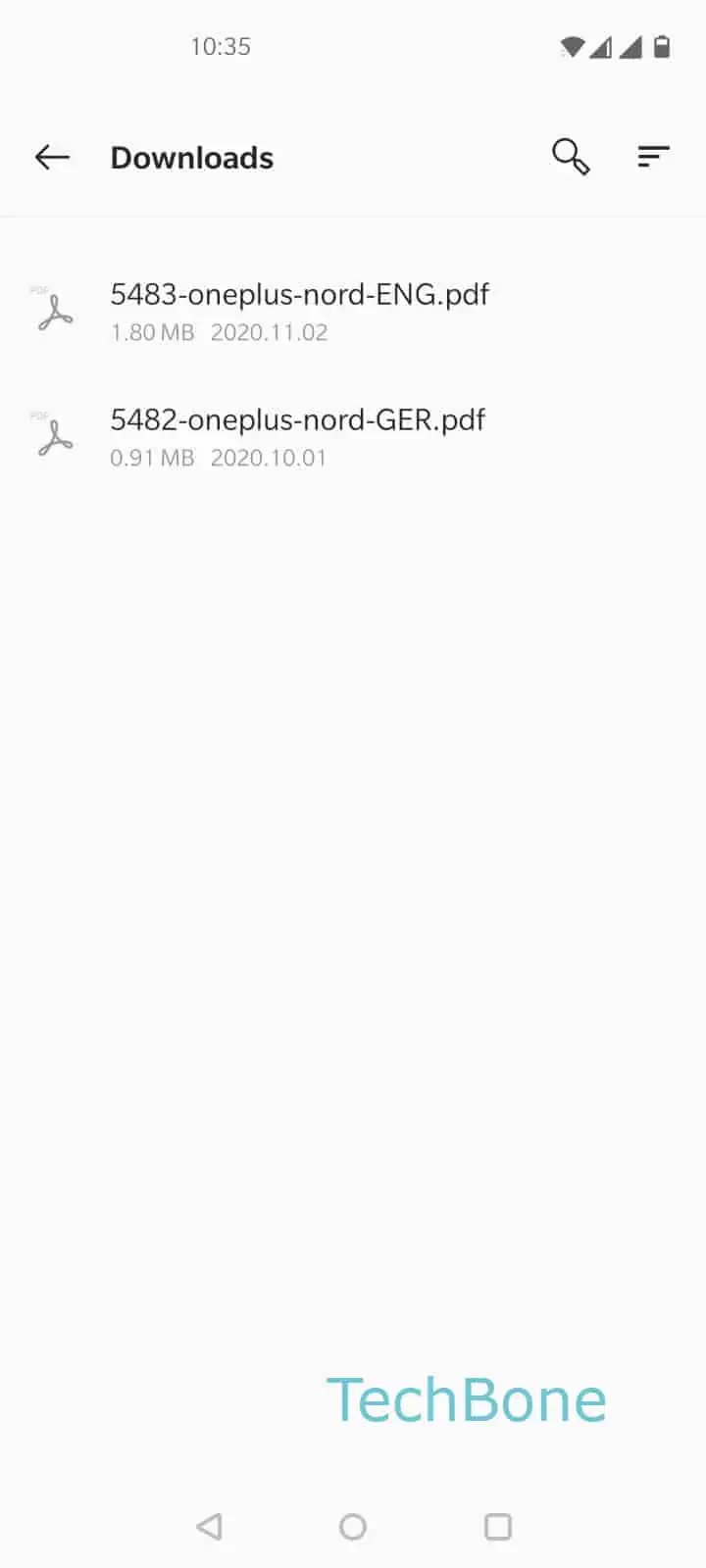
To print a PDF file, open the file first, then tap Open the menu and select Tap on Print. Android now opens the print overview screen.
From there, tap Open the menu again to see all printers currently reachable on the network. Select the correct device under Choose an available printer, confirm the settings shown, and tap Tap on Print to send the file.
If no printer appears, check that both devices are on the same Wi-Fi and that the printer supports wireless printing without extra software. Some office printers require a manufacturer app or a specific print service to be installed before Android can detect them. In that case, install the matching app first and repeat the steps above.