Skip to content
TechBone
OnePlus

OnePlus: Manage Chrome Site Privacy Permissions

If a website suddenly asks for your location or camera without warning, or a page refuses to load because cookies got blocked, the site permissions inside your OnePlus browser are responsible. Every website can hold its own access rules for cookies, location, camera and microphone, separate from your phone's system settings. Once you have granted or denied access a few times, keeping track of which sites hold which permissions gets confusing fast.

4 min5 steps
VersionAndroid 10 · Oxygenos 10

Step by step

1 / 5

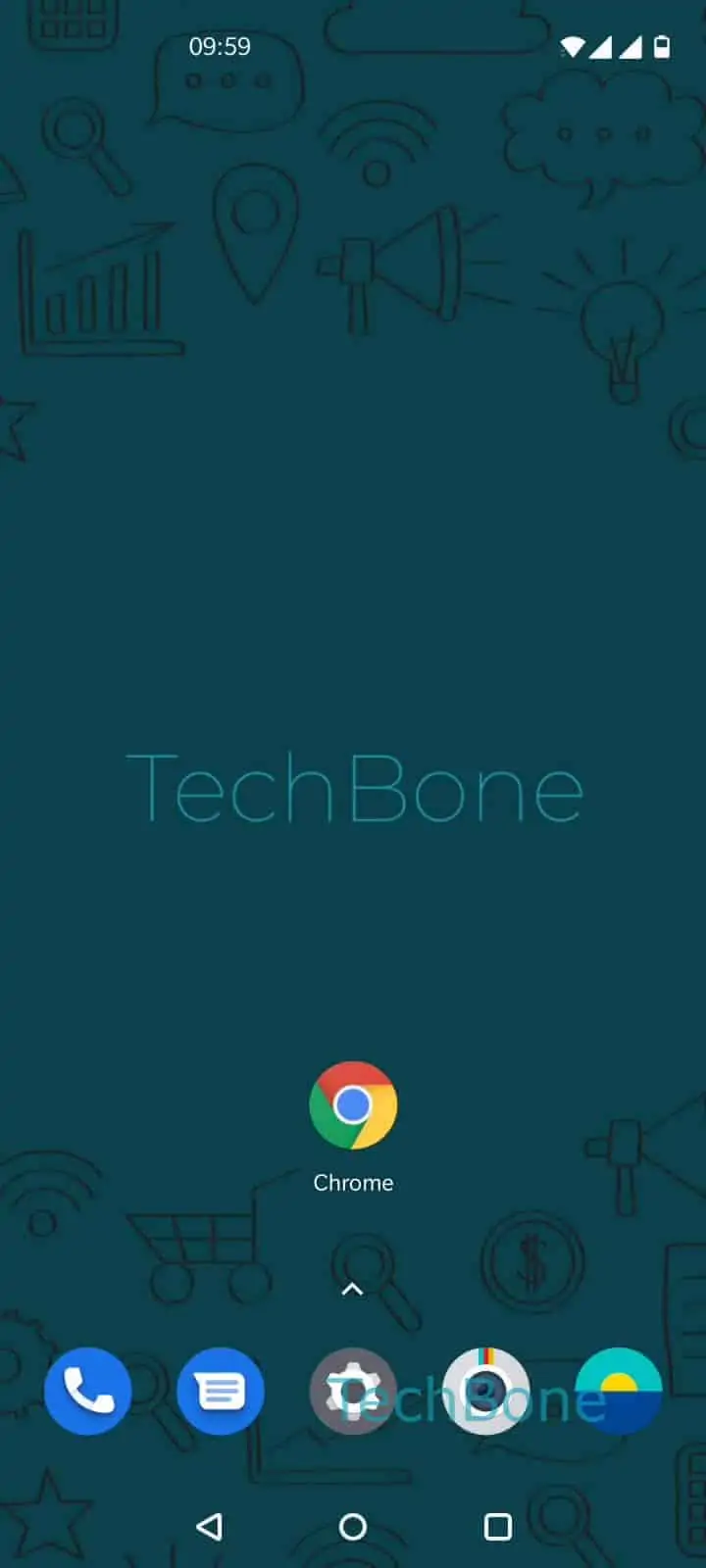
Step 1 of 5: Open the **Chrome app**

1

Open the Chrome app

Live simulator

Android 10 · Oxygenos 10
Manage Site Permissions in Chrome – Oxygenos 10: step 1 – Open the Chrome app
Open the Chrome app
1 / 5

Scroll or use the buttons for the next step

Feedback

Was the guide correct?

Help others: confirm the path or report a problem.

34

Confirmations

Forum verified this path

OnePlus

Manage Site Permissions in Chrome auf OnePlus

On a OnePlus phone, Chrome tracks privacy permissions per website, not per app. A site you visited once can keep access to your location or camera long after you closed the tab, unless you check and adjust it manually.

These permissions sit apart from the general Android app permissions. Blocking camera access system-wide for Chrome will not stop a specific website from still showing up in the allowed list, and vice versa.

Where to find site permissions

Open this path to review or change what a website can do:

Open the Chrome appOpen the menuOpen the SettingsTap on Site settingsSelect a function to enable or disable the respective access/use

Inside Site settings you get separate categories for Cookies, Location, Camera and Microphone. Each category lists which sites are currently allowed and which are blocked, and you can flip either one individually.

If a page keeps breaking after you block cookies, allow cookies again just for that site instead of turning the setting on globally. If an app or shortcut keeps asking for camera or microphone access on load, check whether the permission was set to Allow during an earlier visit and switch it to Block or Ask.

Frequently asked questions

Chrome remembers your choice per site. If you tapped Allow by mistake earlier, the permission stays active until you open Site settingsLocation and change that specific site to Block.

Compatible devices

Tap your device — opens its hub with matching guides.