Skip to content
TechBone
OnePlus

OnePlus: Remove a Contact from a Group in Contacts

If you remove a member from a group or label in the OnePlus Contacts app, it can look like the contact vanishes from your phone entirely. Only the group assignment is affected, the contact itself stays untouched. This distinction matters if you sort contacts into groups for calls or messages and want to avoid losing saved numbers by mistake.

6 min7 steps
VersionAndroid 10 · Oxygenos 10

Step by step

1 / 7

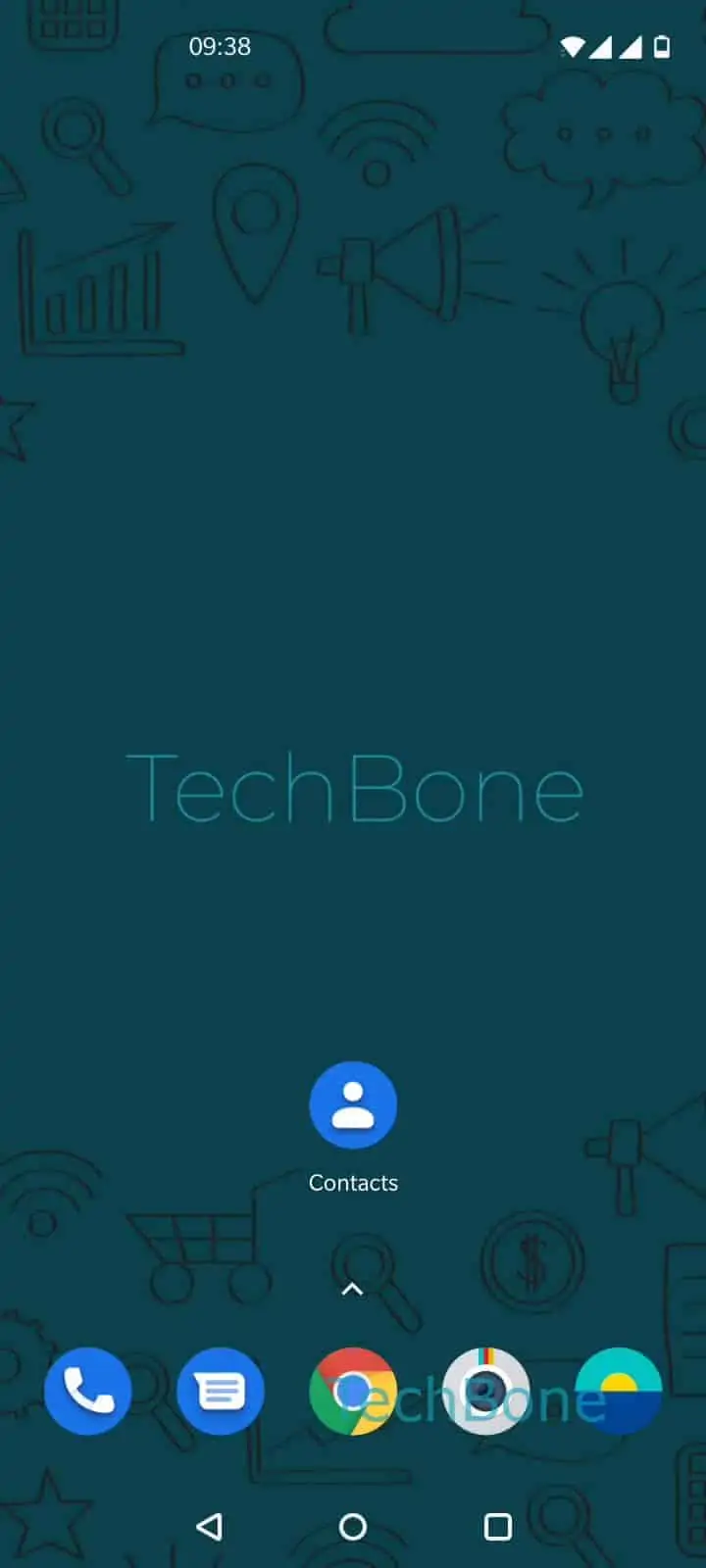
Step 1 of 7: Open the **Contacts app**

1

Open the Contacts app

Live simulator

Android 10 · Oxygenos 10
Remove a Contact from a Group – Oxygenos 10: step 1 – Open the Contacts app
Open the Contacts app
1 / 7

Scroll or use the buttons for the next step

Feedback

Was the guide correct?

Help others: confirm the path or report a problem.

90

Confirmations

Forum verified this path

OnePlus

Remove a Contact from a Group auf OnePlus

Groups and labels in the OnePlus Contacts app help you sort people for faster calling or messaging, but the list of members can get outdated fast.

Removing a member from a group only detaches that contact from the label. The contact itself stays in your full contact list with its phone number, email, and any other saved details intact.

To remove a member, open Contacts appOpen the menuChoose a label/groupOpen the menuTap on Remove contactsTap on RemoveTap on Quit.

If the removed member was previously marked as a recipient in a saved group message or a scheduled group chat, that reference is not automatically cleaned up. Check your messaging app separately if you rely on that group for sending texts, since the label change in Contacts does not update message recipient lists on its own.

Use this method when you only want to reorganize how contacts are grouped. If your goal is to delete the contact entirely, use the delete option in the contact details instead of removing it from a group.

Frequently asked questions

No. Removing a member through Remove contacts only detaches the contact from that label. The contact stays in your full list with its number and other details.

Compatible devices

Tap your device — opens its hub with matching guides.