
OnePlus
Remove a Widget from the Home Screen auf OnePlus
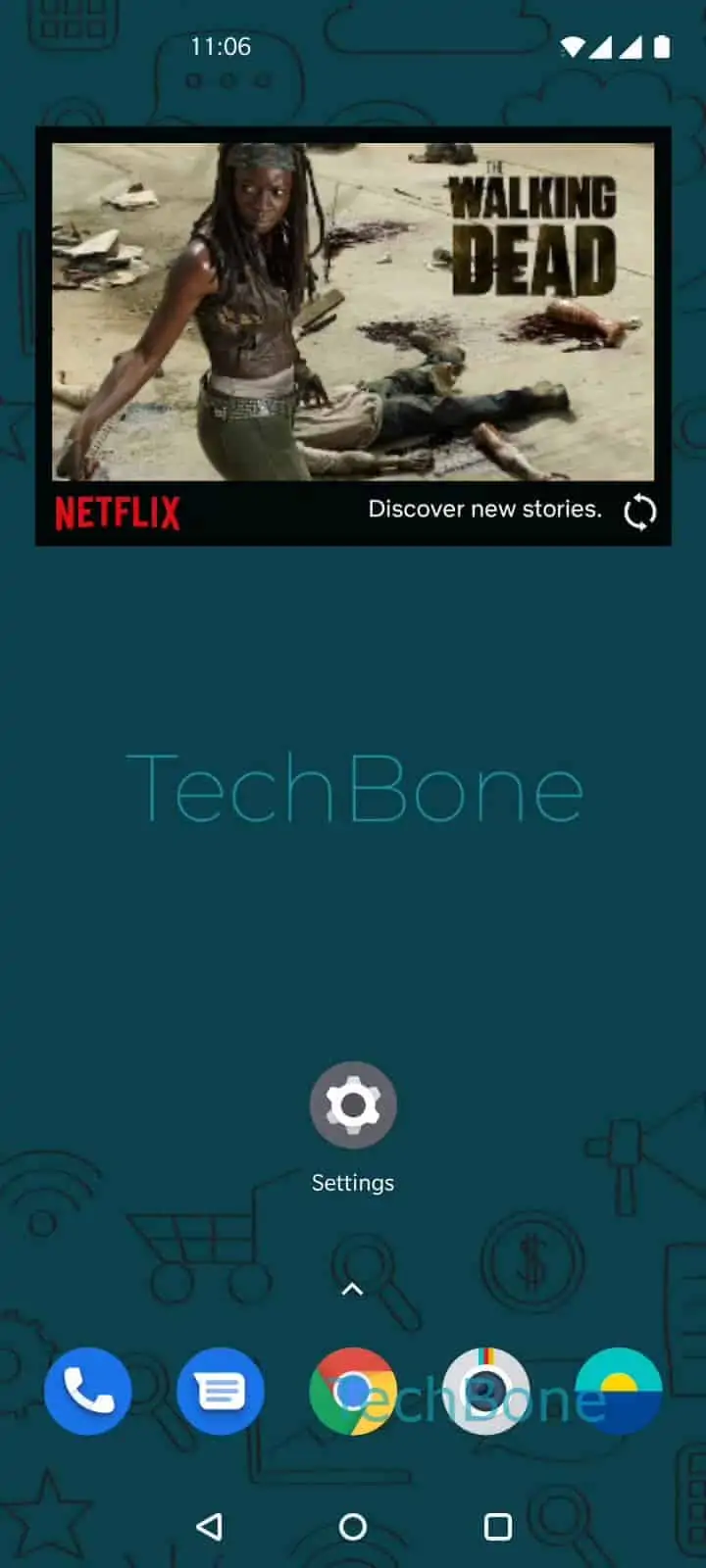
Widgets live directly on the OnePlus home screen and never appear in the app drawer, so the long-press-then-drag-to-trash routine you might know from apps does not apply here. Instead, the home screen itself switches into an edit state once you interact with the widget correctly, and a dedicated remove option shows up next to it.
The action is short: Tap and hold the widget ➔ Tap on Remove. Holding the widget for a moment triggers a small outline or edit menu around it, and the Remove option appears either as a label or an icon attached to that outline.
Removing a widget this way only takes it off the home screen. The app behind it, if there is one, stays installed with all its data untouched, and you can add the same widget again later through the widget picker.
This method is different from uninstalling an app. If your goal is to free up storage or stop an app from running in the background, removing the widget alone will not achieve that, since the app itself remains active on the device.
If the widget resizes or moves instead of showing a remove option, you likely released the tap-and-hold too early or moved your finger during the hold. Try again with a slightly longer, steadier press before lifting your finger.