Skip to content
TechBone
OnePlus

OnePlus: Restore an Archived Conversation in Messages

If a chat you need is missing from the main screen of the Messages app, it is likely sitting in the Archived folder instead of being deleted. Archiving hides a conversation from the start page without removing any messages, which often confuses users who think the thread is gone for good. You can still open and read an archived chat directly, but it will not show new message alerts on the home screen until you bring it back.

4 min5 steps
VersionAndroid 10 · Oxygenos 10

Step by step

1 / 5

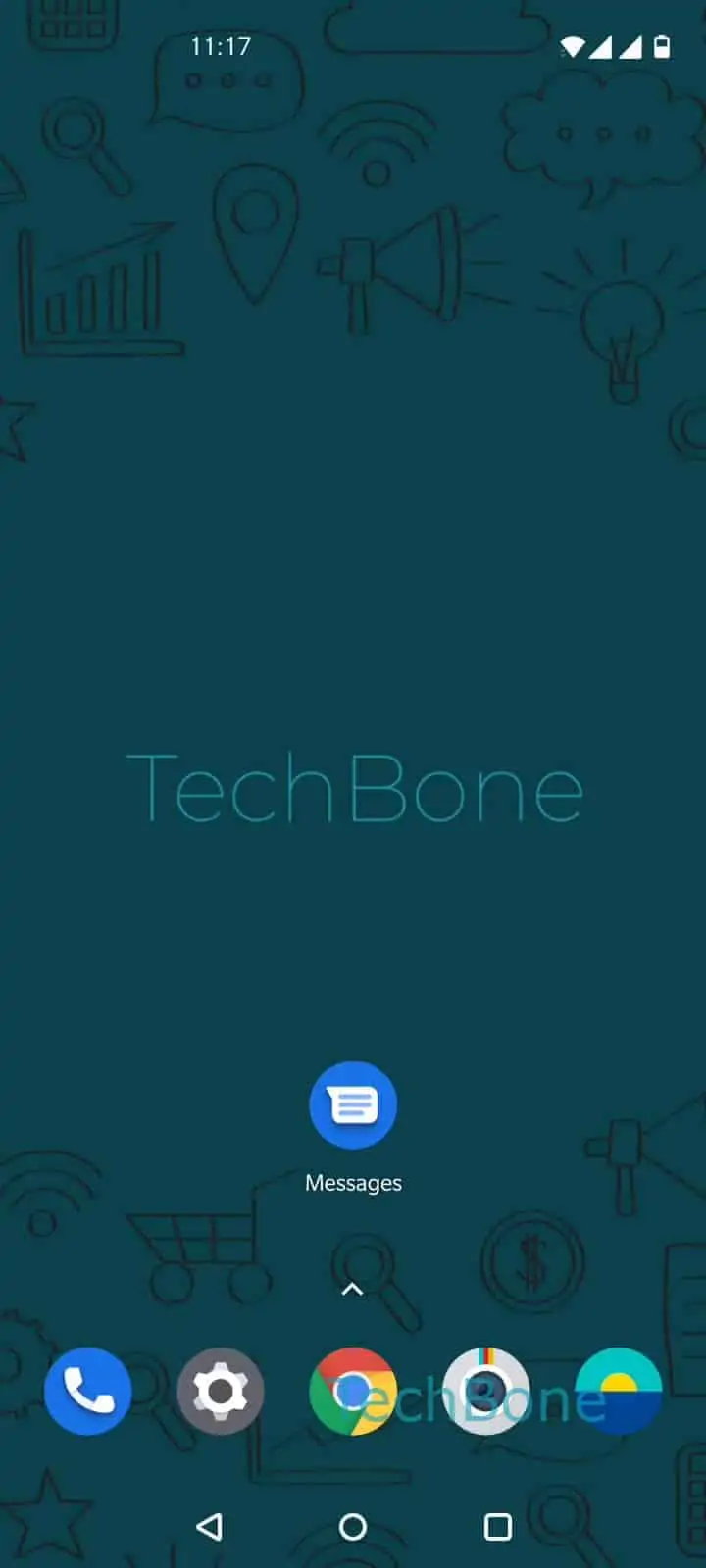
Step 1 of 5: Open the **Messages app**

1

Open the Messages app

Live simulator

Android 10 · Oxygenos 10
Restore Archived Conversations in Messages – Oxygenos 10: step 1 – Open the Messages app
Open the Messages app
1 / 5

Scroll or use the buttons for the next step

Feedback

Was the guide correct?

Help others: confirm the path or report a problem.

76

Confirmations

Forum verified this path

OnePlus

Restore Archived Conversations in Messages auf OnePlus

On OnePlus phones running OxygenOS, archiving a conversation moves it out of the main inbox view but keeps every message intact. This is different from deleting a chat, which removes the content permanently. Archived threads stay searchable and can be opened directly from the archive, but they no longer trigger a preview on the Messages start screen, which is why a contact can seem to have vanished.

To bring a conversation back to the main list, open Open the Messages appOpen the menuTap on Archived. From the list of archived chats, Tap and hold a conversation to select it, then choose Tap on Restore/unarchive. The thread reappears on the Messages home screen exactly as it was before archiving, including all previous messages and attachments.

Use this restore option whenever you want a chat back in your regular inbox for quick access or new-message alerts. If you only need to check old messages occasionally, you can leave a conversation archived and open it straight from the Archived folder instead. Restoring does not affect notification settings for that contact, so check those separately if alerts still stay quiet after unarchiving.

Frequently asked questions

No. Tap on Restore/unarchive only moves the conversation back to the main Messages screen. All existing messages, photos, and attachments stay exactly as they were.

Compatible devices

Tap your device — opens its hub with matching guides.