Skip to content
TechBone
OnePlus

OnePlus: Schedule Night Mode to Turn On Automatically

If you keep forgetting to switch Night mode on in the evening or off again in the morning, manual toggling is the actual problem, not the feature. OnePlus lets you tie Night mode to a fixed time window or to sunset and sunrise, but the automation only works once the correct trigger rule is active. Pick the wrong option and the warm tint either stays on all day or never kicks in at night.

4 min5 steps
VersionAndroid 10 · Oxygenos 10

Step by step

1 / 5

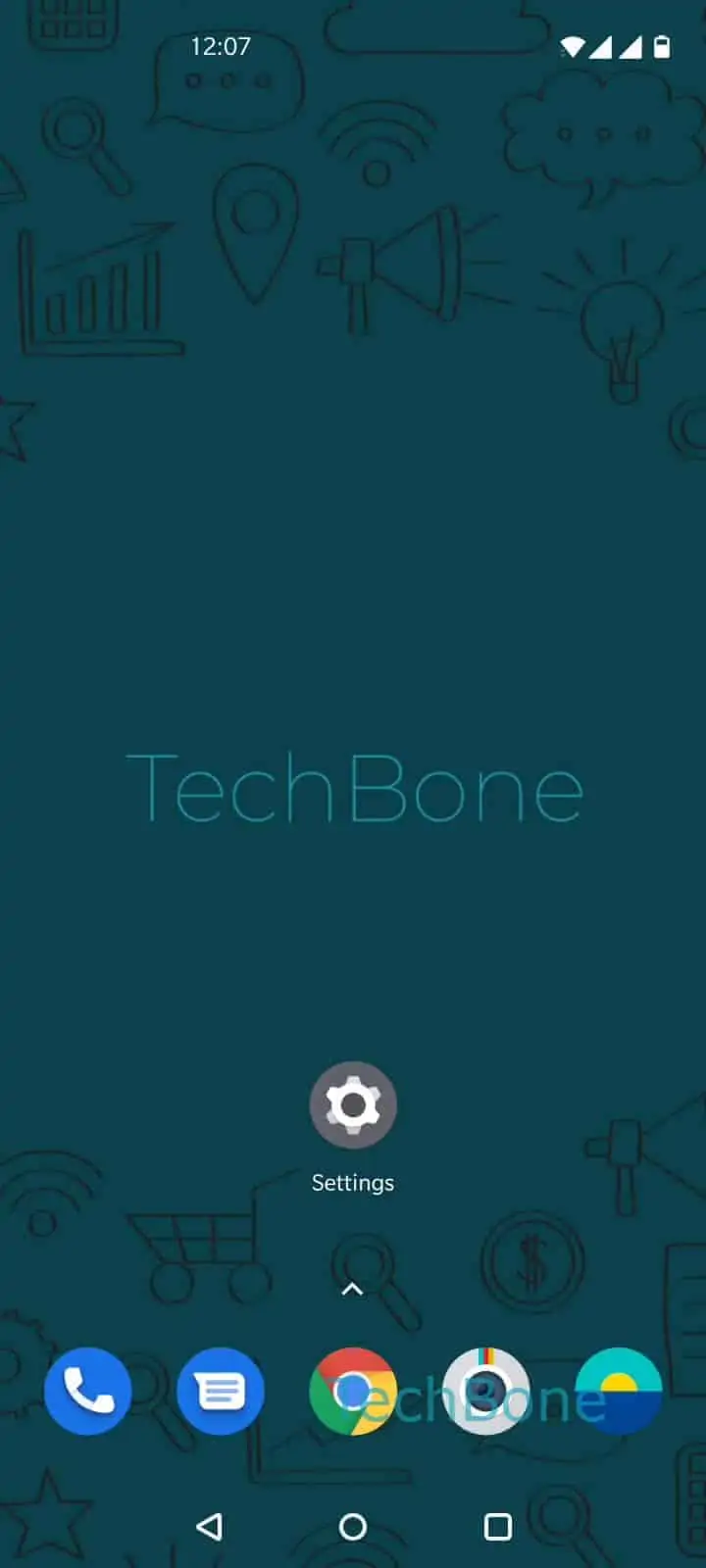
Step 1 of 5: Open the **Settings**

1

Open the Settings

Live simulator

Android 10 · Oxygenos 10
Automatic Night Mode Schedule – Oxygenos 10: step 1 – Open the Settings
Open the Settings
1 / 5

Scroll or use the buttons for the next step

Feedback

Was the guide correct?

Help others: confirm the path or report a problem.

53

Confirmations

Forum verified this path

OnePlus

Automatic Night Mode Schedule auf OnePlus

Night mode on OnePlus phones warms up the display colors to reduce eye strain in low light. Left on manual, it only activates when you remember to tap the toggle, which is why many users see it either running during the day or missing at night.

A schedule fixes that by handing control to the system. You get two trigger options: a rule that follows local sunset and sunrise times, or a custom time range you set yourself. The sunset-to-sunrise rule adjusts automatically as days get longer or shorter, while a custom range stays fixed no matter the season.

To set it up, open SettingsDisplayNight modeTurn on automatically. From there choose either Automatically enable from sunset to sunrise or Custom time range and enter your preferred start and end times.

Once a schedule is active, the manual toggle still works for quick overrides, but it reverts to the schedule at the next trigger point. If Night mode does not switch as expected, check that the correct rule is still selected and that your device location or time zone is accurate, since the sunset-to-sunrise rule depends on both.

Frequently asked questions

This usually happens when Automatically enable from sunset to sunrise is selected but your location or time zone is wrong, since the system calculates sunrise from that data. Switch to Custom time range and enter a fixed end time to bypass the location dependency.

Compatible devices

Tap your device — opens its hub with matching guides.