
OnePlus
Enable or Disable Screen Cast auf OnePlus
Screen cast on OnePlus phones mirrors your display to a TV, monitor or streaming stick over the local Wi-Fi network. It relies on the Wireless display protocol built into Android, so both the phone and the receiving device must be connected to the same network before a connection can be established.
If casting fails, the toggle for this feature is frequently the culprit. It can be switched off by default, disabled after a system update, or turned off accidentally from the quick settings panel.
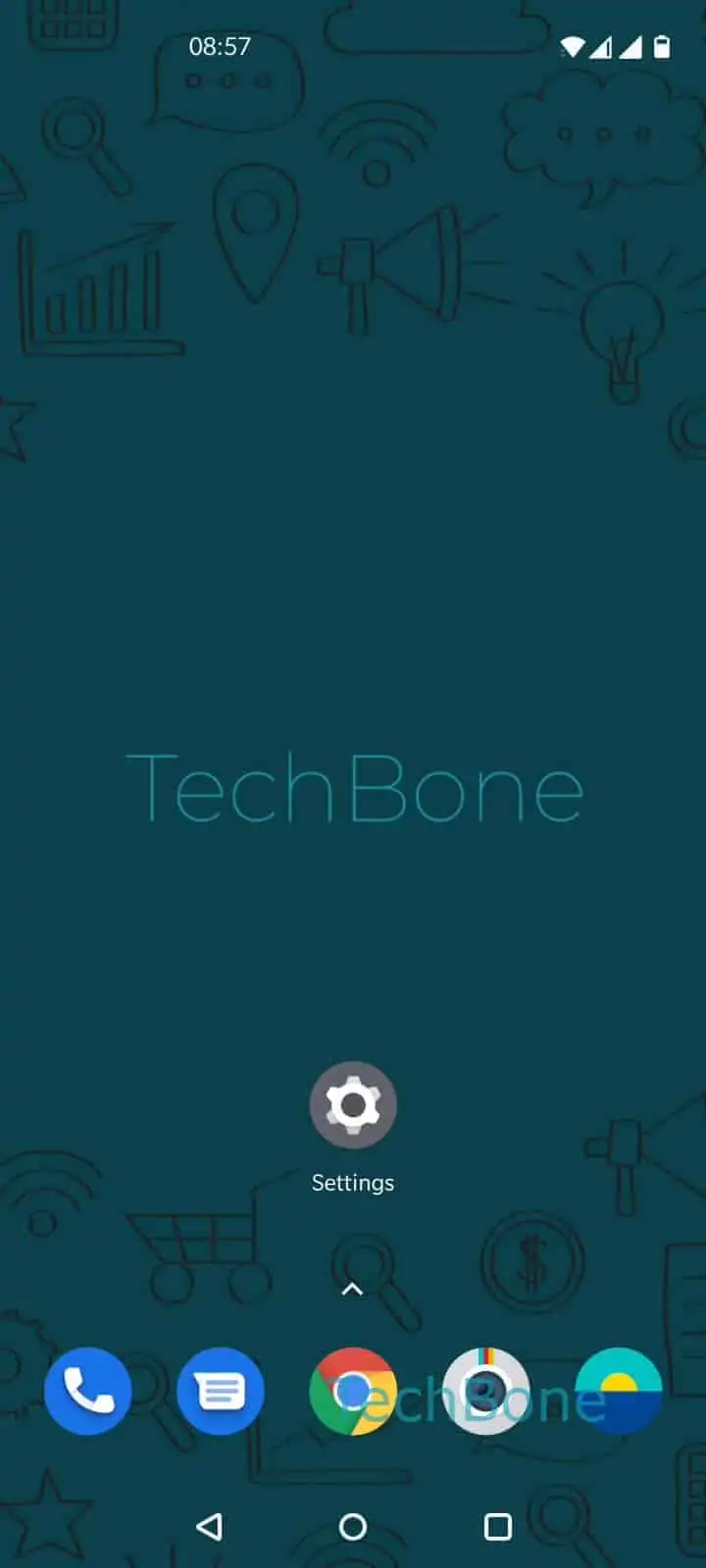
To check or change the setting, go to Open the Settings ➔ Tap on Bluetooth & device connection ➔ Tap on Cast ➔ Enable or disable Screen cast/Wireless display.
Once enabled, your phone will search for nearby compatible receivers. If none appear, confirm that the target device also supports wireless display and sits on the identical network.
Turning the option off is useful when you want to stop background scanning for cast targets, which can have a small effect on battery life. If you only need occasional mirroring, leaving the toggle off until needed avoids unnecessary network scans.