
OnePlus
Enable or Disable Screen Rotation auf OnePlus
Auto-rotate on a OnePlus phone relies on the built-in accelerometer to detect how you are holding the device and adjusts the screen orientation to match. This is useful for browsing, video playback, or reading wide content, but it can also rotate photos, games, or lock screens at moments you did not intend.
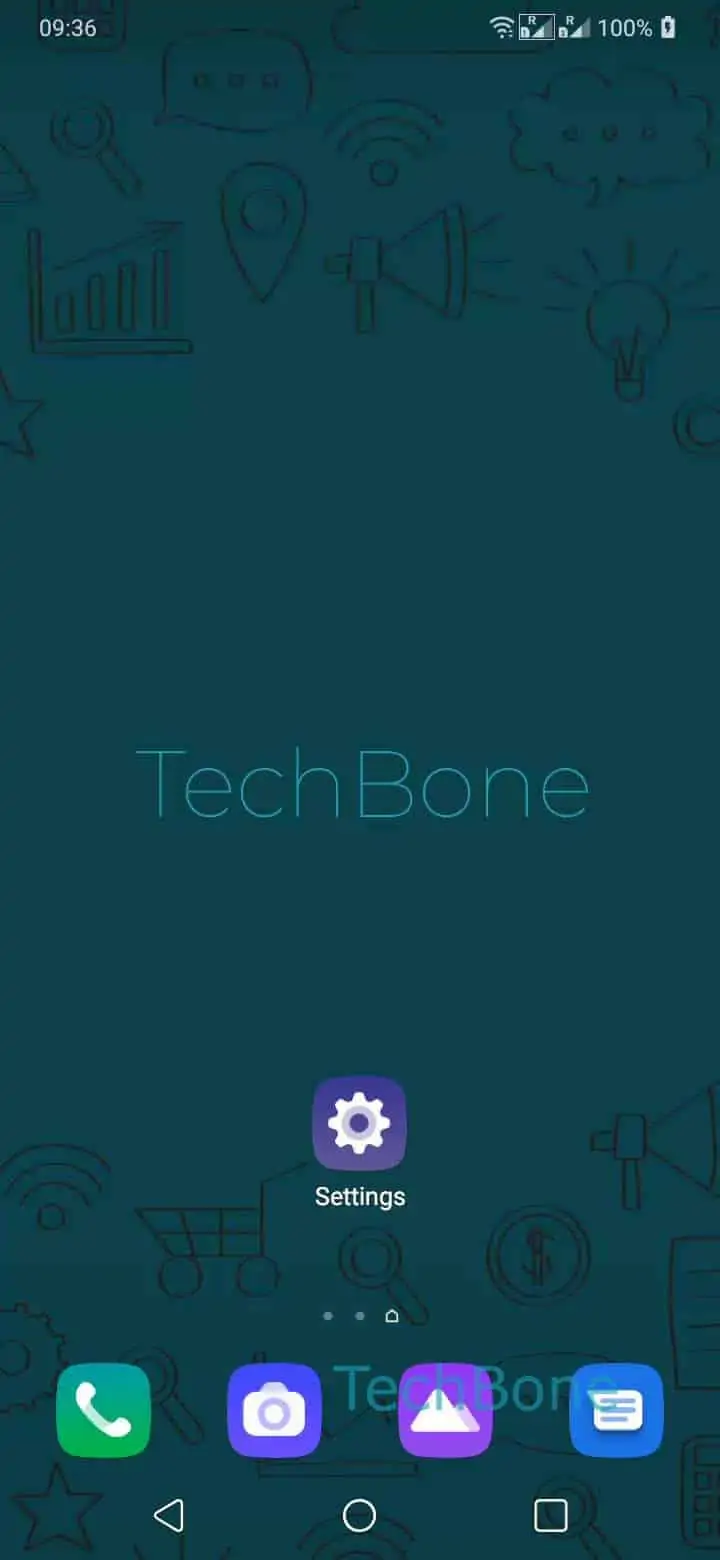
The toggle for this behavior sits directly in the display settings. Open Open the Settings ➔ Tap on Display ➔ Enable or disable Auto-rotate screen to switch it on or off. Turning it off locks the screen in portrait mode; turning it on lets the phone rotate freely between portrait and landscape.
If you only need rotation for a single app rather than system-wide, check that app's own display or reading settings first, since some apps override the system setting internally. Disabling Auto-rotate everywhere is the better fix if unwanted rotation happens across many apps, especially while lying down or using the phone one-handed.
A quick way to toggle this without digging through menus is the rotation icon that appears in the status bar or quick settings panel whenever the phone detects a change in orientation. Tapping it switches the current view without changing the underlying setting.