
Skip to content
TechBone
OnePlus

OnePlus: Turn Auto-Rotate On or Off

When you tilt your OnePlus sideways, the whole screen content flips with it, which helps when you are browsing a website or watching a video in landscape. The same behavior gets in the way when a photo, a game, or a fixed app layout rotates on its own at the wrong moment. If Auto-rotate keeps flipping your display unexpectedly, or refuses to rotate when you actually want it to, the setting controlling this behavior lives in the display options.

3 min3 steps
VersionAndroid 10 · Oxygenos 10

Step by step

1 / 3

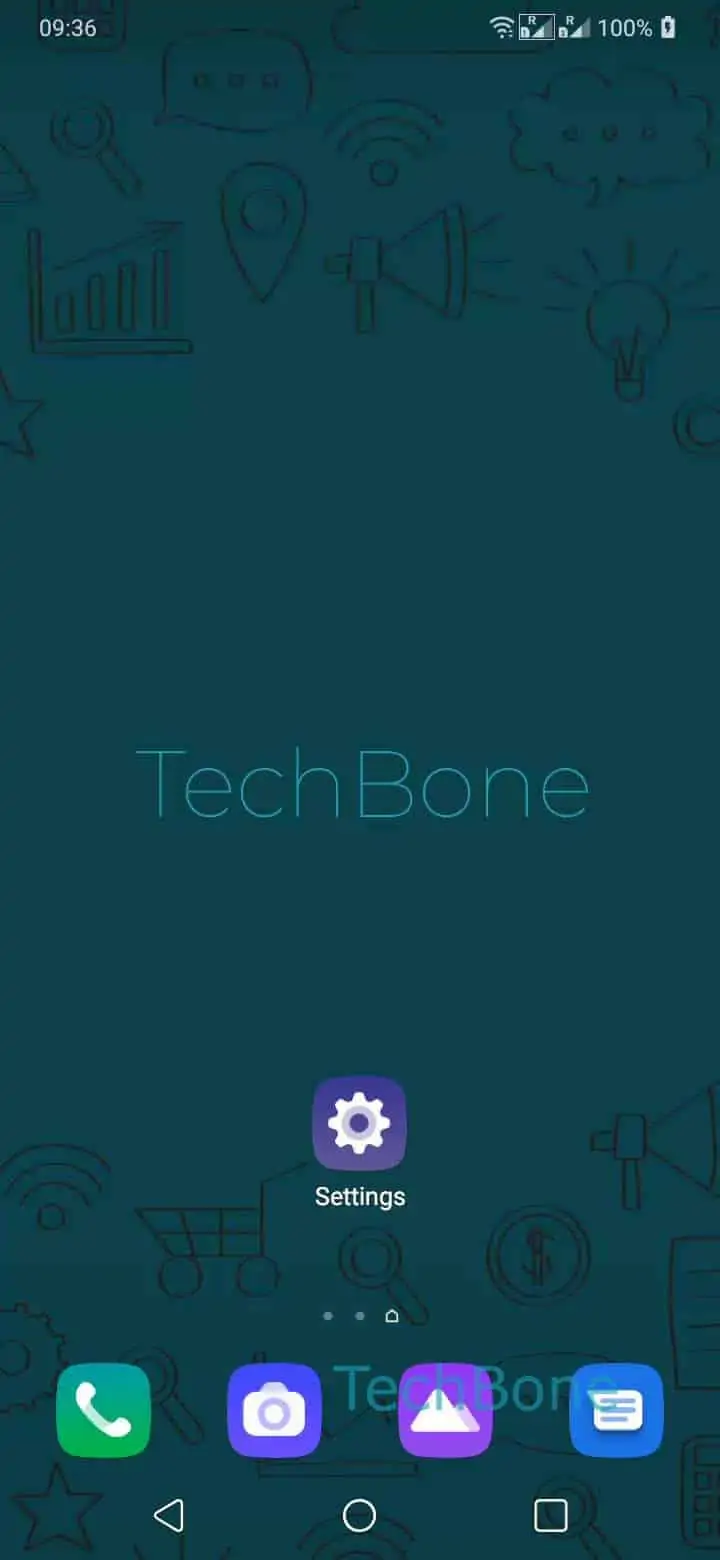
Step 1 of 3: Open the **Settings**

1

Open the Settings

Live simulator

Android 10 · Oxygenos 10
Enable or Disable Screen Rotation – Oxygenos 10: step 1 – Open the Settings
Open the Settings
1 / 3

Scroll or use the buttons for the next step

Feedback

Was the guide correct?

Help others: confirm the path or report a problem.

93

Confirmations

Forum verified this path

OnePlus

Enable or Disable Screen Rotation auf OnePlus

Auto-rotate on a OnePlus phone relies on the built-in accelerometer to detect how you are holding the device and adjusts the screen orientation to match. This is useful for browsing, video playback, or reading wide content, but it can also rotate photos, games, or lock screens at moments you did not intend.

The toggle for this behavior sits directly in the display settings. Open Open the SettingsTap on DisplayEnable or disable Auto-rotate screen to switch it on or off. Turning it off locks the screen in portrait mode; turning it on lets the phone rotate freely between portrait and landscape.

If you only need rotation for a single app rather than system-wide, check that app's own display or reading settings first, since some apps override the system setting internally. Disabling Auto-rotate everywhere is the better fix if unwanted rotation happens across many apps, especially while lying down or using the phone one-handed.

A quick way to toggle this without digging through menus is the rotation icon that appears in the status bar or quick settings panel whenever the phone detects a change in orientation. Tapping it switches the current view without changing the underlying setting.

Frequently asked questions

Some apps lock their own orientation regardless of the system setting, and certain screens like the home screen or lock screen may not support rotation at all. Check the app's internal display option, or confirm the toggle at Open the SettingsTap on DisplayEnable or disable Auto-rotate screen is actually set to on.

Compatible devices

Tap your device — opens its hub with matching guides.