Skip to content
TechBone
OnePlus

OnePlus: Set a Lock Screen Password

If your OnePlus phone has no lock screen password set, anyone who picks it up can open contacts, messages, photos and apps without restriction. OxygenOS offers Pattern, PIN and Password as unlock methods, but many users skip this step during setup or after a reset. Without an active lock method, private data and payment apps stay exposed the moment someone else grabs the device.

6 min8 steps
VersionAndroid 10 · Oxygenos 10

Step by step

1 / 8

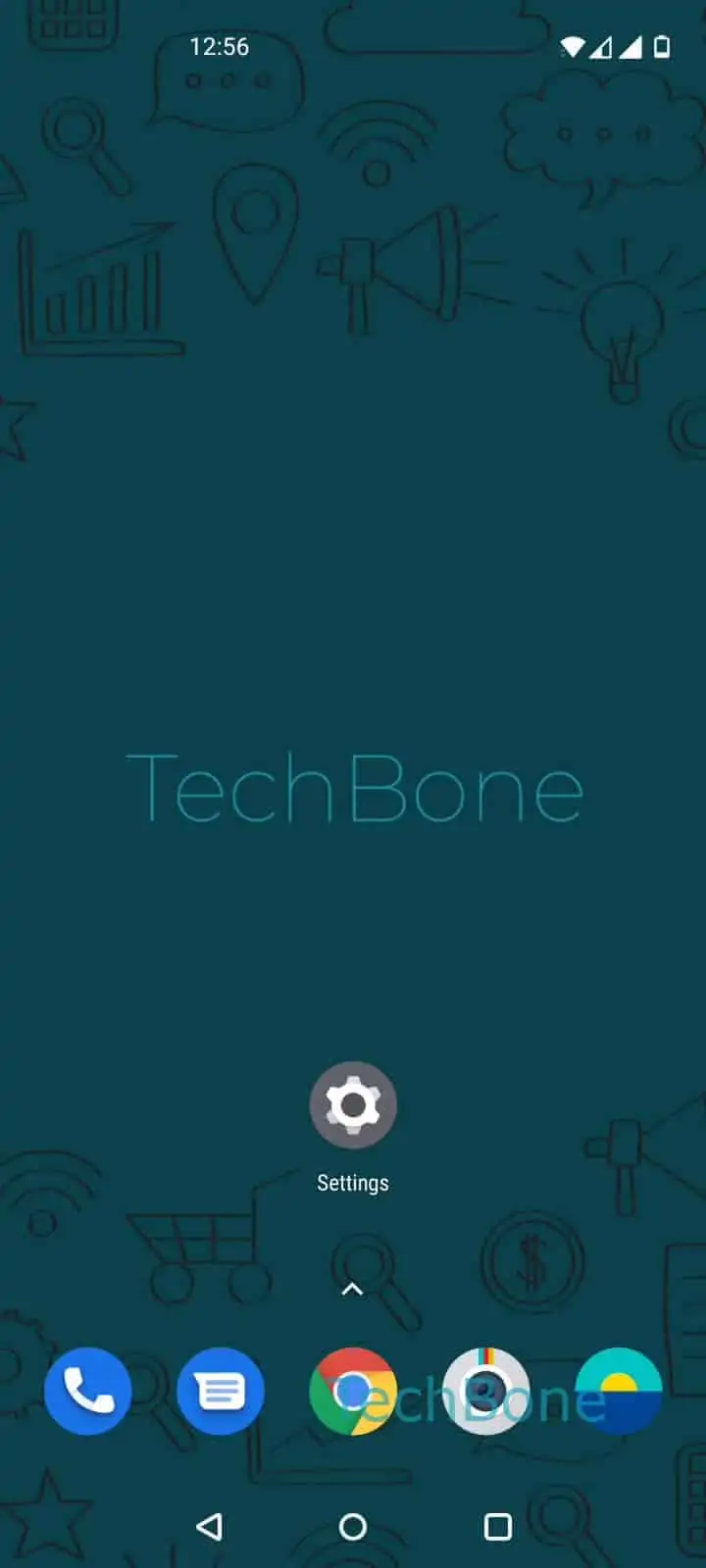
Step 1 of 8: Open the **Settings**

1

Open the Settings

Live simulator

Android 10 · Oxygenos 10
Set a Lock Screen Password – Oxygenos 10: step 1 – Open the Settings
Open the Settings
1 / 8

Scroll or use the buttons for the next step

Feedback

Was the guide correct?

Help others: confirm the path or report a problem.

104

Confirmations

Forum verified this path

OnePlus

Set a Lock Screen Password auf OnePlus

OxygenOS ships without an active screen lock by default on most OnePlus phones, especially right after a factory reset or a fresh setup. That leaves contacts, SMS messages, photos and installed apps open to anyone who picks up the device.

The lock method sits inside SettingsSecurity & lock screenLockscreen passcode. From there you pick Pattern, PIN or Password as your unlock method, enter it twice to confirm, and choose how notifications appear on a locked screen.

A Password gives you the widest character set and is harder to guess than a four-digit PIN or a swipe pattern. A Pattern is faster to enter but easier to observe over someone's shoulder.

The notification setting decides how much shows up before you unlock: full content, only that a notification arrived, or nothing at all. Choosing Show private content only when unlocked keeps message previews hidden from anyone glancing at the screen.

If you later add a fingerprint or face unlock, this passcode still stays active as the fallback method whenever biometrics fail.

Frequently asked questions

A Password with letters, numbers and symbols is harder to crack than a PIN or Pattern. Go to SettingsSecurity & lock screenLockscreen passcode and select Password if you want the strongest option.

Compatible devices

Tap your device — opens its hub with matching guides.