Skip to content
TechBone
OnePlus

OnePlus: Set the Default Keyboard Language for Gboard

If your OnePlus phone keeps opening a messaging app or input field with the wrong keyboard language, Gboard is likely still using an outdated default. Switching layouts manually every time you type gets annoying fast, especially with several keyboard languages installed. Reordering your language list fixes which layout loads automatically.

9 min11 steps
VersionAndroid 10 · Oxygenos 10

Step by step

1 / 11

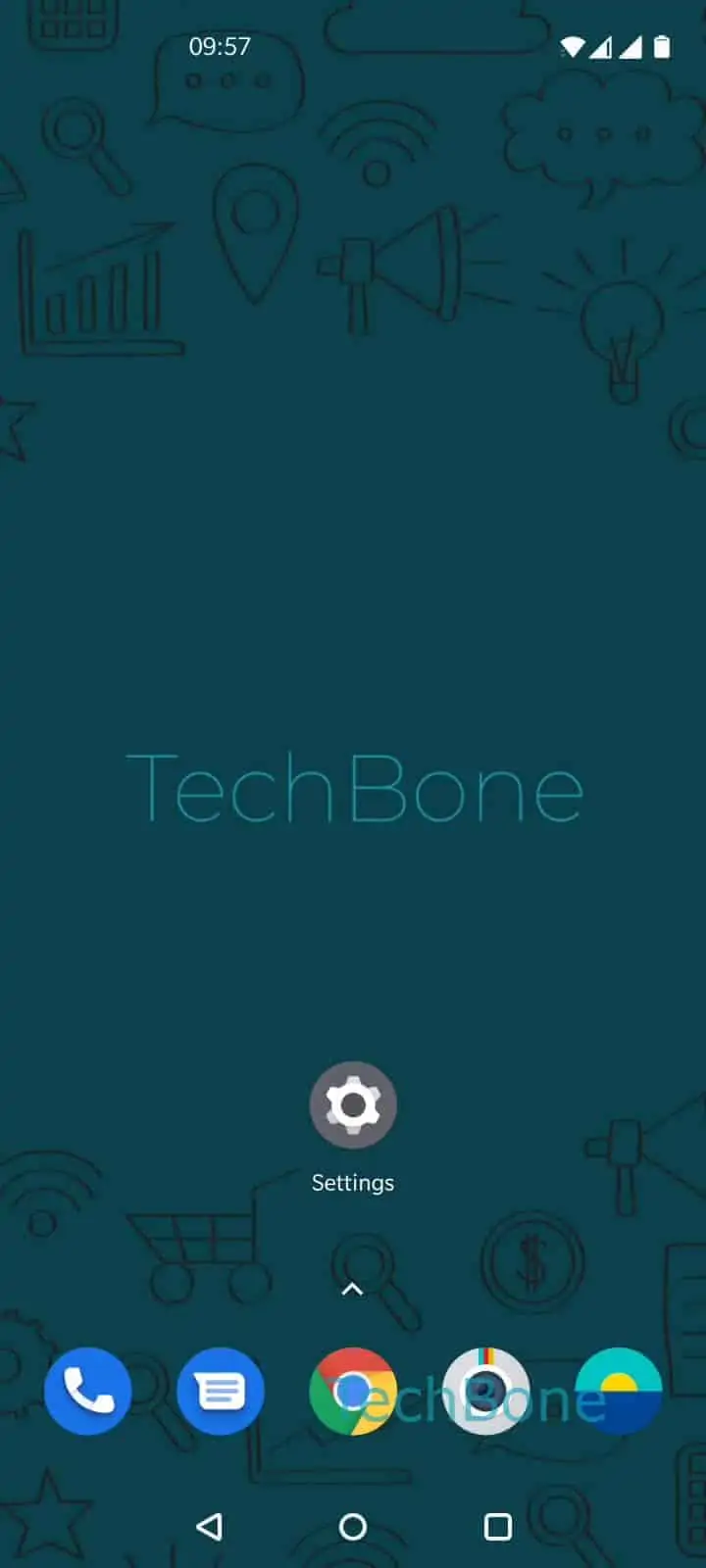
Step 1 of 11: Open the **Settings**

1

Open the Settings

Live simulator

Android 10 · Oxygenos 10
Set Default Keyboard Language – Oxygenos 10: step 1 – Open the Settings
Open the Settings
1 / 11

Scroll or use the buttons for the next step

Feedback

Was the guide correct?

Help others: confirm the path or report a problem.

52

Confirmations

Forum verified this path

OnePlus

Set Default Keyboard Language auf OnePlus

Gboard on OnePlus phones always loads the language that sits at the top of your installed keyboard list. If a messaging app or input field opens with the wrong layout, the language order in Gboard needs adjusting, not the app itself.

This happens most often after installing a second or third keyboard language. Gboard keeps using whichever language was added last as the default, ignoring the one you actually type in most.

To fix it, move your preferred language to the first position in the list:

Open the SettingsTap on SystemTap on Languages & inputTap on Virtual keyboardTap on GboardTap on LanguagesTap on EditTap and hold a keyboard languageDrag the keyboard language to the first positionRelease the keyboard language to position itTap on Back

Once released in the top slot, that language becomes the default. Gboard applies it immediately in every app without needing a restart.

If several layouts are still installed below it, you can leave them in place. Only the order matters for which one appears first when you open the keyboard.

Frequently asked questions

This usually means the language was moved but not released at the top of the list. Repeat the drag in Languages under Gboard and make sure the language sits above all others before tapping Back.

Compatible devices

Tap your device — opens its hub with matching guides.