Skip to content
TechBone
OnePlus

OnePlus: Share a Contact from the Contacts App

Forwarding a phone number often means retyping every detail by hand, from address to birthday. OnePlus lets you send contact details straight from the Contacts app, but the sharing option sits inside a menu that is easy to miss if you have never used it before.

5 min6 steps
VersionAndroid 10 · Oxygenos 10

Step by step

1 / 6

Step 1 of 6: Open the **Contacts app**

1

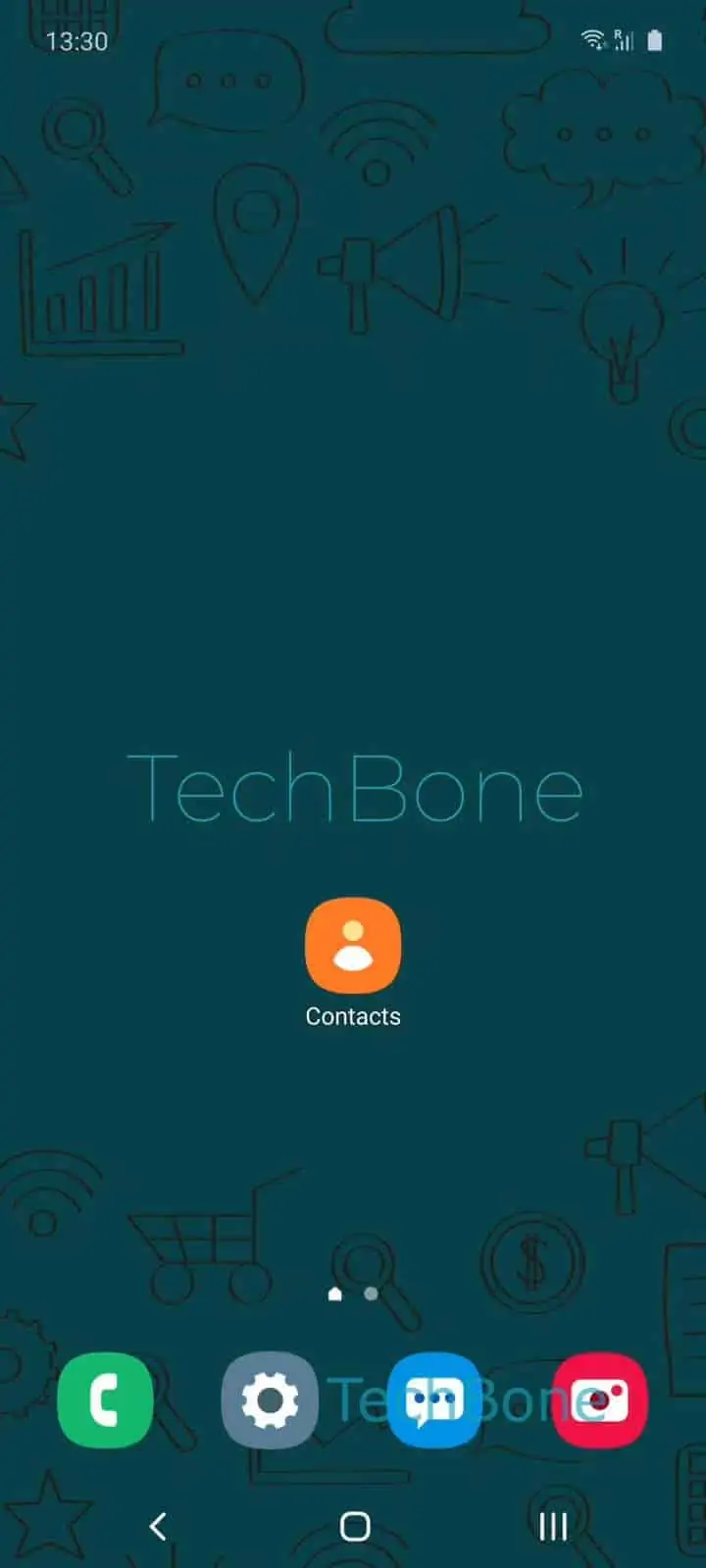
Open the Contacts app

Live simulator

Android 10 · Oxygenos 10
Share Contacts – Oxygenos 10: step 1 – Open the Contacts app
Open the Contacts app
1 / 6

Scroll or use the buttons for the next step

Feedback

Was the guide correct?

Help others: confirm the path or report a problem.

61

Confirmations

Forum verified this path

OnePlus

Share Contacts auf OnePlus

Typing out a phone number, an address, or a birthday for someone else takes time and invites mistakes. OnePlus phones skip that step by letting you share the details of a saved contact directly, sending only the fields you actually pick.

This option lives inside the Contacts app menu, not in the general Android share sheet, so it stays out of sight unless you know where to check. That matters when you only want to pass along a phone number without exposing an address or birthday stored on the same entry.

To send a contact, open Contacts and select the entry. Open the menu and tap Share. On the next screen, choose which details to include and confirm with Continue. Then pick an app such as Messages, Email, or a chat app, and follow the steps shown on screen to send it.

The same process works for contacts saved on the SIM, in a Google account, or stored locally on the phone. For a one-off handoff, this is faster than asking the other person to type in a new contact from scratch.

Frequently asked questions

Yes. On the sharing information screen, deselect address, email, birthday, or any other field you do not want to send, leaving only the number checked before you tap Continue.

Compatible devices

Tap your device — opens its hub with matching guides.