Skip to content
TechBone
OnePlus

OnePlus: Change Screen Timeout (Sleep Mode)

If your OnePlus display stays lit far longer than you need, it drains the battery faster than almost any other component. On the other hand, a timeout that is set too short can dim the screen mid-read, which gets annoying fast. This depends on the Sleep setting in the display options, and finding the right balance matters if you also use a pattern, PIN, or fingerprint lock.

3 min4 steps
VersionAndroid 10 · Oxygenos 10

Step by step

1 / 4

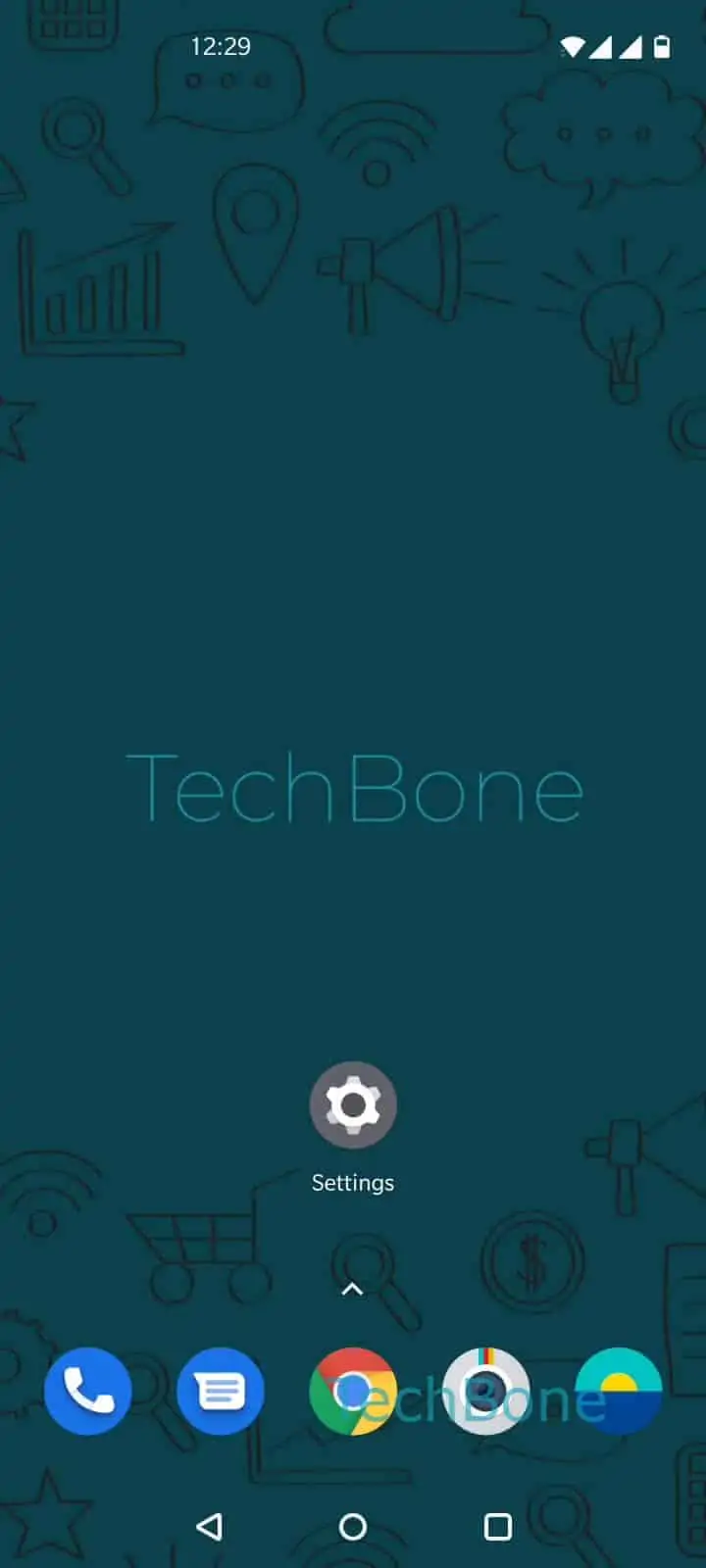
Step 1 of 4: Open the **Settings**

1

Open the Settings

Live simulator

Android 10 · Oxygenos 10
Screen Timeout / Sleep Mode Setting – Oxygenos 10: step 1 – Open the Settings
Open the Settings
1 / 4

Scroll or use the buttons for the next step

Feedback

Was the guide correct?

Help others: confirm the path or report a problem.

77

Confirmations

Forum verified this path

OnePlus

Screen Timeout / Sleep Mode Setting auf OnePlus

The Sleep setting on OnePlus phones controls how long the display stays active after your last touch. Once the countdown ends, the screen goes dark and the phone enters standby to save battery. The display is one of the biggest power consumers in daily use, so a timeout of 30 seconds or one minute is usually enough for most people.

A very long timeout, such as several minutes, keeps the screen bright even when you are not looking at it. That adds up over a day and shortens battery life noticeably, especially with an always-bright panel and high refresh rate active.

You find this option under Open the SettingsTap on DisplayTap on SleepSet the duration until sleep. Pick a value that matches how you use the phone: shorter for battery savings, longer if you often read or watch content without touching the screen.

If you use a pattern, PIN, or fingerprint lock, a short Sleep timeout also means the screen locks sooner after you put the phone down. That is useful for privacy but can feel abrupt if set too aggressively, so test a middle value like one minute before going lower.

Frequently asked questions

30 seconds is a solid middle ground for most people. Go to Open the SettingsTap on DisplayTap on SleepSet the duration until sleep and pick 30 seconds, then increase it only if the screen turns off too quickly during normal use.

Compatible devices

Tap your device — opens its hub with matching guides.