Skip to content
TechBone
OnePlus

OnePlus: Sort the Call List by First or Last Name

If contacts in your OnePlus call history seem to appear in the wrong order, the sort setting is often the cause. The Phone app lets you sort call list entries by first name or last name, independent of how the display name format is set. Mixing up these two settings is a common source of confusion.

5 min6 steps
VersionAndroid 10 · Oxygenos 10

Step by step

1 / 6

Step 1 of 6: Open the **Phone app**

1

Open the Phone app

Live simulator

Android 10 · Oxygenos 10
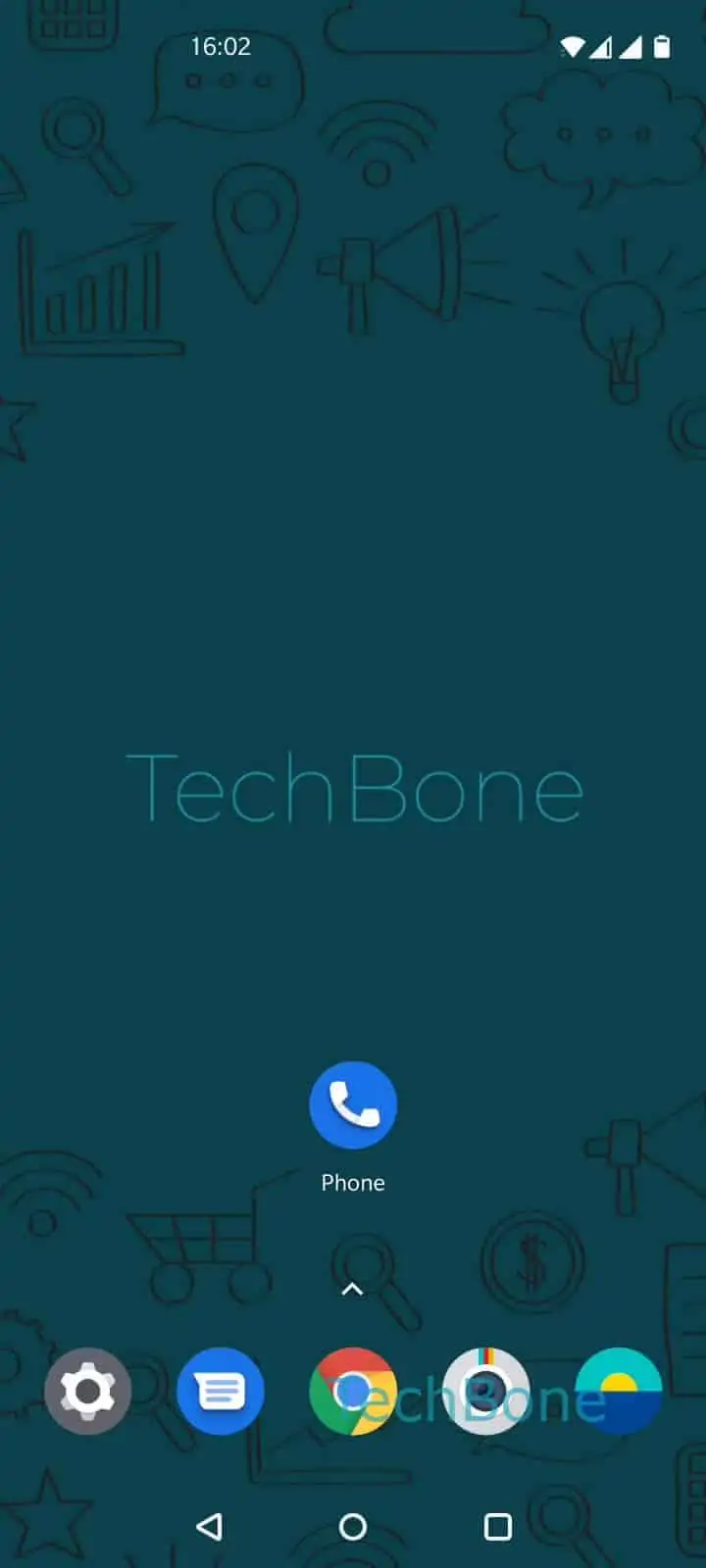
Sort Call List by First or Last Name – Oxygenos 10: step 1 – Open the Phone app
Open the Phone app
1 / 6

Scroll or use the buttons for the next step

Feedback

Was the guide correct?

Help others: confirm the path or report a problem.

82

Confirmations

Forum verified this path

OnePlus

Sort Call List by First or Last Name auf OnePlus

The call list of the OnePlus Phone app follows a dedicated sort function that is separate from the name display format. If entries seem to jump around after you add new contacts, this sort order decides the sequence, not the format shown next to each name.

To change it, open Open the Phone appOpen the menuOpen the SettingsTap on Display optionsTap on Sort byChoose First name or Last name.

Switching between First name and Last name only changes the order entries appear in, not how each name is written on screen. The display format is a separate option in the same Display options menu, so adjusting the sort order does not automatically change how names look.

If contacts still appear out of order after changing this setting, check whether the contact source, such as the device, SIM card, or a synced account, stores names in a different field. Some imported contacts split first and last names inconsistently, which can affect sorting even when the setting is correct.

Frequently asked questions

No. The Sort by option only changes the order of entries. The display format is a separate setting inside Display options.

Compatible devices

Tap your device — opens its hub with matching guides.