Skip to content
TechBone
OnePlus

OnePlus: Start the Screen Saver Manually

On most OnePlus phones the screen saver only starts automatically once the display is charging or sitting in a dock, so previewing a photo slideshow or the clock face means waiting around. There is no swipe gesture or quick-tile shortcut for it either, which leaves the feature hidden inside the display settings. Knowing where to trigger it manually saves you from plugging in the charger just to check your setup.

3 min4 steps
VersionAndroid 10 · Oxygenos 10

Step by step

1 / 4

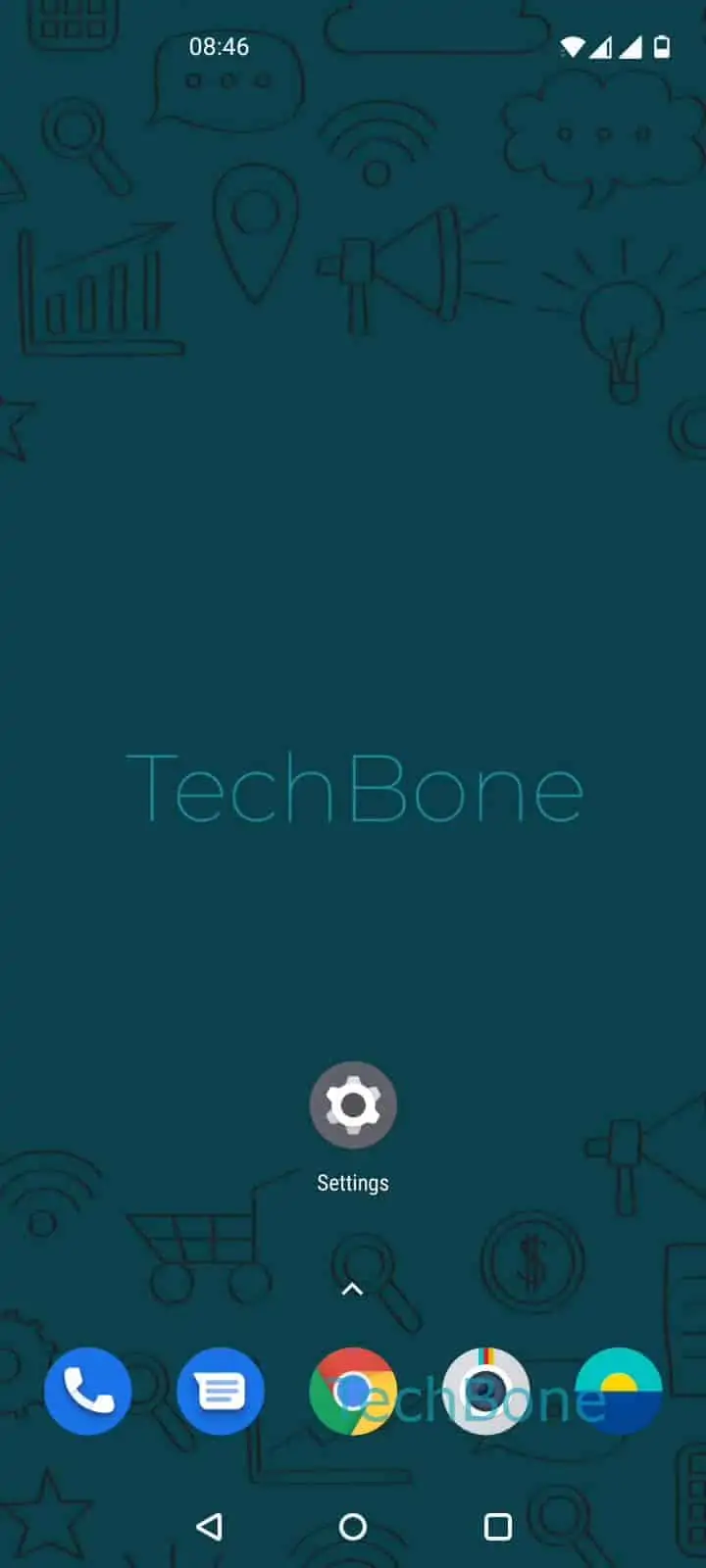
Step 1 of 4: Open the **Settings**

1

Open the Settings

Live simulator

Android 10 · Oxygenos 10
Start the Screen Saver Manually – Oxygenos 10: step 1 – Open the Settings
Open the Settings
1 / 4

Scroll or use the buttons for the next step

Feedback

Was the guide correct?

Help others: confirm the path or report a problem.

88

Confirmations

Forum verified this path

OnePlus

Start the Screen Saver Manually auf OnePlus

OnePlus phones tie the screen saver to the Display settings, but the system only launches it on its own once the phone is charging or resting in a dock. If you just want to check how a photo slideshow, the clock face, or a colour palette looks, waiting for that trigger is not necessary.

Open SettingsDisplayScreen saverStart now to launch the feature immediately, regardless of the charging state. The same menu lists the available screen saver styles, so you can switch between the current time, a colour palette, or your own photos before testing it.

Starting it manually helps when you are setting up a custom photo album or checking a display style at night, since you see the result right away instead of connecting a charger first. If nothing appears even after tapping Start now, check the toggle at the top of the same screen - if the screen saver feature itself is switched off, the preview is skipped.

Manual activation does not change how the screen saver behaves automatically afterwards. It only opens a preview session that ends the same way as the automatic version, either on touch or a button press.

Frequently asked questions

By default it only activates automatically while the phone is charging or placed in a dock. Outside those conditions you have to trigger it manually through SettingsDisplayScreen saverStart now.

Compatible devices

Tap your device — opens its hub with matching guides.