Skip to content
TechBone
OnePlus

OnePlus: Snooze a Notification Temporarily

A WhatsApp message or other alert keeps sitting in the notification bar until you open or dismiss it, even when you just need a break from it right now. OnePlus phones have a built-in Snooze option for exactly this case, but it only shows up once you swipe the right way and it stays hidden if notification access for that app is limited. Without it, you are stuck choosing between reading the message immediately or clearing it away for good.

4 min5 steps
VersionAndroid 10 · Oxygenos 10

Step by step

1 / 5

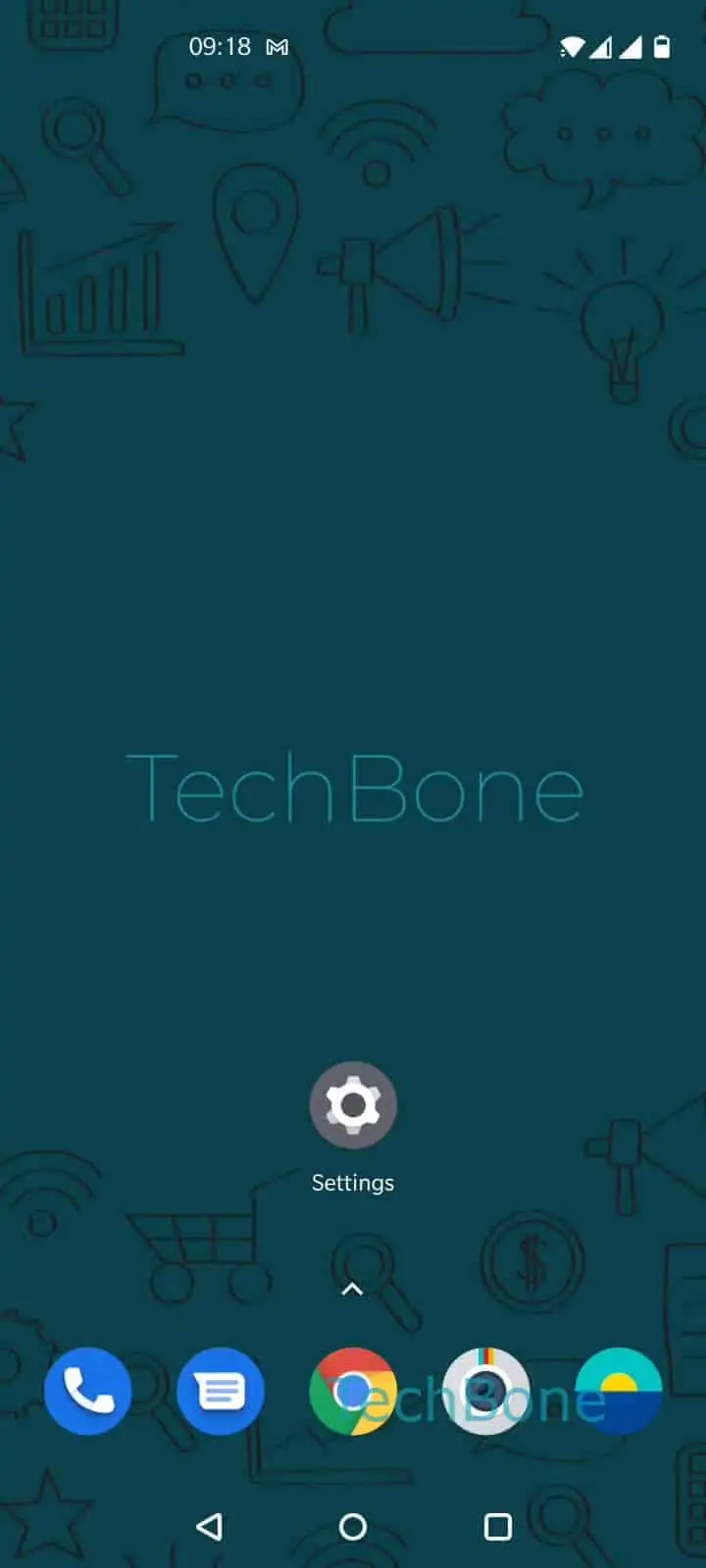
Step 1 of 5: Swipe **downwards**to open the notification bar

1

Swipe downwardsto open the notification bar

Live simulator

Android 10 · Oxygenos 10
Snooze a Notification Temporarily – Oxygenos 10: step 1 – Swipe downwardsto open the notification bar
Swipe downwardsto open the notification bar
1 / 5

Scroll or use the buttons for the next step

Feedback

Was the guide correct?

Help others: confirm the path or report a problem.

33

Confirmations

Forum verified this path

OnePlus

Snooze a Notification Temporarily auf OnePlus

Notifications on a OnePlus phone stay visible in the notification bar until you tap them or swipe them away. If you want a message or alert to disappear for a while without marking it as read, the Snooze function handles that.

Snooze hides a single notification for a set time and brings it back automatically once that time runs out. This is useful for group chats or app alerts you want to check later, not now.

How to snooze a notification

Swipe downwards to open the notification barSwipe to the right to open the additional menuTap on SnoozeTap on Snoozed for ...Choose 15 / 30 minutes or 1 / 2 hours

Once the time picked runs out, the notification reappears in the bar exactly as before, so nothing gets lost. If the Snooze option does not appear when you swipe, check that notifications for that app are not blocked entirely in your system settings, since a fully disabled app will never show a swipe menu at all.

Snooze only works on individual notifications, not on an entire app permanently. For a longer-term solution, use app-specific notification settings or a focus mode instead.

Frequently asked questions

Snooze only appears in the additional menu after you swipe right on a notification, and it is unavailable if the app has no active notifications displayed or if the swipe was too short. Try a slower, full swipe to the right on the notification itself.

Compatible devices

Tap your device — opens its hub with matching guides.