
Skip to content
TechBone
OnePlus

OnePlus: Enable or Disable Three-Finger Screenshot

Taking a screenshot on your OnePlus normally means pressing Volume down and the Power button at the same time, which is fiddly with one hand or when a case covers the buttons. The Three-finger screenshot gesture offers an alternative by swiping down across the screen with three fingers. If that swipe suddenly stops working, or triggers by accident while gaming, the setting behind it usually needs a quick check.

3 min4 steps
VersionAndroid 10 · Oxygenos 10

Step by step

1 / 4

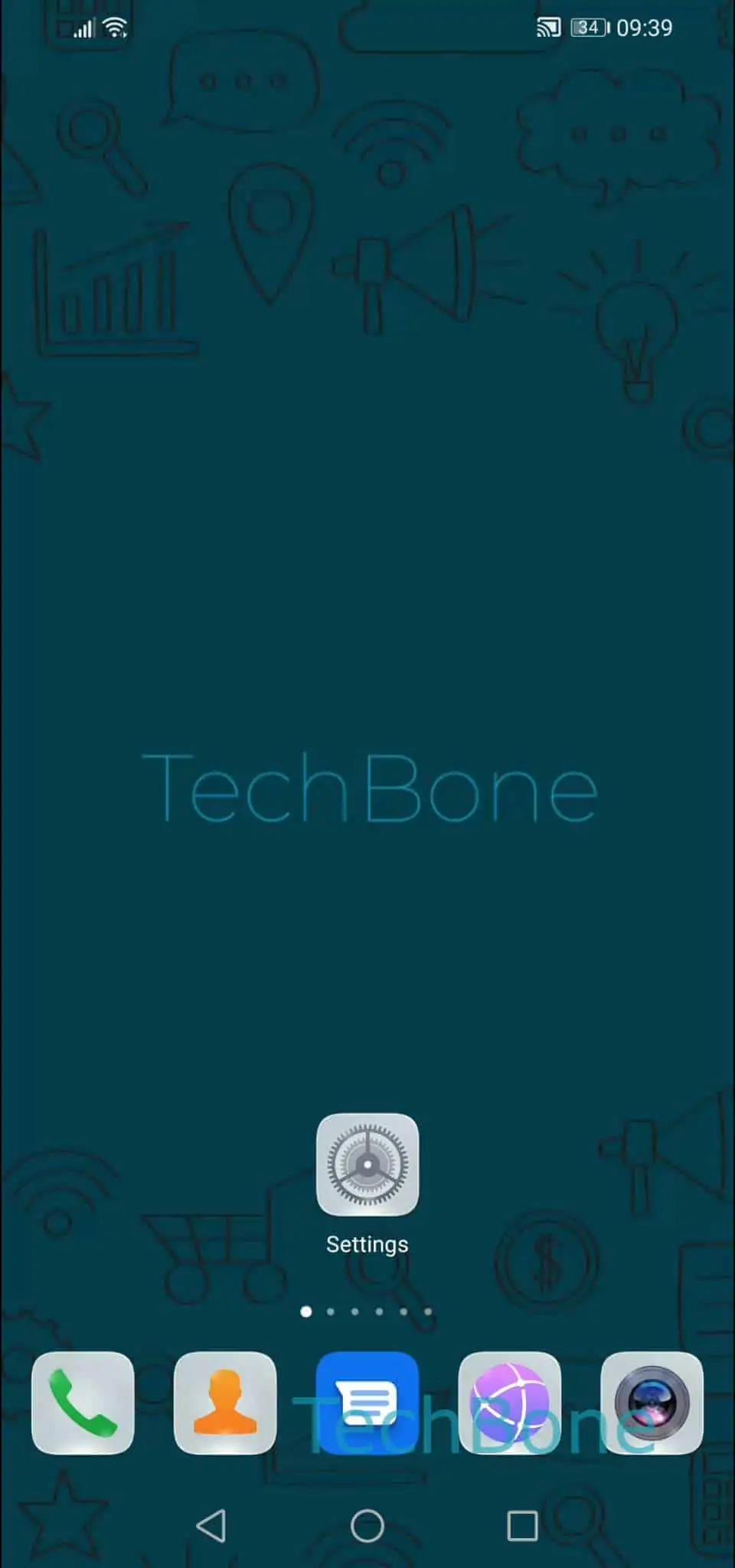
Step 1 of 4: Open the **Settings**

1

Open the Settings

Live simulator

Android 10 · Oxygenos 10
Enable or Disable Three-Finger Screenshot – Oxygenos 10: step 1 – Open the Settings
Open the Settings
1 / 4

Scroll or use the buttons for the next step

Feedback

Was the guide correct?

Help others: confirm the path or report a problem.

33

Confirmations

Forum verified this path

OnePlus

Enable or Disable Three-Finger Screenshot auf OnePlus

OnePlus phones capture screenshots by default with a short press of Volume down and the Power button together. That combination works fine, but it is awkward one-handed or when a thick case makes the buttons hard to reach. The Three-finger screenshot gesture solves this by letting you swipe down across the display with three fingers instead of touching any physical button.

The gesture lives inside the general gesture settings of OxygenOS, not in a separate screenshot menu, which is why many users never notice the toggle. To switch it on or off, follow this Menüpfad:

Open the SettingsTap on Buttons & gesturesTap on Quick gesturesEnable or disable Three-finger screenshot

Once enabled, a slow three-finger swipe from the top of the screen downward saves a screenshot the same way the button shortcut does. If the gesture fires unintentionally during games or while scrolling with multiple fingers, turning the toggle off from the same menu removes the swipe without affecting the Volume down plus Power button method, which always stays available.

Frequently asked questions

Confirm the toggle is still active under SettingsButtons & gesturesQuick gestures, since a system update can occasionally reset gesture settings. Also make sure the swipe covers a good portion of the screen in one smooth motion rather than a short tap.

Compatible devices

Tap your device — opens its hub with matching guides.