Skip to content
TechBone
OnePlus

OnePlus: View Detailed Weather in World Clock

World clock entries on your OnePlus show more than just the local time - each city also carries a small temperature reading next to it. That number alone does not tell you much, and it is not obvious how to see the fuller weather picture for a specific city.

3 min4 steps
VersionAndroid 10 · Oxygenos 10

Step by step

1 / 4

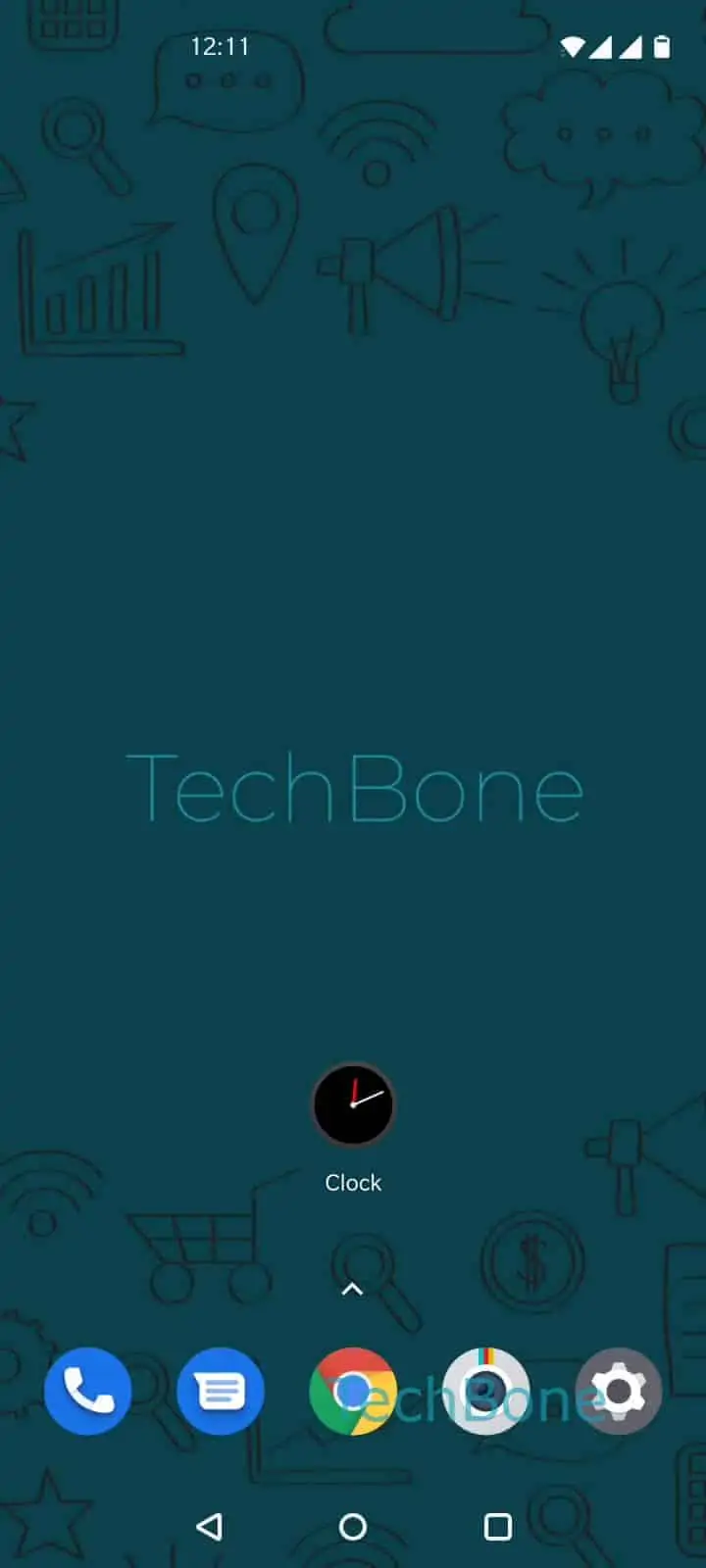
Step 1 of 4: Open the **Clock app**

1

Open the Clock app

Live simulator

Android 10 · Oxygenos 10
Show Weather Details for a City in World Clock – Oxygenos 10: step 1 – Open the Clock app
Open the Clock app
1 / 4

Scroll or use the buttons for the next step

Feedback

Was the guide correct?

Help others: confirm the path or report a problem.

67

Confirmations

Forum verified this path

OnePlus

Show Weather Details for a City in World Clock auf OnePlus

The World clock screen on OnePlus phones carries more information than the small temperature figure next to each city suggests. That number comes from a compressed weather summary tied to the entry itself, not a full forecast view.

To see current conditions or additional detail for a specific location, you need to open that city entry directly instead of relying on the glance value shown in the list.

Menüpfad: Open the Clock appTap on World clockTap on a citySwipe upwards to access more details

Tapping a city expands a card with the current weather snapshot for that location. Swiping upward on the card reveals additional detail, similar to pulling down a notification panel for more context.

This applies per city, so repeat the same steps for each entry you have saved. If a city shows no weather data at all, check that location access is allowed for the Clock app, since the weather feed depends on that permission.

Frequently asked questions

This usually points to location access being restricted for the Clock app. Check the app permissions in your device settings and allow location access, then reopen World clock and tap the city again.

Compatible devices

Tap your device — opens its hub with matching guides.