
Xiaomi
Turn On Second Space auf Xiaomi
Second space on a Xiaomi phone works like a second phone inside the same device. Apps, files, accounts, and settings installed in it stay completely separate from your main space, and switching between the two does not carry over notifications, photos, or logins.
This is useful when you lend your phone to someone else, want a strict work/private split, or need a clean test area for apps without touching your main setup. It goes further than a simple app lock, since the second space has its own storage and its own home screen rather than just a hidden folder.
How to enable it
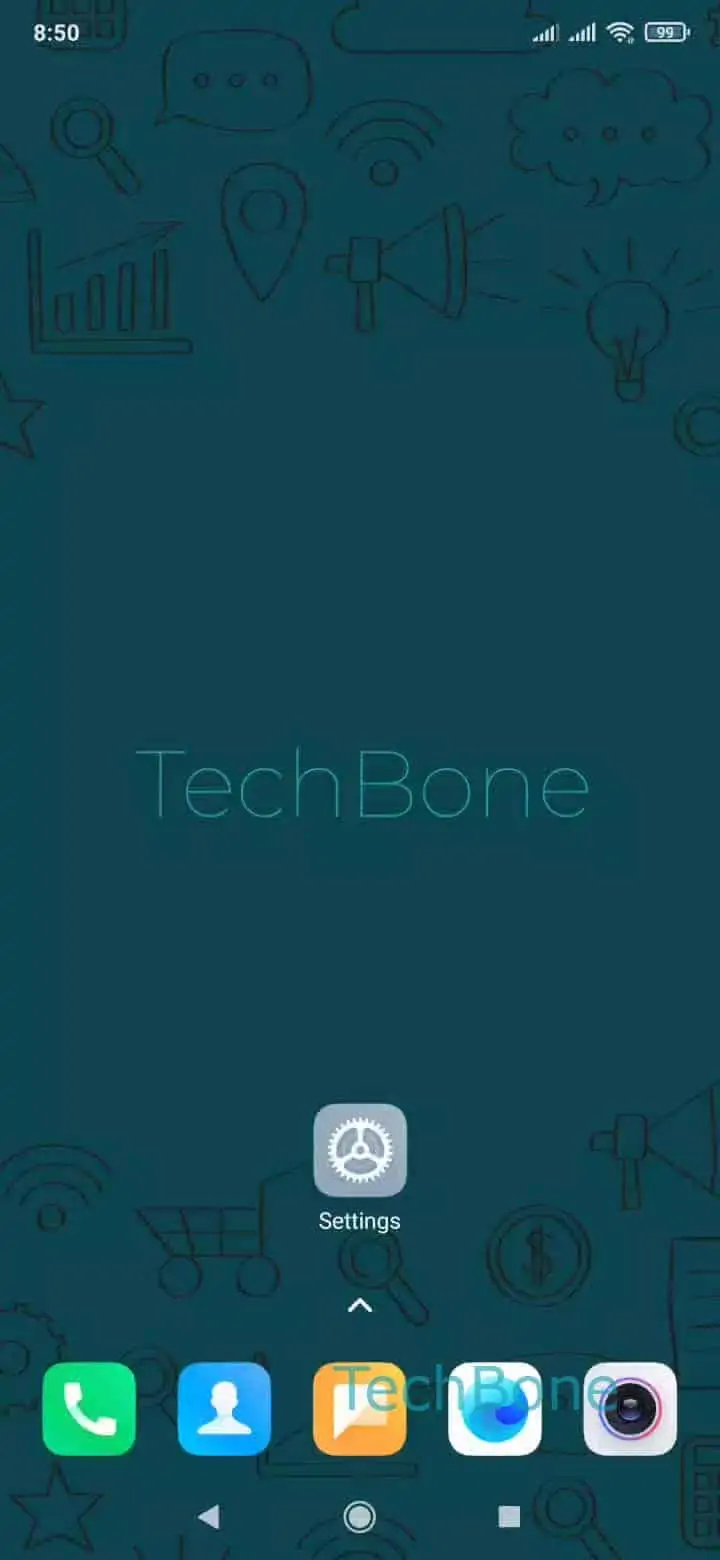
Open Settings ➔ tap on Special features ➔ tap on Second space ➔ tap on Turn on Second space and follow the setup steps shown on screen.
MIUI walks you through creating the new space, which can take a moment since it prepares a separate storage area. After setup, you can switch spaces from the same menu or through a quick shortcut, depending on how your device is configured.
Keep in mind that apps and accounts do not sync between spaces automatically. If you need the same app in both, you will have to install and set it up twice, with separate logins and data for each side.