
Xiaomi
Go Back to Previous App Gesture auf Xiaomi
The Go back to previous app gesture belongs to the full-screen navigation gestures on MIUI. It only becomes available once you have switched your device from the classic navigation buttons to full-screen gestures.
When enabled, swiping in from the left screen edge and holding briefly makes a small app icon appear at the edge. Releasing your finger switches straight back to the app you used before the current one, without pulling up the full recent-apps overview.
If this shortcut stops working, the toggle for it has usually been turned off separately, or your phone is still set to the older button-based navigation, which does not support this gesture at all.
You find the switch here:
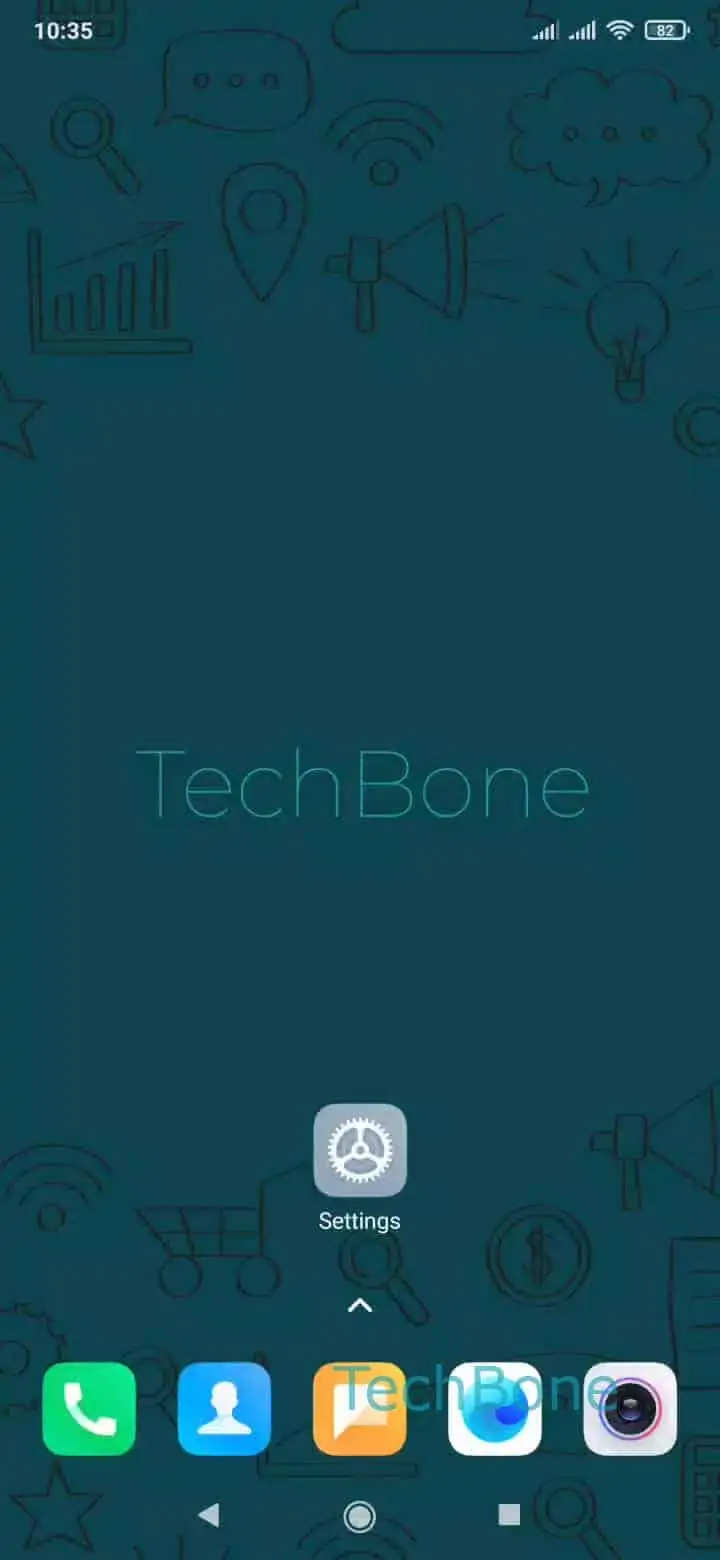
Open the Settings ➔ Tap on Additional settings ➔ Tap on Full screen display ➔ Enable or disable Go back to previous app
Turning the option off removes the edge preview entirely, and a left-edge swipe then only opens the regular back or home gesture instead. Turning it on restores the quick-switch behavior without affecting your other full-screen gestures, such as swiping up for home or swiping in from the side to go back a screen.
If the toggle is grayed out or missing, check that full-screen gestures are selected as your navigation style before looking for this setting again.