Skip to content
TechBone
Xiaomi

Xiaomi: Share a Contact as File, Text or QR Code

Trying to send a saved contact to someone but not sure which sharing format actually works on their phone? Xiaomi lets you send a contact as a file, as plain text, or as a scannable QR code, and each option behaves differently depending on the app you pick. Picking the wrong format is the usual reason a recipient cannot open or save the contact properly.

5 min6 steps
VersionAndroid 10 · MIUI

Step by step

1 / 6

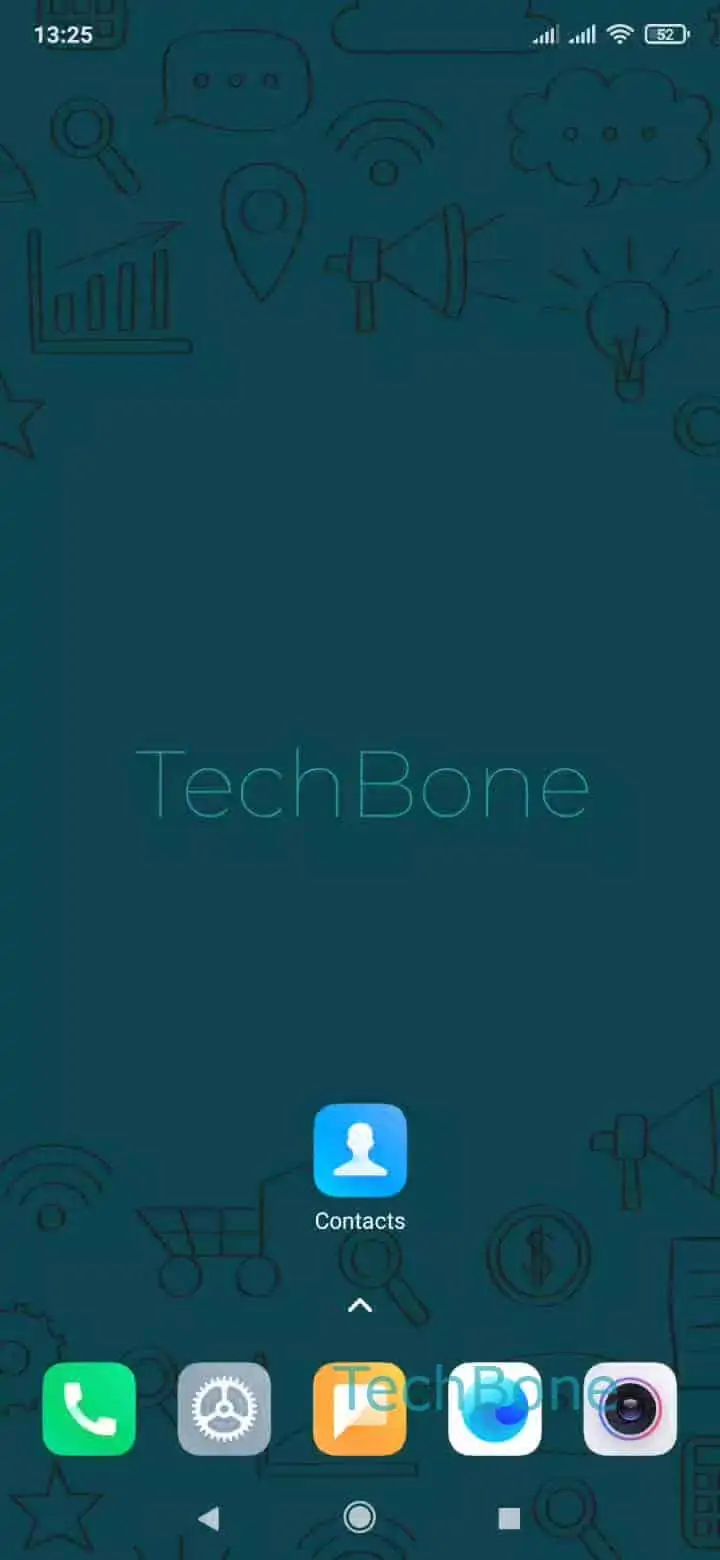
Step 1 of 6: Open the **Contacts app**

1

Open the Contacts app

Live simulator

Android 10 · MIUI
Share Contacts as File, Text or QR Code – MIUI: step 1 – Open the Contacts app
Open the Contacts app
1 / 6

Scroll or use the buttons for the next step

Feedback

Was the guide correct?

Help others: confirm the path or report a problem.

94

Confirmations

Forum verified this path

Xiaomi

Share Contacts as File, Text or QR Code auf Xiaomi

Xiaomi bundles three ways to hand off a saved contact: as a vCard file, as plain text, or as a scannable QR code. Each format lands differently on the receiving end, which is why picking the right one matters when a friend cannot open what you sent.

Open the Open the Contacts app and Choose a contact you want to send. From the contact profile, Open the menu and Tap on Share to reach the format picker.

At that point you Choose File, Text or QR code. File sharing works best over Messaging, Bluetooth or cloud apps, since it preserves all saved fields including photo and notes. Text sharing strips the contact down to readable lines, useful for apps that block file attachments. QR code sharing is the fastest option in person, since the other phone only needs to scan it with a camera or a contacts app that supports import.

Once you pick a format, Choose an app and follow the instructions on screen to finish sending. If the recipient uses a different phone brand, plain text or QR code usually import more reliably than a file attachment.

Frequently asked questions

Plain text or QR code import more reliably across brands than a file attachment. Use Choose File, Text or QR code and pick Text or QR code when you are unsure what the recipient's phone supports.