
Android
Turn Background Data On or Off for Apps auf Android
Background data lets an app stay connected to the internet even after you close it. This is what allows chat apps, mail clients or social media apps to fetch new content and trigger notifications without you having to open them first.
By default, background data is enabled for every installed app. Disabling it for a specific app stops that app from syncing or receiving push data until you open it manually, which explains delayed or missing notifications.
Turning background data off can also help control mobile data usage for apps you rarely use actively, or reduce battery drain caused by apps constantly checking for updates in the background.
Menu path
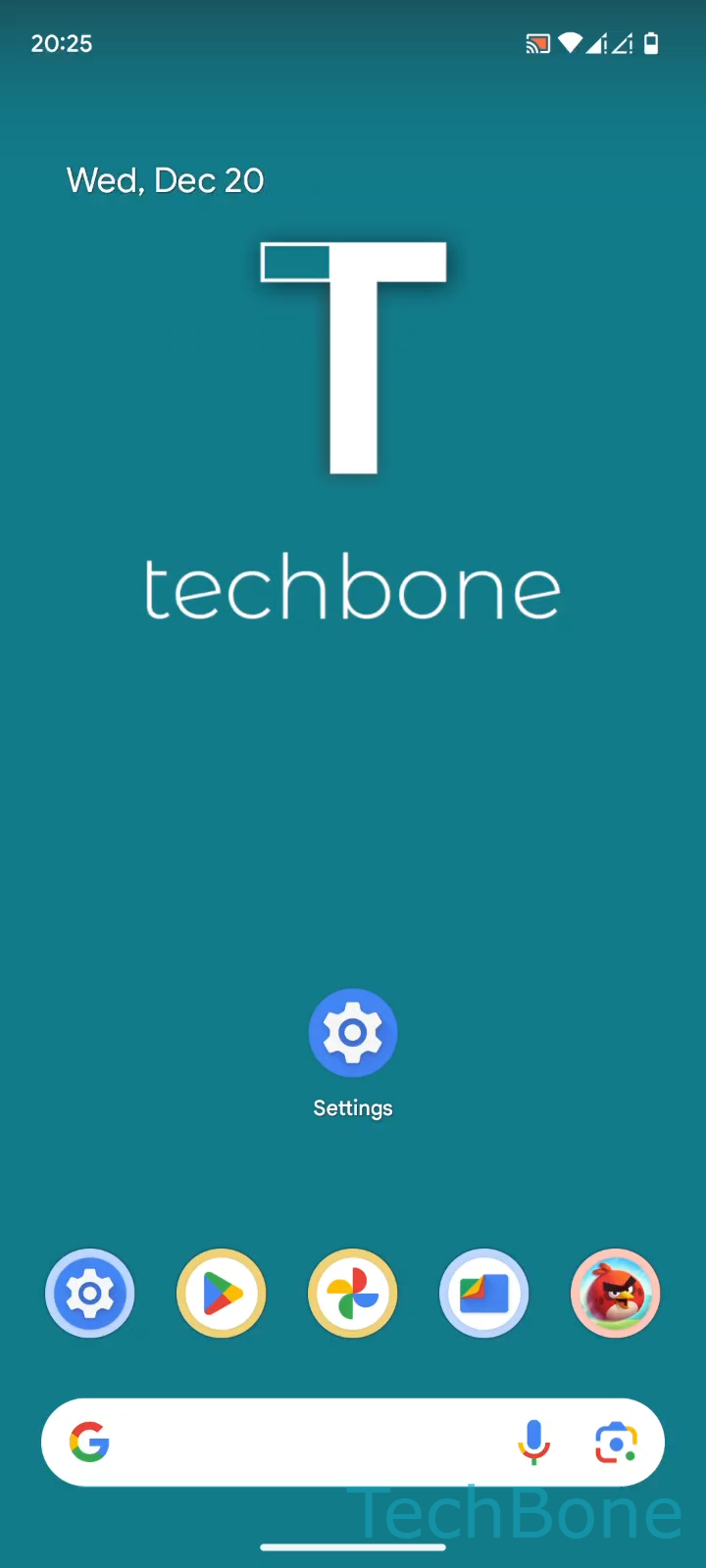
To change this setting, go to Tap on Settings ➔ Tap on Apps ➔ Tap on See all apps ➔ Choose an App ➔ Tap on Mobile data & Wi-Fi ➔ Enable or disable Background data.
This setting is per app, so you need to repeat the steps for every app you want to adjust. If an app still misbehaves after re-enabling background data, check whether battery optimization is also restricting it, since both settings can block background activity independently.