Skip to content
TechBone
Android

Android: Pair Google Messages with a Computer

If texts only show up on your phone and you want to reply from your desktop, Google Messages needs to be paired with your computer first. This feature used to be called Messages for Web and links your phone's messaging app with a browser session. Without pairing, the desktop version stays blank and won't sync any conversations.

4 min5 steps
Version

Step by step

1 / 5

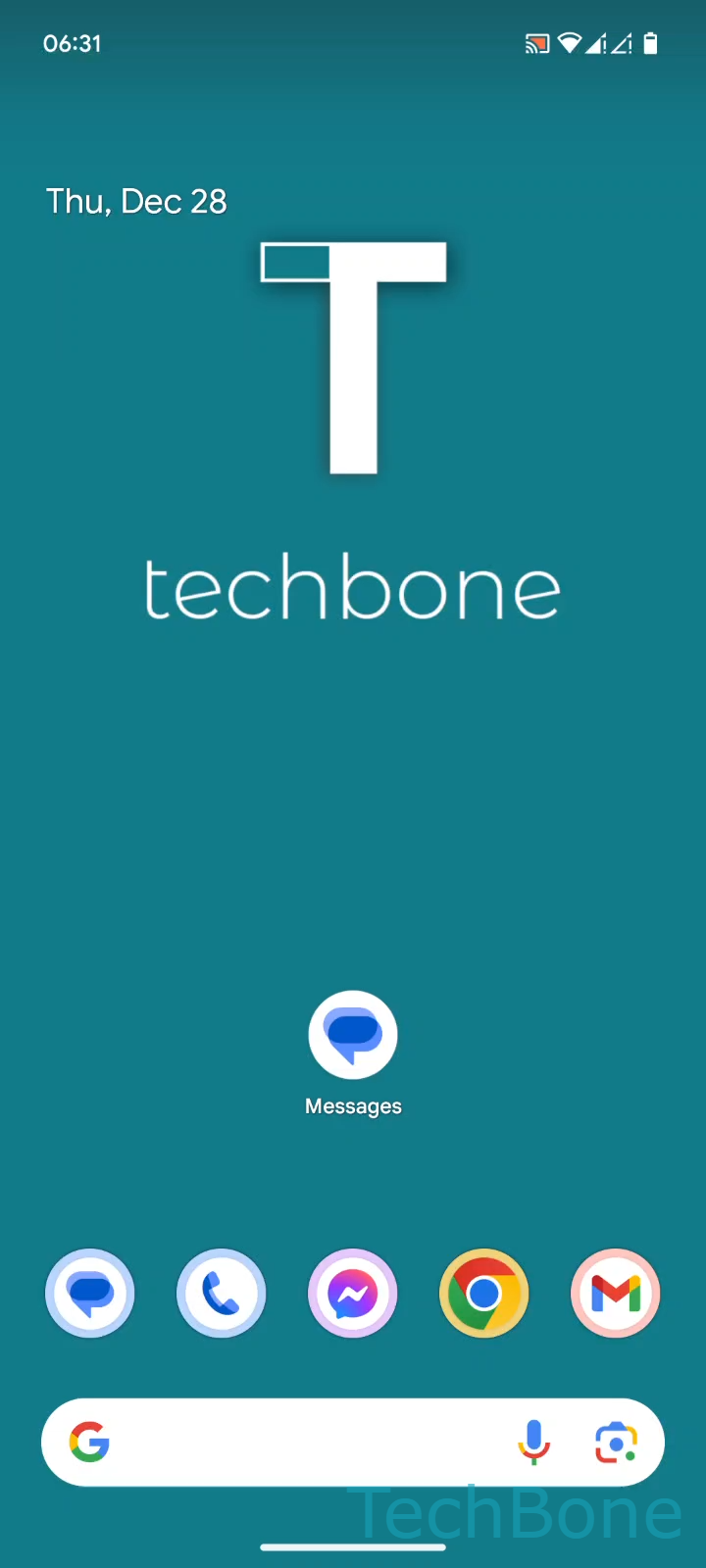
Step 1 of 5: Tap on **Messages**

1

Tap on Messages

Live simulator

Android 14 · Android 14
Pair Google Messages with a Computer – Android 14: step 1 – Tap on Messages
Tap on Messages
1 / 5

Scroll or use the buttons for the next step

Feedback

Was the guide correct?

Help others: confirm the path or report a problem.

14

Confirmations

Forum verified this path

Android

Pair Google Messages with a Computer auf Android

Google Messages only shows up in a browser after you link it to your phone through device pairing. This step used to be called Messages for Web and creates a secure connection between your phone and a computer so texts sync in both directions.

Pairing relies on a QR code shown in the browser tab. Your phone scans that code through the camera inside the Messages app, and the two devices stay linked until you sign out or switch accounts.

Steps to link your phone

Open the Messages app on your phone and go to Tap on MessagesTap on Google AccountTap on Device pairingSign in to the Google Account or tap on Switch to QR pairingTap on QR code scanner and follow the instructions on screen. Point the camera at the QR code shown on the browser page to finish the pairing.

If the connection drops or messages stop syncing, unpairing and repeating these steps usually fixes it. Signing out of the Google Account on the phone also breaks the pairing and requires a new QR scan afterward.

Frequently asked questions

Check that the Messages app has camera access and that the browser window shows the code clearly. Reopen Tap on Device pairing and try Tap on QR code scanner and follow the instructions on screen again with better lighting.