
Skip to content
TechBone
Huawei

Huawei: Set Up a Guest Account

Handing your Huawei phone to a friend or family member means they can see your photos, messages and apps unless you separate their session from yours. A guest account keeps their activity in its own space so nothing touches your personal data. It is the safest way to lend out your phone without changing any of your own settings.

4 min5 steps
VersionAndroid 10 · EMUI

Step by step

1 / 5

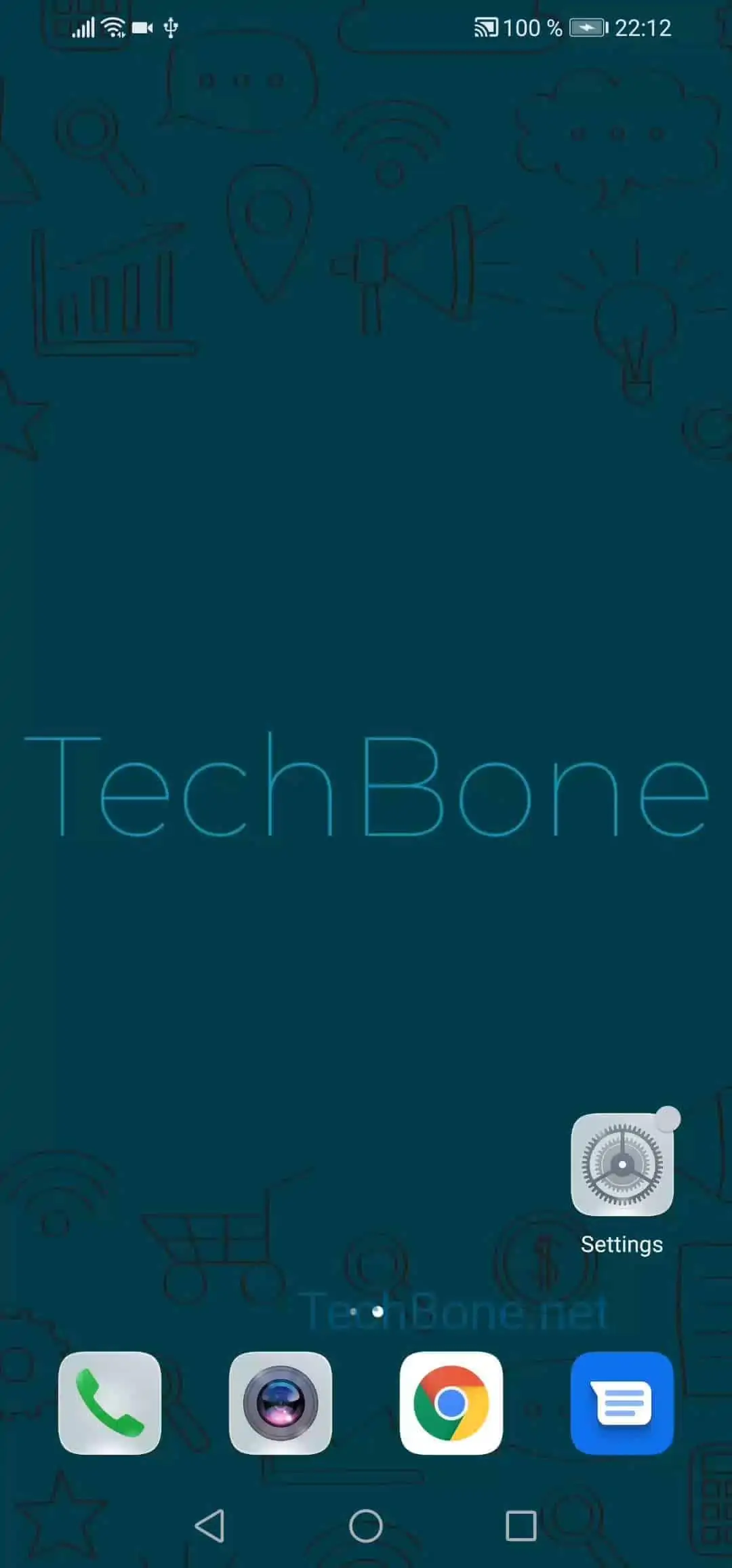
Step 1 of 5: Open the **settings**

1

Open the settings

Live simulator

Android 10 · EMUI
Add a Guest Account – EMUI: step 1 – Open the settings
Open the settings
1 / 5

Scroll or use the buttons for the next step

Feedback

Was the guide correct?

Help others: confirm the path or report a problem.

23

Confirmations

Forum verified this path

Huawei

Add a Guest Account auf Huawei

A guest account on your Huawei phone opens a separate user space that keeps your apps, photos and settings completely isolated from whoever borrows the device.

The guest cannot see your files, install apps into your main profile or read your messages. Anything they change or install stays inside the guest space and disappears once you remove it.

How to add the guest account

Go to Open the settingsTap on Users & accountsTap on UsersTap on Add guestConfirm with Add.

After confirming, the phone switches to the new guest profile right away. Basic setup runs automatically, and the guest gets a clean home screen with only the default apps.

Use this when you lend the phone to a child, a visitor, or a repair technician who does not need access to your accounts. If you only want to hide notifications or lock specific apps instead, a screen pinning or app lock feature is usually the faster fix.

Frequently asked questions

Yes. Pull down the notification shade or open the quick settings, tap the account icon, and select your own profile to switch back instantly.