
Skip to content
TechBone
Huawei

Huawei: Control Which Apps Use Mobile Data and Wi-Fi

If a video streaming app keeps burning through your mobile data plan even when you are not actively watching anything, background network access is usually the cause. Some apps also switch between Wi-Fi and mobile data without asking, which drains your data allowance faster than expected. You decide per app whether it may use mobile data, Wi-Fi, or both.

4 min5 steps
VersionAndroid 10 · EMUI

Step by step

1 / 5

Step 1 of 5: Open the **settings**

1

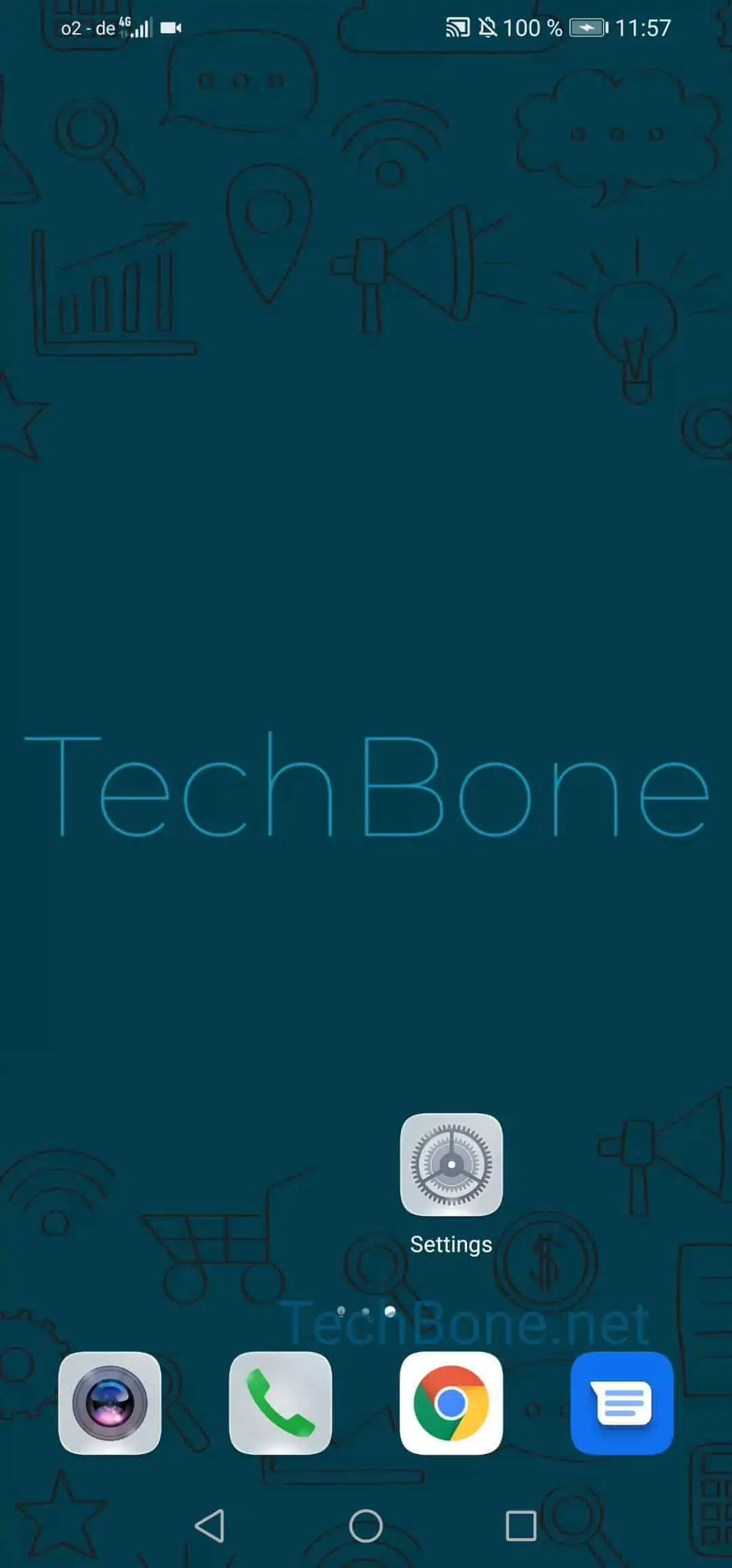
Open the settings

Live simulator

Android 10 · EMUI
Restrict App Access to Mobile Data or Wi-Fi – EMUI: step 1 – Open the settings
Open the settings
1 / 5

Scroll or use the buttons for the next step

Feedback

Was the guide correct?

Help others: confirm the path or report a problem.

35

Confirmations

Forum verified this path

Huawei

Restrict App Access to Mobile Data or Wi-Fi auf Huawei

Every app on your Huawei phone can connect through mobile data or Wi-Fi by default. That includes apps running in the background, which is often why your data plan runs out faster than expected even when the screen is off.

EMUI lets you manage this per app instead of blocking data access for the whole device. This is useful for video streaming apps, cloud backup tools, or social media apps that auto-play content and consume large amounts of data without you noticing.

To change this, open SettingsMobile networkData usageNetwork access. You get a list of installed apps with two toggles each, one for mobile data and one for Wi-Fi.

Turn off the mobile data toggle for an app if you only want it to work on Wi-Fi. Turn off both toggles to block that app from any network access until you switch it back on. This does not affect apps that only need a local connection, such as offline tools or apps without internet features.

If an app suddenly stops updating or loading content after this change, check Network access first before assuming it is broken.

Frequently asked questions

Check if the app has a separate sync or download setting inside its own app settings, since some apps request an exception from the system-wide toggle. Also confirm you disabled the toggle under SettingsMobile networkData usageNetwork access and not a different data-saving option.