
Skip to content
TechBone
Huawei

Huawei: Restore Archived Conversations in Messages

A conversation disappears from the main inbox in Messages, but nobody deleted it - that usually means it landed in the Archive instead. Archived chats stay hidden from the default list until you pull them back manually, which is easy to miss if you don't know where to look.

4 min5 steps
VersionAndroid 10 · EMUI

Step by step

1 / 5

Step 1 of 5: Open **Messages**

1

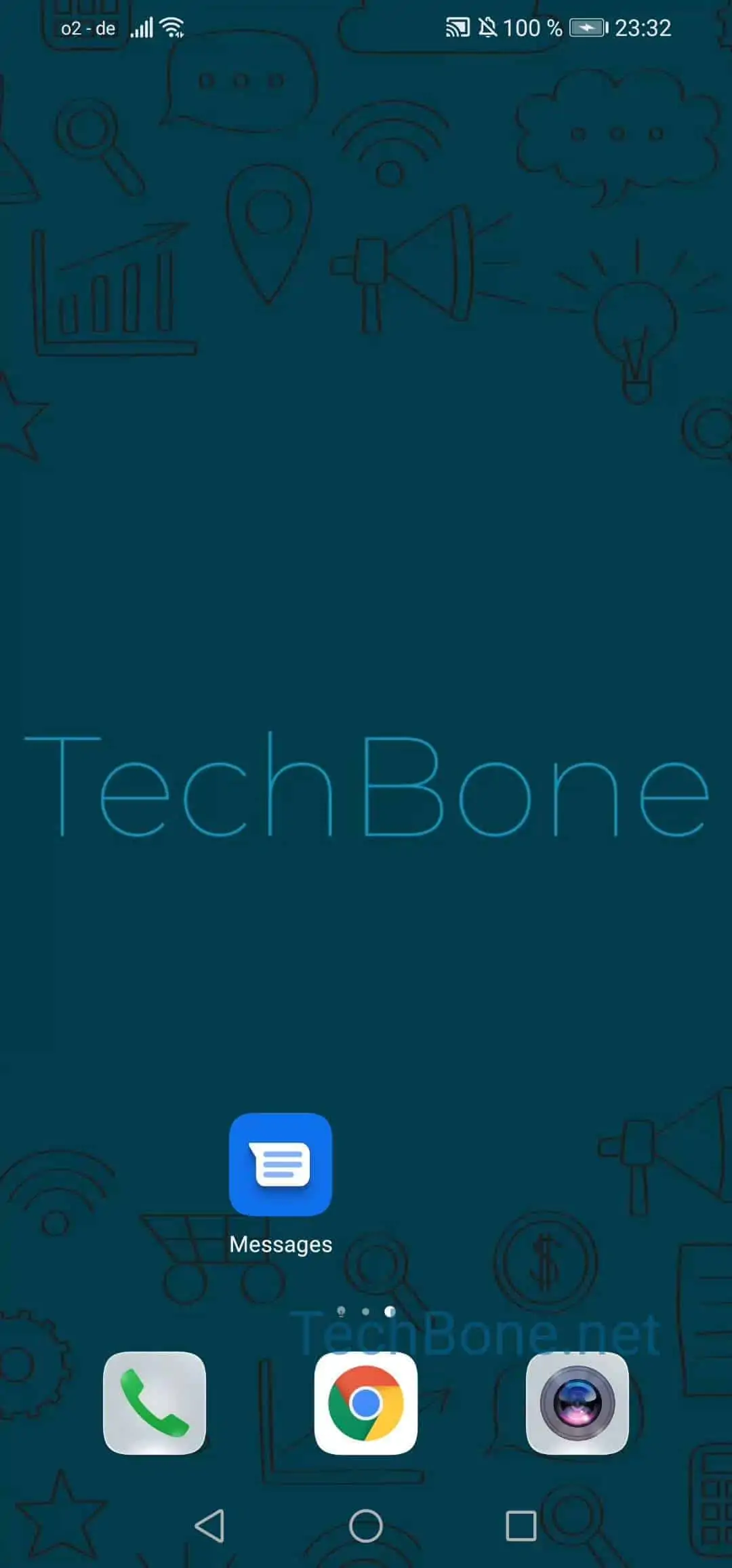
Open Messages

Live simulator

Android 10 · EMUI
Restore Archived Conversations – EMUI: step 1 – Open Messages
Open Messages
1 / 5

Scroll or use the buttons for the next step

Feedback

Was the guide correct?

Help others: confirm the path or report a problem.

30

Confirmations

Forum verified this path

Huawei

Restore Archived Conversations auf Huawei

When a chat vanishes from the main Messages list without any deletion notice, it usually landed in the Archive instead of being removed. EMUI moves conversations there after certain settings changes, or because you archived it yourself and forgot about it.

Archived threads keep their full message history and attachments. They simply sit outside the default inbox view, which means new messages from that contact can also stop showing up as clear unread badges until you unarchive the thread again.

Bring the conversation back

Open Messages ➔ open the menu ➔ tap Archived ➔ tap and hold the conversation you want back ➔ tap Unarchive. The chat reappears in the main list right away, with every previous message and attachment intact.

If the contact still does not show up after unarchiving, check whether the thread was also blocked or filed under a separate spam category. Archiving and blocking work independently inside Messages.

Frequently asked questions

Some system updates or bulk actions in Messages can archive threads automatically, especially after clearing notifications for a contact. Check the Archived tab first before assuming a chat was deleted.