Skip to content
TechBone
Huawei

Huawei: Enable or Disable USB Debugging

If MyPhoneExplorer won't sync contacts with your Huawei phone, or a rooting tool can't detect the device over USB, USB debugging is usually still switched off in Developer options. This mode lets a connected computer send direct commands to the phone, which most rooting and sync tools actually need to work. Leaving it enabled permanently is a security risk, since anyone with physical access to the unlocked phone gets deeper system access.

4 min5 steps
VersionAndroid 10 · EMUI

Step by step

1 / 5

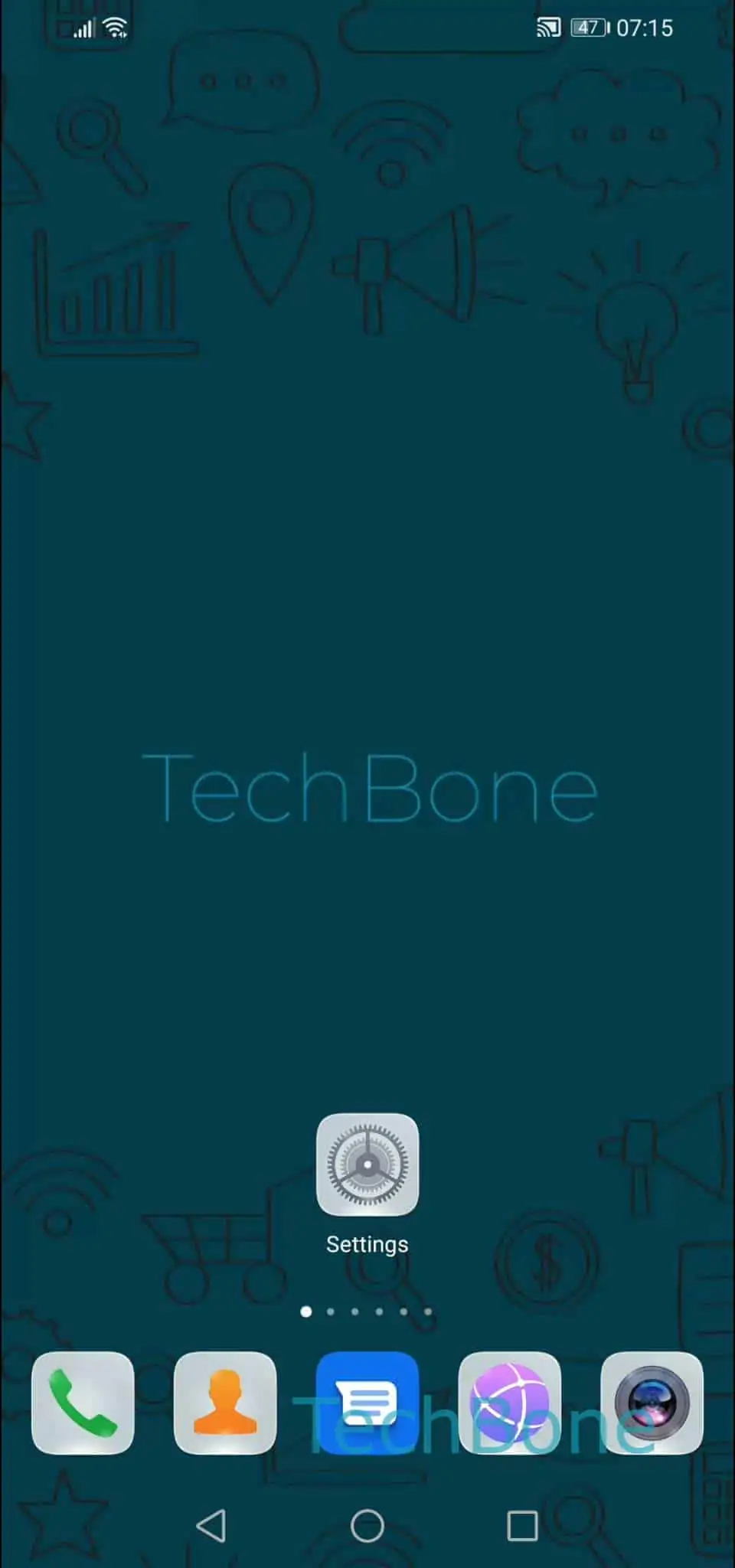
Step 1 of 5: Open the **Settings**

1

Open the Settings

Live simulator

Android 10 · EMUI
Enable or Disable USB Debugging – EMUI: step 1 – Open the Settings
Open the Settings
1 / 5

Scroll or use the buttons for the next step

Feedback

Was the guide correct?

Help others: confirm the path or report a problem.

13

Confirmations

Forum verified this path

Huawei

Enable or Disable USB Debugging auf Huawei

USB debugging opens a direct command channel between your Huawei phone and a connected computer. Rooting tools and desktop apps like MyPhoneExplorer rely on this channel to read contacts, push files, or flash custom software. Without it, the connection stays limited to charging and basic file transfer.

To toggle the option, open Settings ➔ tap on System & updates ➔ tap on Developer optionsEnable or disable USB debugging ➔ confirm with OK. The switch takes effect immediately and no restart is needed.

Turn debugging off again once the syncing or rooting task is done. An active connection lets any paired computer issue system-level commands, which is a real risk on public or unfamiliar machines. Some banking or security apps also detect an active debugging session and refuse to open while it stays on.

If MyPhoneExplorer still does not detect the phone after the switch is on, check the USB cable and confirm you accepted the authorization prompt that appears on the phone screen the first time a new computer connects.

Frequently asked questions

Check that you accepted the authorization prompt on the phone screen after connecting the cable, and confirm the correct USB mode is selected in the notification shade. Restarting both the phone and MyPhoneExplorer usually resolves an unrecognized session.