Skip to content
TechBone
OnePlus

OnePlus: Add or Remove Bookmarks from a Web Page

Losing track of a useful page you found on your OnePlus is annoying when you cannot find it again later. Chrome lets you bookmark any page, then rename it, adjust its saved URL, or move it into a specific folder for faster access next time. If a saved page is no longer useful, removing the bookmark keeps your list tidy and easy to scan.

3 min3 steps
VersionAndroid 10 · Oxygenos 10

Step by step

1 / 3

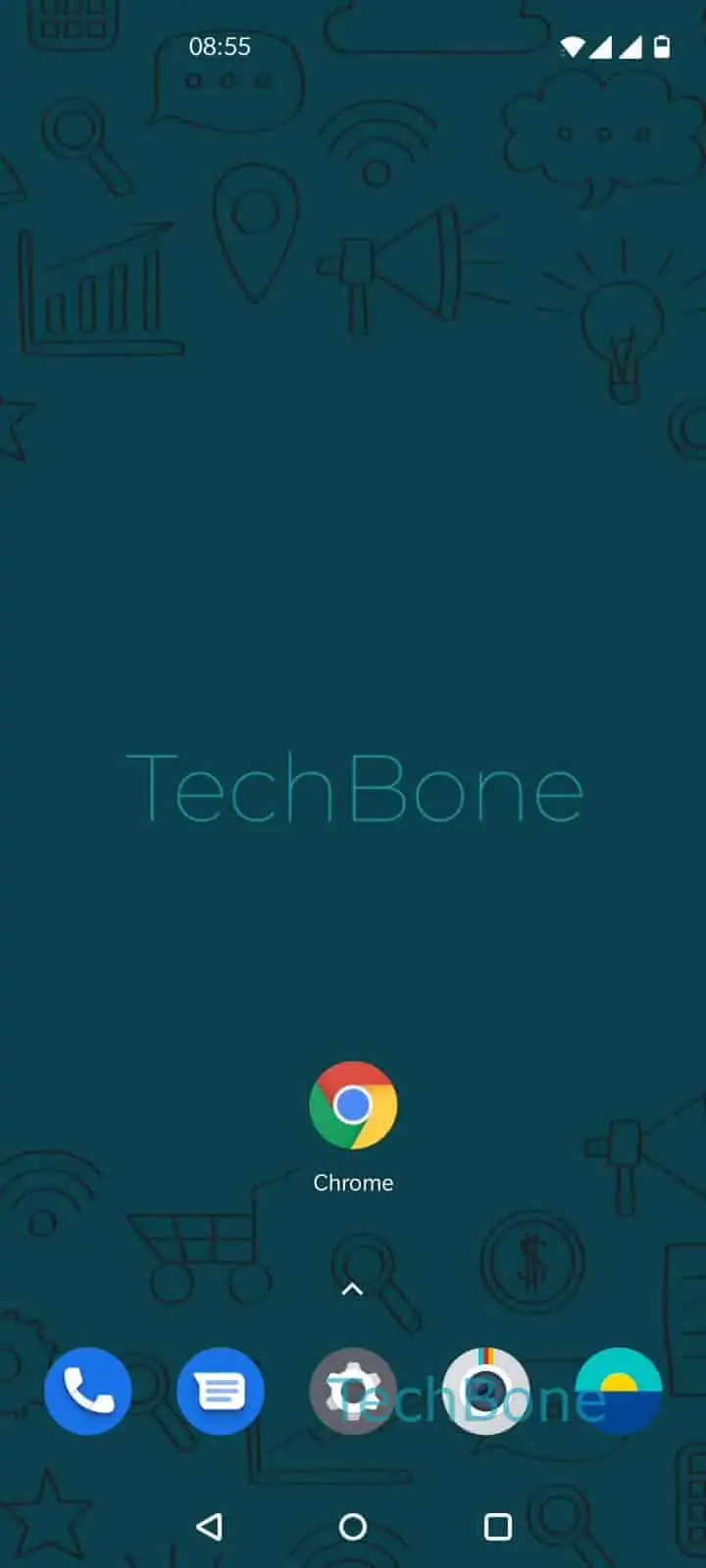
Step 1 of 3: Open the **Chrome app**

1

Open the Chrome app

Live simulator

Android 10 · Oxygenos 10
Add or Remove Bookmarks in Chrome – Oxygenos 10: step 1 – Open the Chrome app
Open the Chrome app
1 / 3

Scroll or use the buttons for the next step

Feedback

Was the guide correct?

Help others: confirm the path or report a problem.

15

Confirmations

Forum verified this path

OnePlus

Add or Remove Bookmarks in Chrome auf OnePlus

Bookmarks in Chrome give you quick access to web pages you visit often, without having to search for them again. On a OnePlus phone, the bookmark function sits inside the browser menu and works the same way for every saved page.

To add or remove a bookmark, open the Chrome app, then tap Open the menu, and select Tap on add/remove bookmark. If the page is not yet saved, this action creates a new bookmark. If it is already saved, the same action removes it.

After saving a page, you can still adjust the bookmark. You can change the name shown in your bookmark list, edit the stored URL if it changed, or move the entry into a different folder to keep related pages together.

If pages keep disappearing from your bookmark list unexpectedly, check whether Chrome sync is signed out or switched to a different account, since bookmarks are tied to the signed-in profile.

Use this function whenever you want fast access to a page without typing the address again, but rely on browsing history instead if you only need a page you visited once.

Frequently asked questions

Bookmarks are stored per Chrome account. If you sign out or switch accounts, bookmarks saved under the other account will not show up until you sign back in.

Compatible devices

Tap your device — opens its hub with matching guides.