
Skip to content
TechBone
OnePlus

OnePlus: Delete an Alarm in the Clock App

If your OnePlus still lists alarms from a finished shift, an old routine, or a trip that is long over, the Clock app gets cluttered fast. That makes it harder to spot the alarm you actually need for tomorrow and raises the chance of tapping the wrong one by accident. Removing the outdated entries is the only way to get a clean, reliable list again.

3 min3 steps
VersionAndroid 10 · Oxygenos 10

Step by step

1 / 3

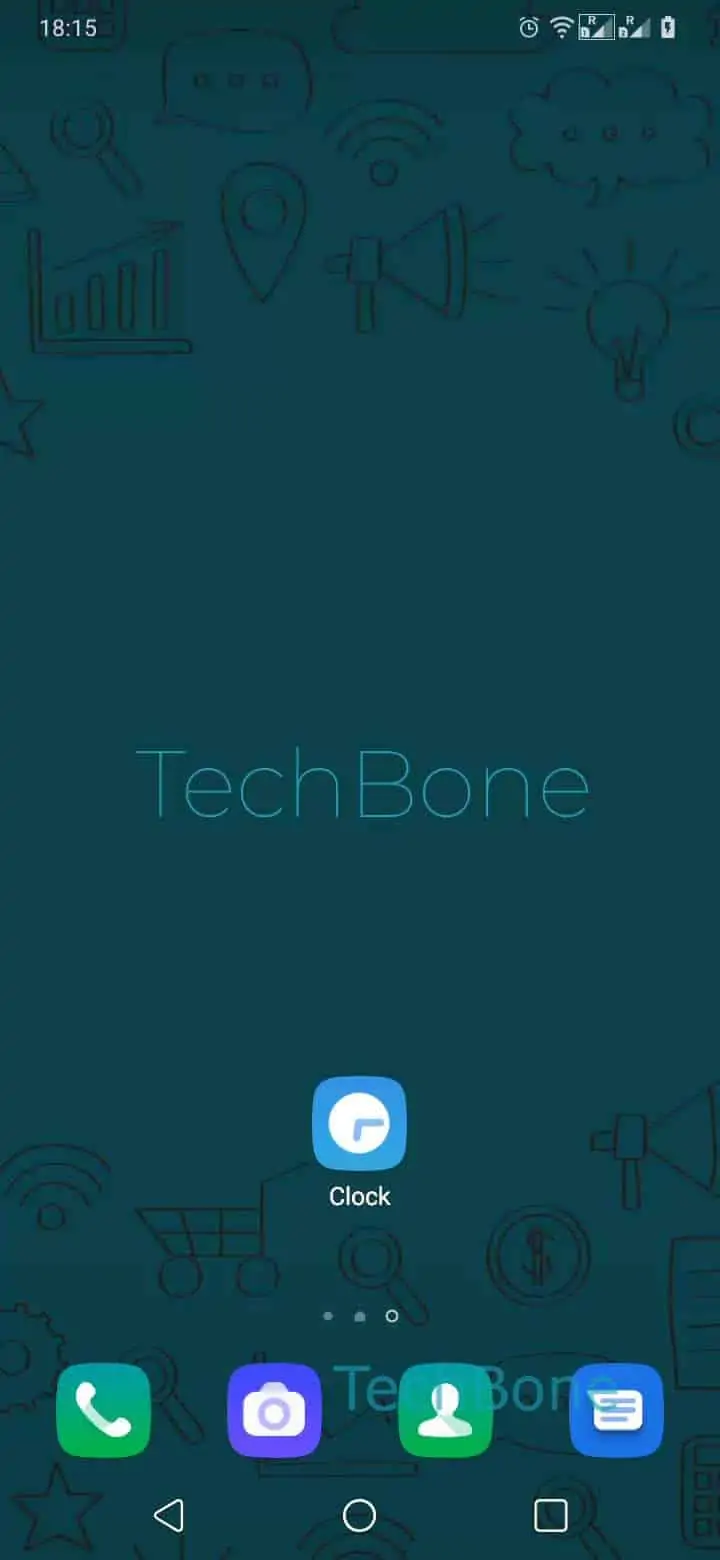
Step 1 of 3: Open the **Clock app**

1

Open the Clock app

Live simulator

Android 10 · Oxygenos 10
Delete an Alarm – Oxygenos 10: step 1 – Open the Clock app
Open the Clock app
1 / 3

Scroll or use the buttons for the next step

Feedback

Was the guide correct?

Help others: confirm the path or report a problem.

39

Confirmations

Forum verified this path

OnePlus

Delete an Alarm auf OnePlus

OxygenOS keeps every alarm you have ever set, even one-off wake-ups that already triggered, unless you delete it manually or set it to a single occurrence that gets cleared automatically. That is why the Clock app on a OnePlus phone can fill up with outdated entries after a shift change, a finished trip, or a routine you no longer follow.

A crowded alarm list is more than a cosmetic issue. It becomes easy to enable the wrong alarm by mistake, or to overlook the one entry that still matters for the next morning.

To remove an alarm for good, open Open the Clock appTap and hold an alarmTap on Delete. This removes the alarm along with its label, repeat schedule, and sound setting permanently.

If you only want to pause an alarm without losing its settings, use the toggle next to it instead of deleting it. That keeps the schedule and label intact for later, while deleting is the right move when you know you will never need that alarm again.

Frequently asked questions

No. Once you confirm Delete, the alarm along with its label, repeat days, and sound is removed permanently and has to be recreated manually.

Compatible devices

Tap your device — opens its hub with matching guides.