Skip to content
TechBone
OnePlus

OnePlus: Delete Photos or Videos from the Gallery

Storage filling up on your OnePlus usually comes down to old photos and videos nobody looks at anymore. Deleting them from the Gallery app does not remove them right away though, since OnePlus keeps a safety copy for a while before space is actually freed up.

4 min5 steps
VersionAndroid 10 · Oxygenos 10

Step by step

1 / 5

Step 1 of 5: Open the **Gallery app**

1

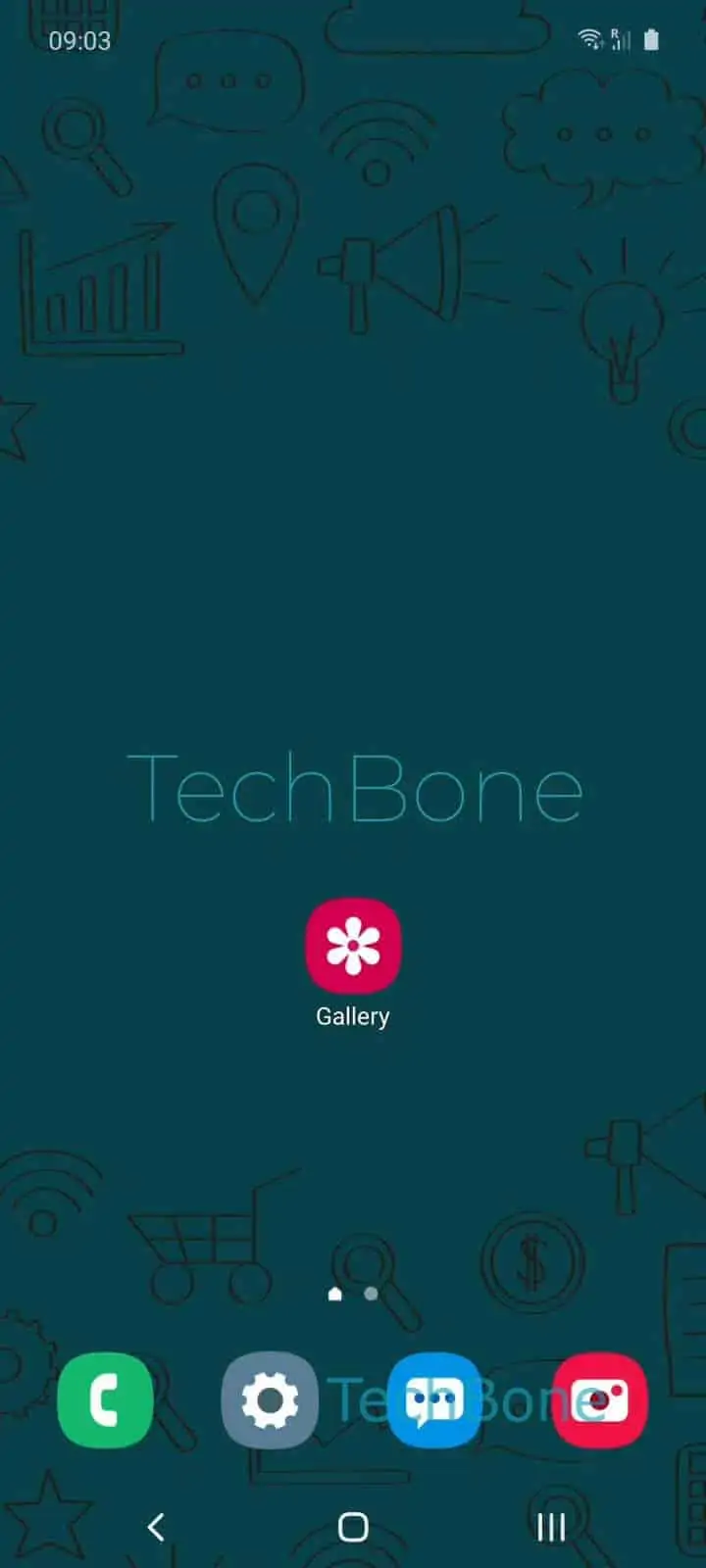
Open the Gallery app

Live simulator

Android 10 · Oxygenos 10
Delete Photos and Videos – Oxygenos 10: step 1 – Open the Gallery app
Open the Gallery app
1 / 5

Scroll or use the buttons for the next step

Feedback

Was the guide correct?

Help others: confirm the path or report a problem.

94

Confirmations

Forum verified this path

OnePlus

Delete Photos and Videos auf OnePlus

Deleting a photo or video on a OnePlus phone does not clear it from storage immediately. The Gallery app moves removed items into a Trash or Recently Deleted folder first, where they stay for 30 days before the system erases them for good.

This delay protects you from accidental taps, but it also means storage space is not freed up right away unless you empty that folder manually. If you need space back instantly, deleting from the Gallery alone is not enough.

Deleting photos or videos

Open Open the Gallery appTap and hold a photo/videoSelect more photos/videos if desiredTap on DeleteConfirm with Delete.

You can select multiple items at once by holding the first one and tapping additional photos or videos before confirming. Everything you select moves together into the Recently Deleted folder.

Items backed up to cloud storage or synced to another app may still exist outside the phone even after this step. Check any linked cloud account separately if you want a photo or video gone everywhere.

Frequently asked questions

Open the Recently Deleted (or Trash) folder inside the Gallery app within 30 days and restore the item from there. After 30 days it is removed from the device permanently and cannot be recovered through the Gallery.

Compatible devices

Tap your device — opens its hub with matching guides.