Skip to content
TechBone
OnePlus

OnePlus: Enable TalkBack Screen Reader

If you need spoken feedback to use your OnePlus without looking at the display, TalkBack reads out every item you touch on screen. Once it is turned on, normal taps stop working the way you expect: a single tap only selects an item, and you swipe left or right to move between elements. That changed behavior catches many people off guard the first time they turn it on, whether on purpose or by accident.

5 min6 steps
VersionAndroid 10 · Oxygenos 10

Step by step

1 / 6

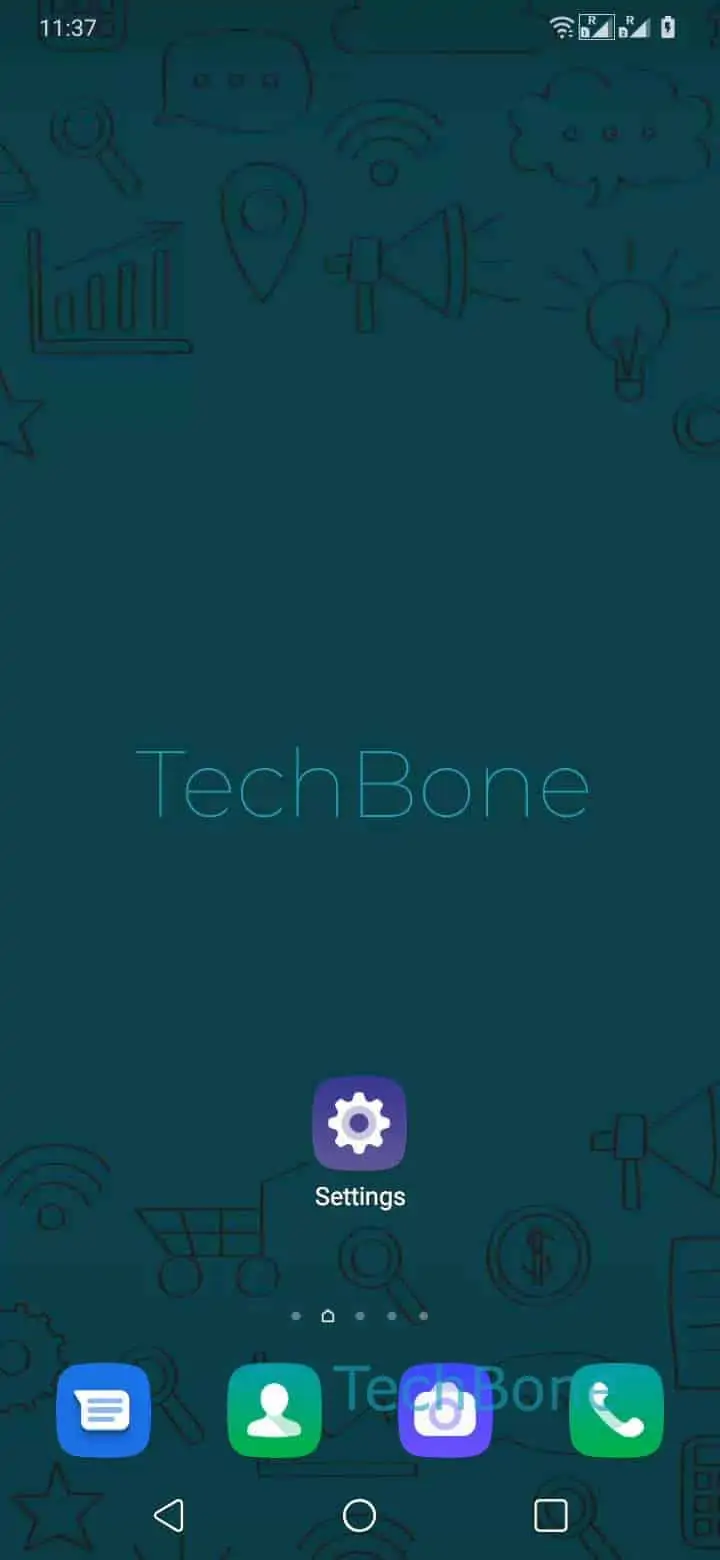
Step 1 of 6: Open the **Settings**

1

Open the Settings

Live simulator

Android 10 · Oxygenos 10
Enable TalkBack Screen Reader – Oxygenos 10: step 1 – Open the Settings
Open the Settings
1 / 6

Scroll or use the buttons for the next step

Feedback

Was the guide correct?

Help others: confirm the path or report a problem.

88

Confirmations

Forum verified this path

OnePlus

Enable TalkBack Screen Reader auf OnePlus

TalkBack is the screen reader built into Android and OxygenOS. Once active, it announces every item you touch and changes how touch gestures work across the whole phone, not just in one app.

After enabling it, a single tap no longer opens an app or setting. It only selects the item and reads it out loud. To actually open something, you need to double-tap it. Swiping right or left moves the focus to the next or previous item on screen, which replaces normal scrolling in many menus.

This is intended for people who operate the phone by ear rather than by sight, but it can also turn on by accident through a shortcut or an accidental long-press. If your OnePlus suddenly reads everything aloud and taps stop opening apps, TalkBack is almost always the cause.

To enable it yourself: Open the SettingsTap on SystemTap on AccessibilityTap on TalkBackEnable TalkBackConfirm with Allow.

Use the Live-Simulator above to see exactly how the menu looks before you touch your own device, especially useful if you are guiding someone else through the setting by phone.

Frequently asked questions

Double-tap the Settings icon to open it, then follow the same path: SystemAccessibilityTalkBack, and switch it off there. Because TalkBack changes tap behavior, remember you need a double-tap to actually select and open each item along the way.

Compatible devices

Tap your device — opens its hub with matching guides.