
OnePlus
Change Font Size auf OnePlus
OnePlus phones let you scale the text size across the whole system, not just inside individual apps. This is useful when default text feels too small to read at a glance, or when a larger scale makes menus feel cramped and forces extra scrolling.
The font scale only affects apps that use the system-defined text size. Apps with their own typography settings, such as some browsers or reading apps, ignore this setting and need to be adjusted separately inside their own menus.
Where to change it
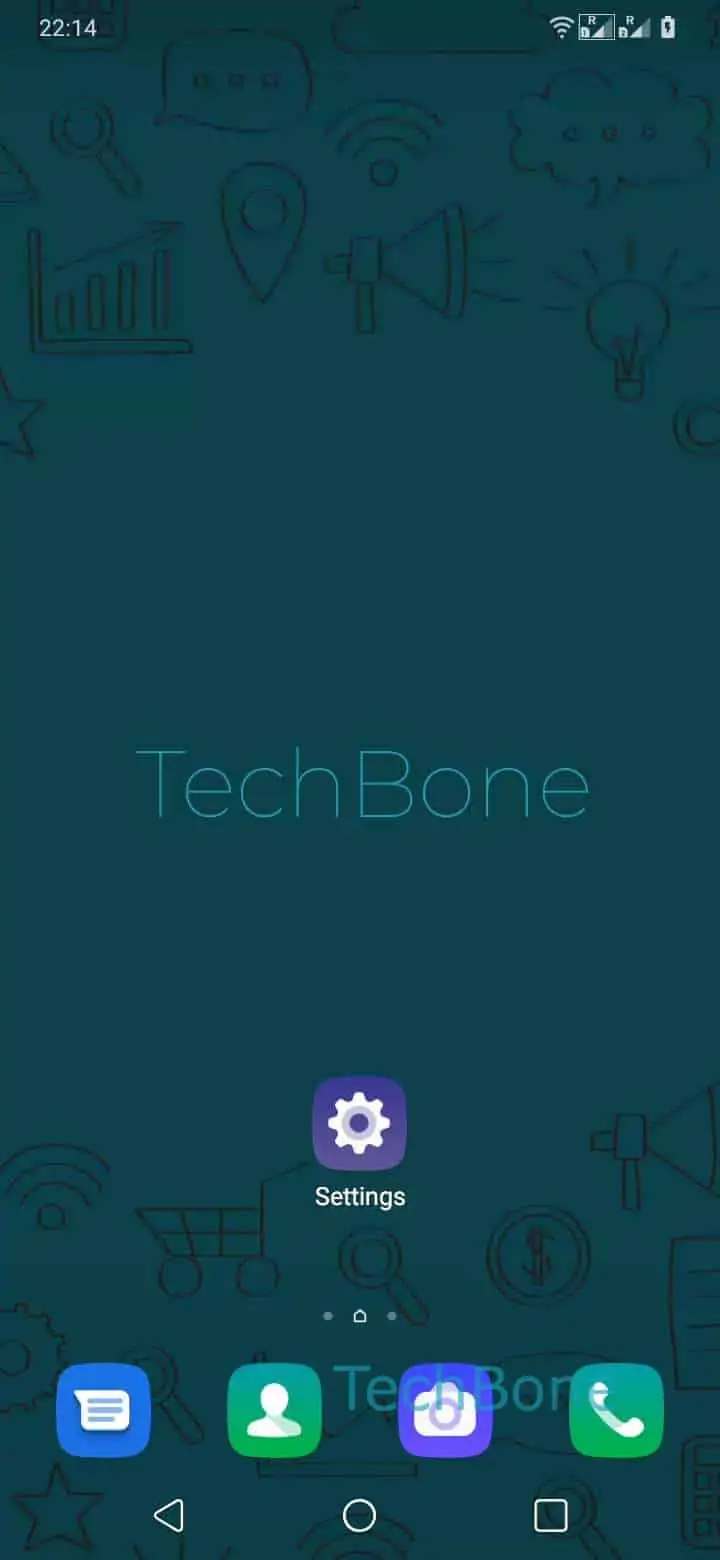
Open Open the Settings ➔ Tap on Display ➔ Tap on Font size ➔ Swipe left or right to adjust the Font size. You can choose between Small, Default, Large, and Largest. The preview text on this screen updates immediately, so you can compare each step before confirming.
If text still looks off after adjusting, check whether the issue is limited to one app. In that case, look for a separate text or display size option inside that app instead of relying on the system-wide scale.
Increasing the font size too far can cause some layouts to truncate longer labels or push buttons out of view. If that happens, step back down one level and check if the layout returns to normal.