
Skip to content
TechBone
OnePlus

OnePlus: Change the System Font Style

Stuck with whatever font style you picked when you first set up your OnePlus? Switching it later does not require a factory reset, but the option sits inside a settings area that is easy to overlook. OxygenOS ships with only two fonts, Roboto and OnePlus Slate, so the actual change takes seconds once you find the right menu.

4 min5 steps
VersionAndroid 10 · Oxygenos 10

Step by step

1 / 5

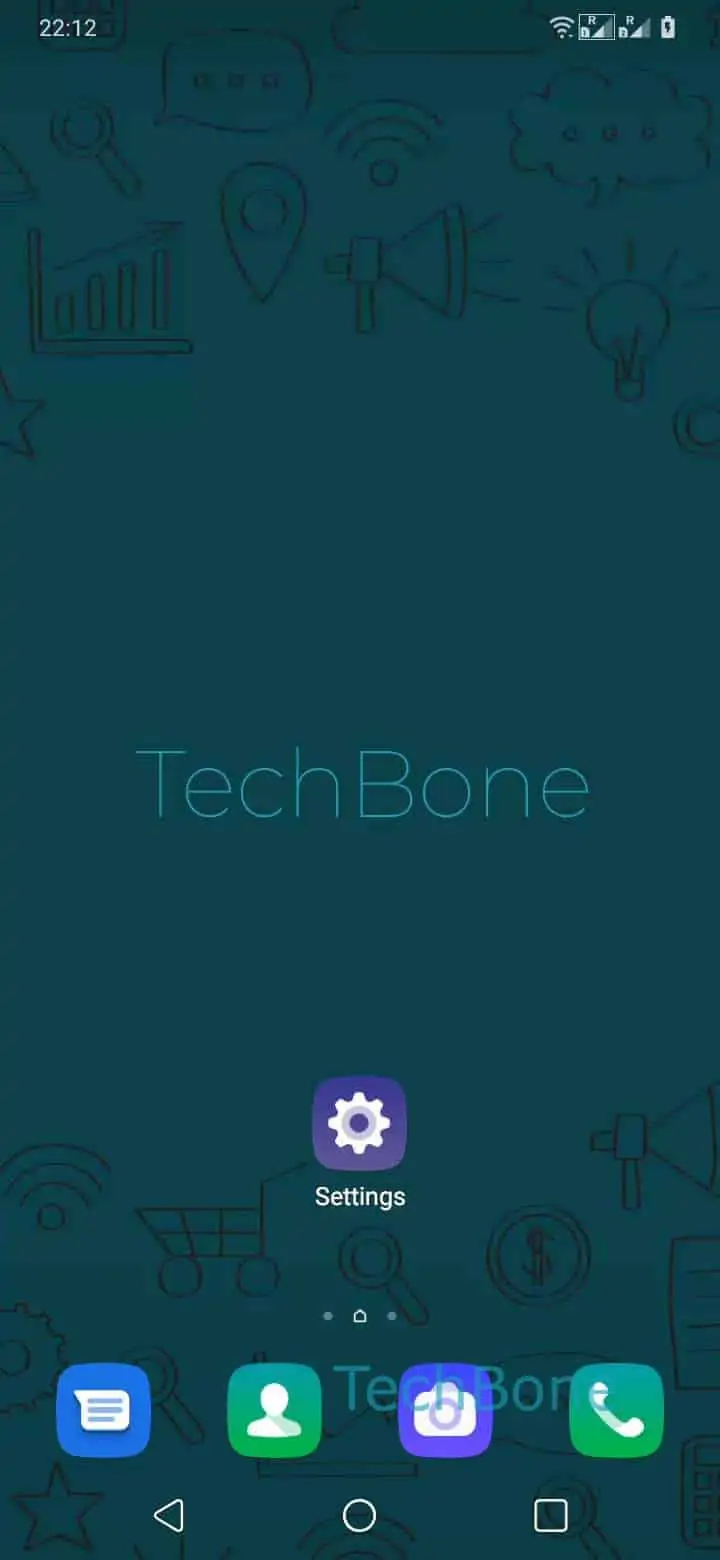
Step 1 of 5: Open the **Settings**

1

Open the Settings

Live simulator

Android 10 · Oxygenos 10
Change Font Style – Oxygenos 10: step 1 – Open the Settings
Open the Settings
1 / 5

Scroll or use the buttons for the next step

Feedback

Was the guide correct?

Help others: confirm the path or report a problem.

15

Confirmations

Forum verified this path

OnePlus

Change Font Style auf OnePlus

OnePlus asks you to pick a font style during the initial setup of the phone, and most people never revisit that choice. The font applies to the whole system: lock screen clock, quick settings, app names, and menus in native apps.

OxygenOS does not tie the font to a factory reset. You can switch it any time from the Customization settings without losing apps, accounts, or files.

To change it, open SettingsCustomizationFont. Pick Roboto or OnePlus Slate, then confirm with Save.

Only these two fonts are available by default on OxygenOS. There is no built-in option to install additional font files without extra software, and doing so is outside the scope of a standard settings change.

After saving, the new font applies system-wide immediately. Some third-party apps use their own typography and will not change, which is expected and not a sign of a failed setting.

Frequently asked questions

No. Switching between Roboto and OnePlus Slate in SettingsCustomizationFont only changes the system typography. It does not touch your apps, accounts, or stored data.

Compatible devices

Tap your device — opens its hub with matching guides.