Skip to content
TechBone
OnePlus

OnePlus: Enable or Disable Mono Audio

If music or videos suddenly play through only one speaker with both channels squeezed together, Mono audio is likely active on your OnePlus. This accessibility setting merges the stereo channels so left and right output the identical signal. It helps with hearing loss in one ear, but it also removes stereo separation from calls, games and media playback.

3 min4 steps
VersionAndroid 10 · Oxygenos 10

Step by step

1 / 4

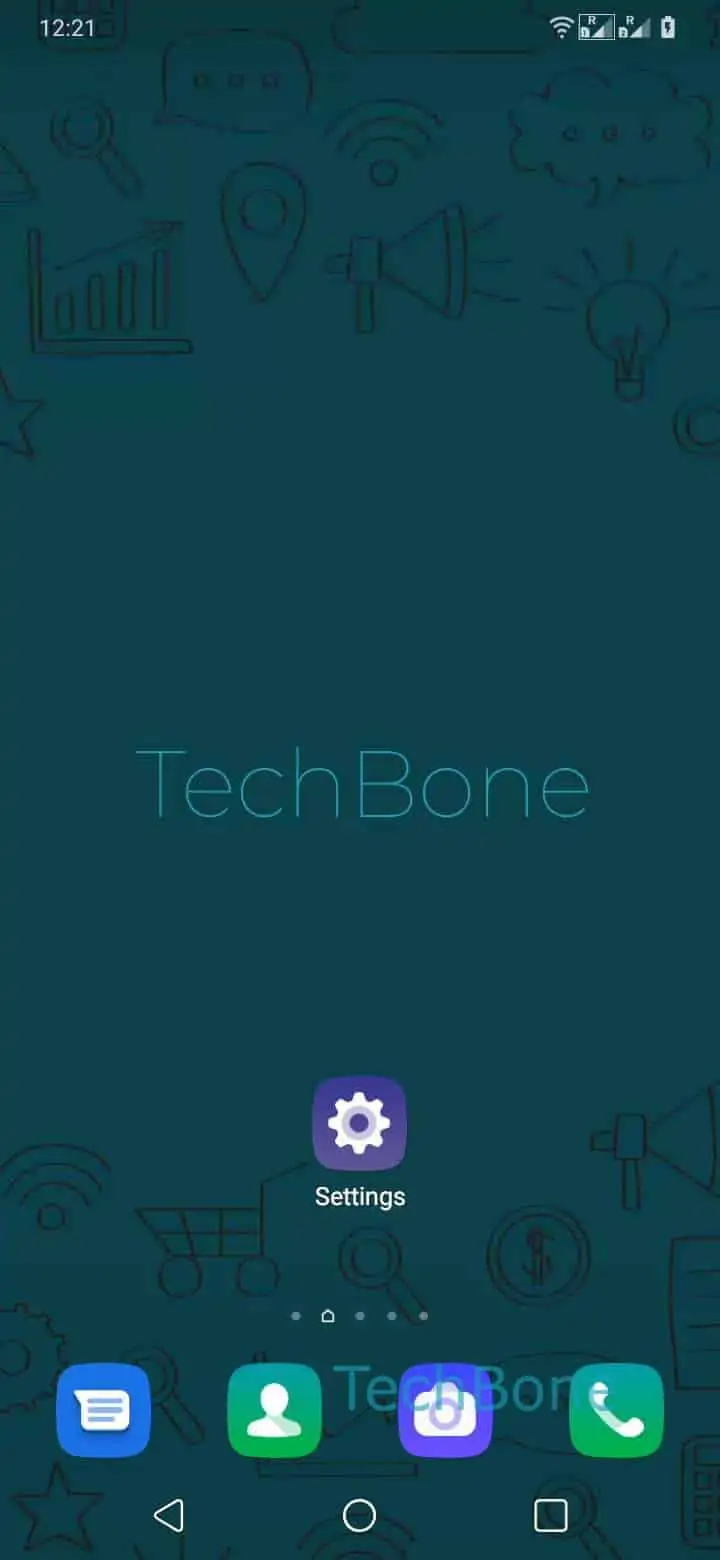
Step 1 of 4: Open the **Settings**

1

Open the Settings

Live simulator

Android 10 · Oxygenos 10
Enable or Disable Mono Audio – Oxygenos 10: step 1 – Open the Settings
Open the Settings
1 / 4

Scroll or use the buttons for the next step

Feedback

Was the guide correct?

Help others: confirm the path or report a problem.

72

Confirmations

Forum verified this path

OnePlus

Enable or Disable Mono Audio auf OnePlus

Mono audio is an accessibility feature on OnePlus phones. When it is active, the stereo channels of any playback get combined into a single signal, which then plays through both speakers or both earbuds at once.

This is intended for people who have reduced hearing in one ear, since it prevents them from missing audio that would normally only come from the left or right channel. As a side effect, music, videos and games lose their stereo width, and everything sounds flatter than usual.

To check or change the setting, open Open the SettingsTap on SystemTap on AccessibilityEnable or disable Mono audio. Toggle it on if you need identical audio in both channels, or switch it off to restore normal stereo separation.

If only one earbud or speaker plays sound after disabling Mono audio, the cause is usually a hardware or Bluetooth pairing issue rather than this setting. In that case, check your audio device connection separately.

Frequently asked questions

Yes. With Mono audio enabled, call audio is also merged into a single channel, so both speakers or earbuds play the identical signal during calls.

Compatible devices

Tap your device — opens its hub with matching guides.