Skip to content
TechBone
OnePlus

OnePlus: Turn Off the Notification Dot for a Single App

If a small dot keeps sitting on top of an app icon even after you already read the message or checked the missed call, the Allow notification dot setting is likely active for that app. OxygenOS adds this dot per app whenever a new notification arrives, and it stays visible until the notification is cleared or opened. Some apps show it constantly, which gets distracting if you only want the dot for apps that really need your attention.

6 min7 steps
VersionAndroid 10 · Oxygenos 10

Step by step

1 / 7

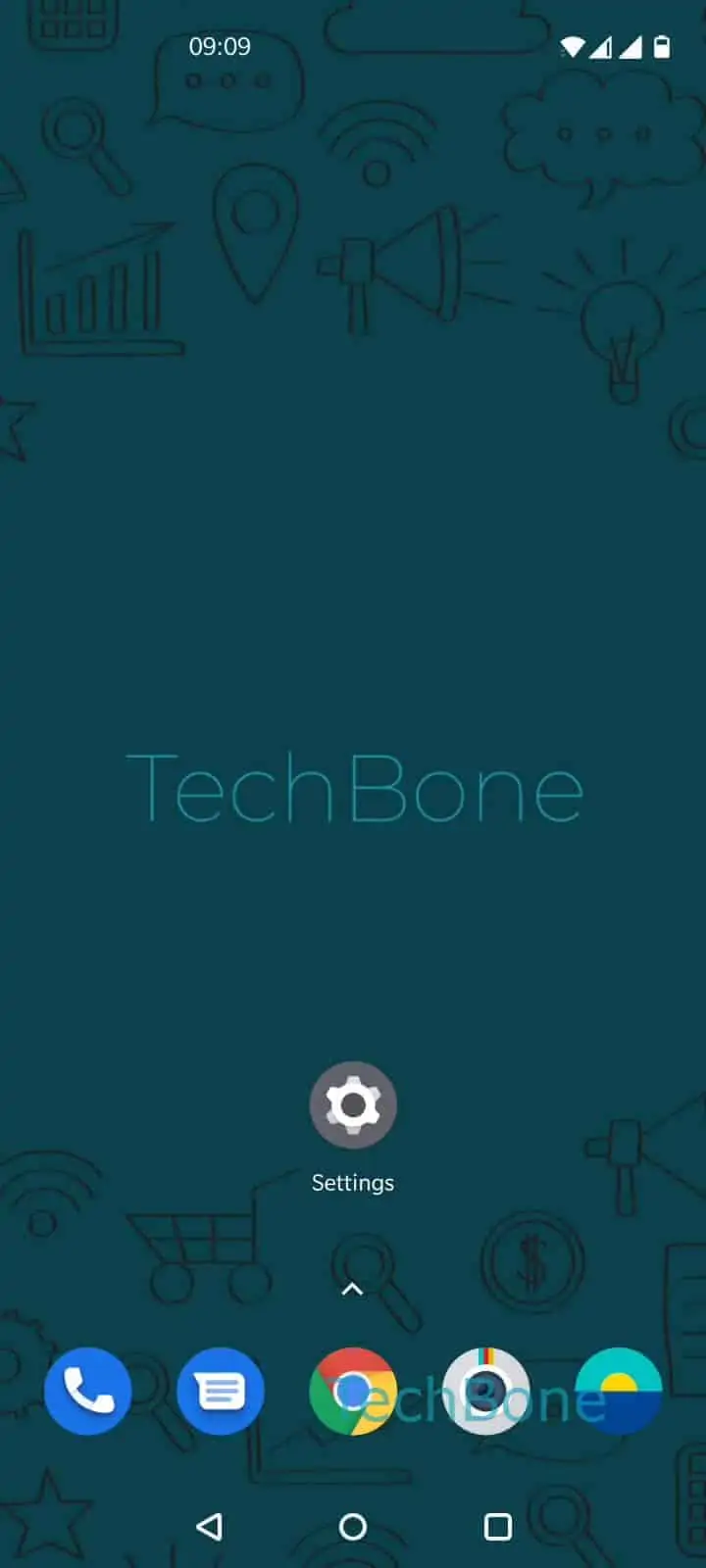
Step 1 of 7: Open the **Settings**

1

Open the Settings

Live simulator

Android 10 · Oxygenos 10
Enable or Disable App Notification Dot – Oxygenos 10: step 1 – Open the Settings
Open the Settings
1 / 7

Scroll or use the buttons for the next step

Feedback

Was the guide correct?

Help others: confirm the path or report a problem.

67

Confirmations

Forum verified this path

OnePlus

Enable or Disable App Notification Dot auf OnePlus

The notification dot on OnePlus phones is controlled separately for every app. It appears whenever an app has an unread message, missed call, or other pending alert, and it disappears once you open that notification or clear it manually.

If the dot on a specific app icon feels excessive, or you simply do not want a visual indicator for that app, you can turn the setting off per app. This does not affect the notification itself, only the small dot shown above the icon.

Where to find the setting

The toggle lives inside the notification settings of each individual app: Open the SettingsTap on Apps & notificationsTap on See all appsChoose an appTap on NotificationsTap on AdvancedEnable or disable Allow notification dot.

Because the setting is per app, you need to repeat these steps for every app whose dot you want to hide. If the dot reappears after a reboot or a system update, open the same path again and confirm the toggle is still set the way you left it.

Frequently asked questions

Some apps only clear the dot once you open the app itself, not just the notification shade. If the app keeps showing the dot, check its own in-app notification settings in addition to the OxygenOS toggle.

Compatible devices

Tap your device — opens its hub with matching guides.