Skip to content
TechBone
OnePlus

OnePlus: Manage App Permissions with the Permission Manager

When an app suddenly asks for camera or location access again, or you are not sure which apps can read your contacts, the Permission Manager on your OnePlus gives a clear per-function overview. Instead of digging through each app individually, you pick a function like Camera or Location and see every app that currently has access to it. This makes it much faster to spot apps that have no real reason to hold a sensitive permission.

5 min6 steps
VersionAndroid 10 · Oxygenos 10

Step by step

1 / 6

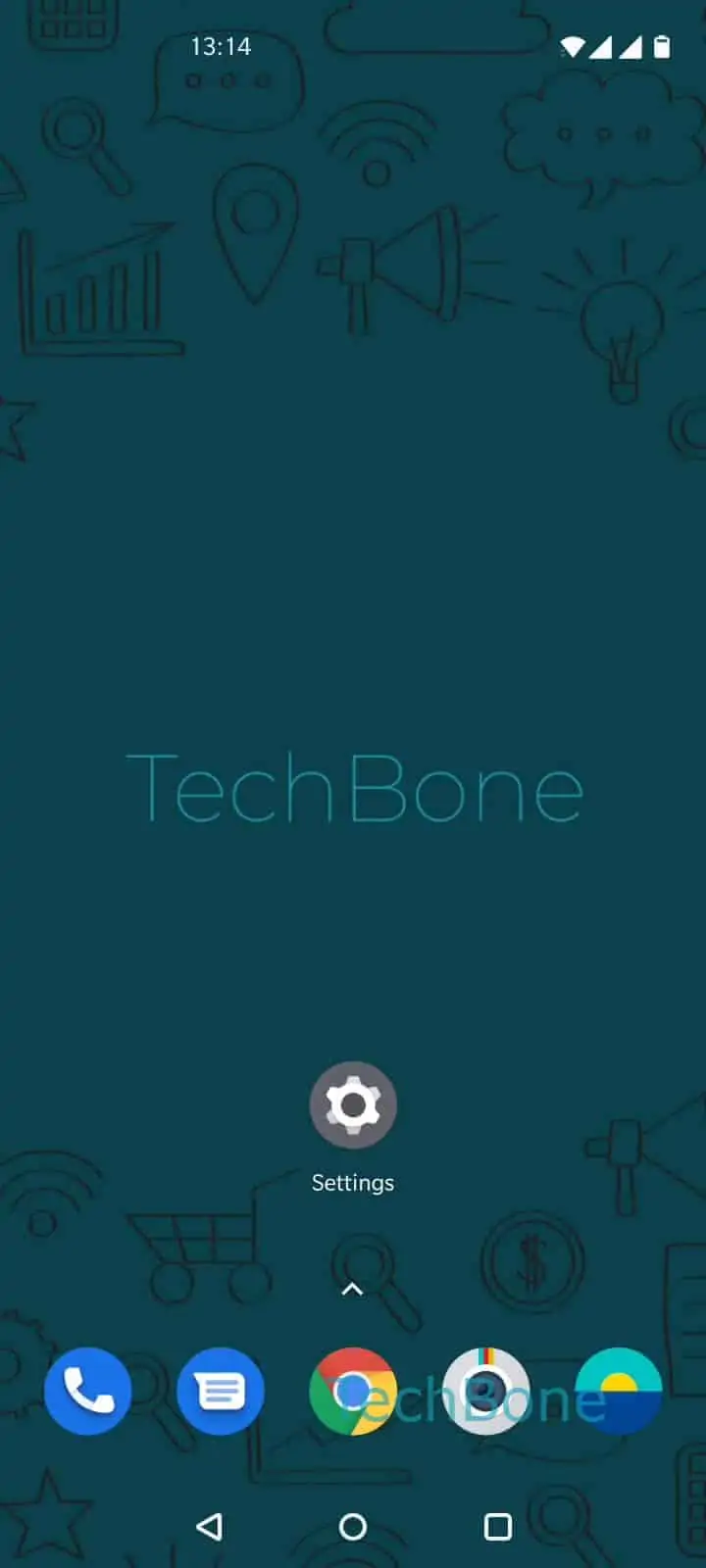
Step 1 of 6: Open the **Settings**

1

Open the Settings

Live simulator

Android 10 · Oxygenos 10
Permission Manager: Control App Access – Oxygenos 10: step 1 – Open the Settings
Open the Settings
1 / 6

Scroll or use the buttons for the next step

Feedback

Was the guide correct?

Help others: confirm the path or report a problem.

66

Confirmations

Forum verified this path

OnePlus

Permission Manager: Control App Access auf OnePlus

The Permission Manager on OxygenOS groups access rights by function instead of by app. That matters because a single function, such as Location, can be used by a dozen apps at once, and checking each app separately would take much longer than checking the function once.

To open it, follow this path:

Open the SettingsTap on Apps & notificationsTap on App permissionsChoose an optionChoose an appChoose Allow or Deny

After selecting a function like Camera, Contacts or Microphone, Android lists every app that has requested that permission, split into apps currently allowed and apps currently denied. Tapping an app opens its permission screen directly, where you switch access with Allow or Deny.

Revoking a permission here works instantly, but some apps stop core features until the permission is granted again. If an app misbehaves after a denial, for example a messaging app that no longer sends photos, check that function first before assuming a bug.

The Permission Manager only covers runtime permissions apps actively request. Background restrictions or battery optimization settings are handled elsewhere in the system settings.

Frequently asked questions

The app usually shows a message the next time it needs that access, or the related feature simply stops working, for example a camera app that no longer opens the viewfinder. You can grant the permission again anytime through Choose an optionChoose an appChoose Allow or Deny.

Compatible devices

Tap your device — opens its hub with matching guides.