Skip to content
TechBone
OnePlus

OnePlus: Enable or Disable Picture-in-Picture Mode

If a video keeps floating over other apps when you did not ask for it, or a media app refuses to shrink into a small window while you check messages, picture-in-picture permission is likely the cause. This mode lets one app overlay another in a movable box, but each app needs its own permission toggle to use it. Once that toggle gets switched off for an app, the floating window simply stops showing up, even if the app itself supports the feature.

5 min6 steps
VersionAndroid 10 · Oxygenos 10

Step by step

1 / 6

Step 1 of 6: Open the **Settings**

1

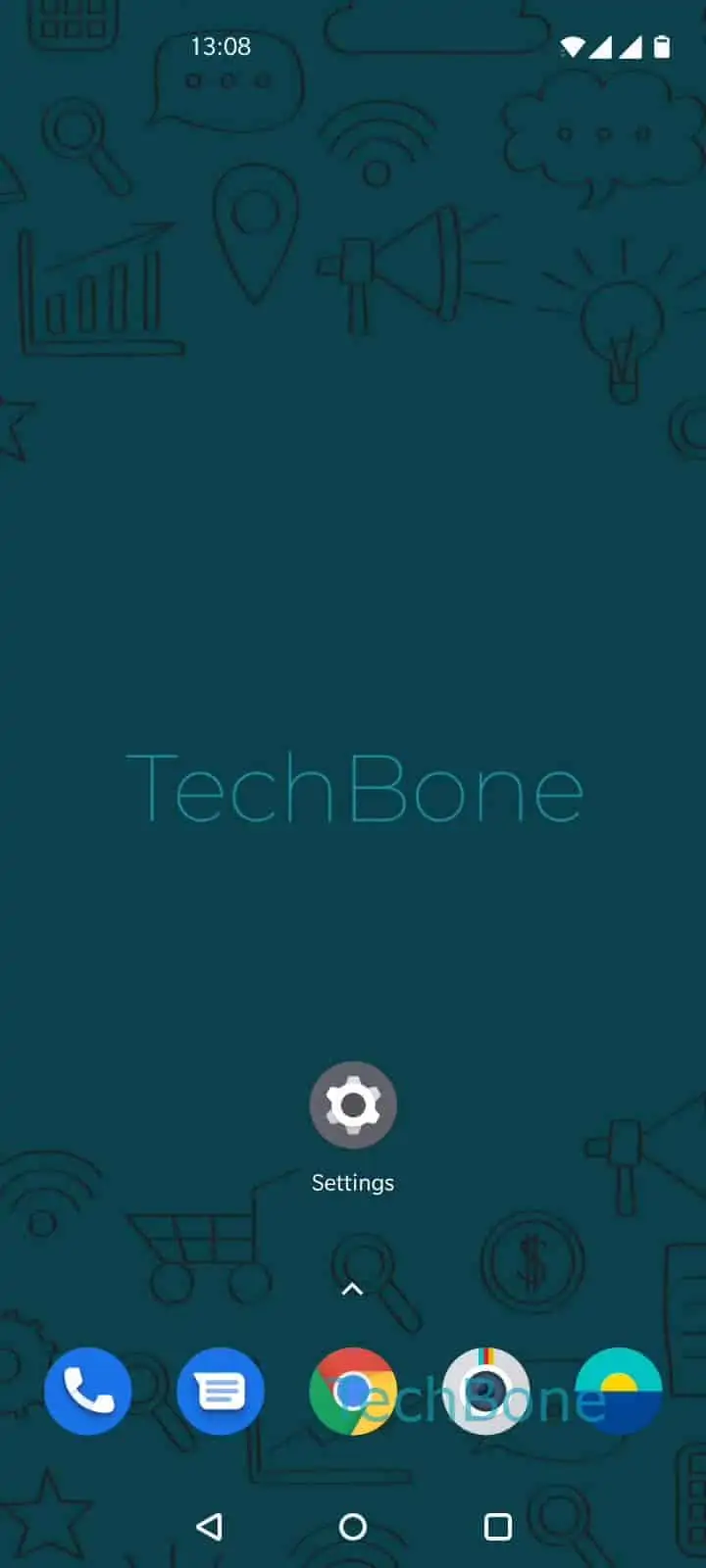
Open the Settings

Live simulator

Android 10 · Oxygenos 10
Enable or Disable Picture-in-Picture Mode – Oxygenos 10: step 1 – Open the Settings
Open the Settings
1 / 6

Scroll or use the buttons for the next step

Feedback

Was the guide correct?

Help others: confirm the path or report a problem.

12

Confirmations

Forum verified this path

OnePlus

Enable or Disable Picture-in-Picture Mode auf OnePlus

Picture-in-picture lets a supported app keep playing video or audio in a small floating window while you use another app underneath it. On OnePlus phones this only works if the app has explicit permission for it, since Android treats it as a special app access right rather than a default behavior.

When a video call, streaming app or navigation app suddenly refuses to shrink into a floating window after you leave it, the permission for that specific app has usually been turned off. This can happen after a factory reset, an app update, or a manual change in settings you may not remember making.

To check or change this, open SettingsApps & notificationsSpecial app accessPicture-in-picture. This screen lists every installed app that supports the feature.

Tap the app you want to adjust, then enable or disable Allow picture-in-picture. The change applies immediately, no restart needed.

Turning picture-in-picture off for an app can be useful if the floating window keeps appearing at the wrong moment, for example blocking a keyboard or covering a notification you need to read. Turning it on again restores the ability to keep watching or talking while you multitask.

Frequently asked questions

Only apps that were built to support picture-in-picture show up under SettingsApps & notificationsSpecial app accessPicture-in-picture. If an app is missing, it does not implement the feature, and no setting will add it.

Compatible devices

Tap your device — opens its hub with matching guides.