Skip to content
TechBone
OnePlus

OnePlus: Enable Read Text on Images in Select to Speak

If Select to Speak stays silent when you point your camera at a sign or open a photo full of text, the Read text on images option is likely switched off. This experimental function reads printed text aloud from pictures and the live camera viewfinder, but only when it is turned on separately inside the accessibility settings. On many OxygenOS builds the toggle sits in a sub-menu and gets overlooked during setup.

6 min7 steps
VersionAndroid 10 · Oxygenos 10

Step by step

1 / 7

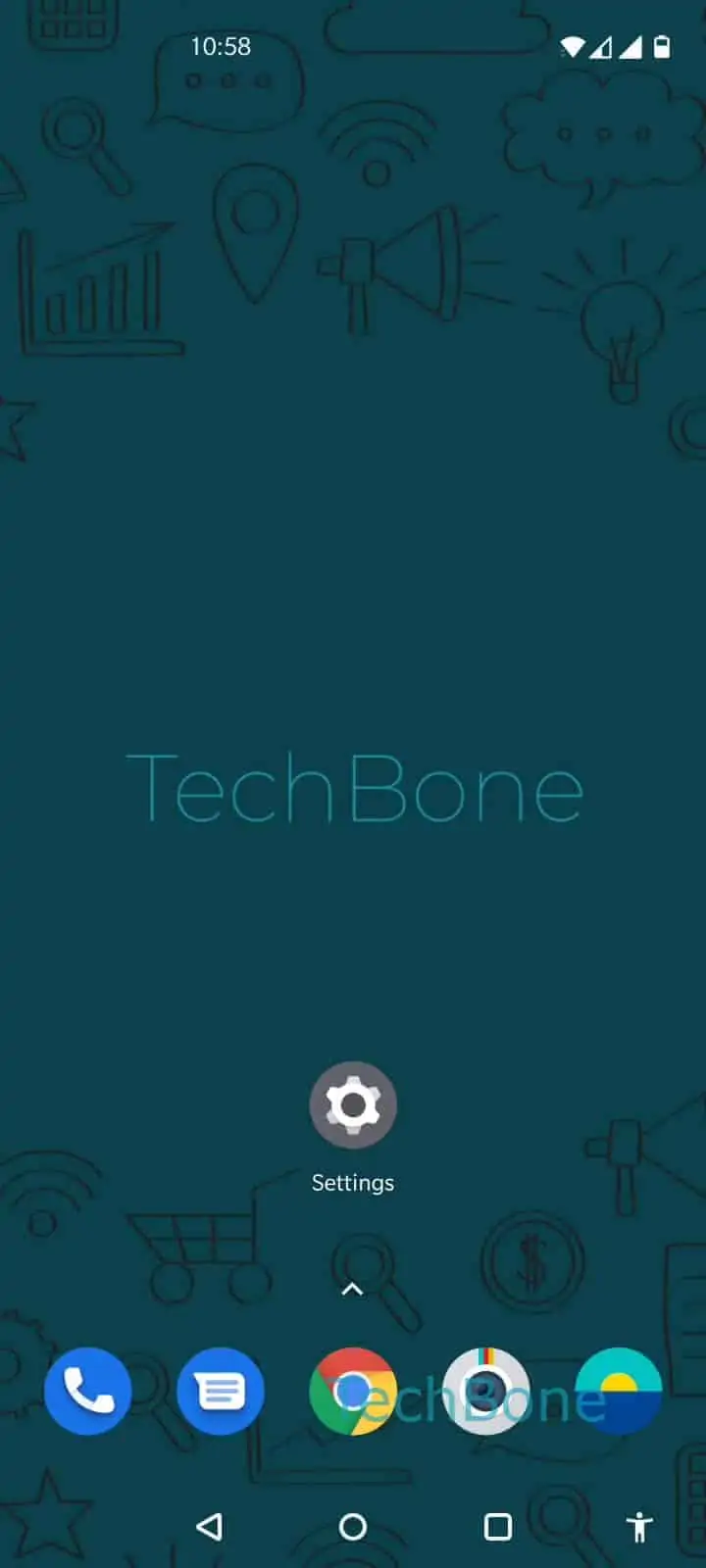
Step 1 of 7: Open the **Settings**

1

Open the Settings

Live simulator

Android 10 · Oxygenos 10
Enable Read Text on Images (Select to Speak) – Oxygenos 10: step 1 – Open the Settings
Open the Settings
1 / 7

Scroll or use the buttons for the next step

Feedback

Was the guide correct?

Help others: confirm the path or report a problem.

40

Confirmations

Forum verified this path

OnePlus

Enable Read Text on Images (Select to Speak) auf OnePlus

Read text on images is a sub-feature of Select to Speak on OnePlus phones running Android. It scans printed text inside photos, screenshots, and the live camera viewfinder, then reads it aloud through the accessibility tool. Because the function relies on on-device text recognition, OnePlus marks it as experimental, and it can misread blurry or angled text.

The toggle sits outside the main Select to Speak switch, which is why many users assume the whole feature is broken when only this option is disabled. To reach it: Open the SettingsTap on SystemTap on AccessibilityTap on Select to SpeakOpen the SettingsEnable or disable Read text on imagesTap on Continue.

Turn it off again if the phone starts reading background text while you use the camera for something else, or if you notice extra battery drain during scanning. Keep it enabled only while you actively need spoken text from images, since continuous recognition uses additional processing.

Frequently asked questions

Check that Read text on images is switched on separately inside Select to SpeakSettings. The main Select to Speak toggle and this sub-option work independently, so both need to be active.

Compatible devices

Tap your device — opens its hub with matching guides.