
Skip to content
TechBone
OnePlus

OnePlus: Set a Custom Alarm in the Clock App

If your OnePlus phone only rings with one generic alarm sound at the same time every day, you probably have not set up separate alarms for different days or purposes. The Clock app lets you create individual entries with their own time, name, repetition and tone. Without adjusting these settings per alarm, all your wake-up times end up sharing the same schedule and sound.

5 min6 steps
VersionAndroid 10 · Oxygenos 10

Step by step

1 / 6

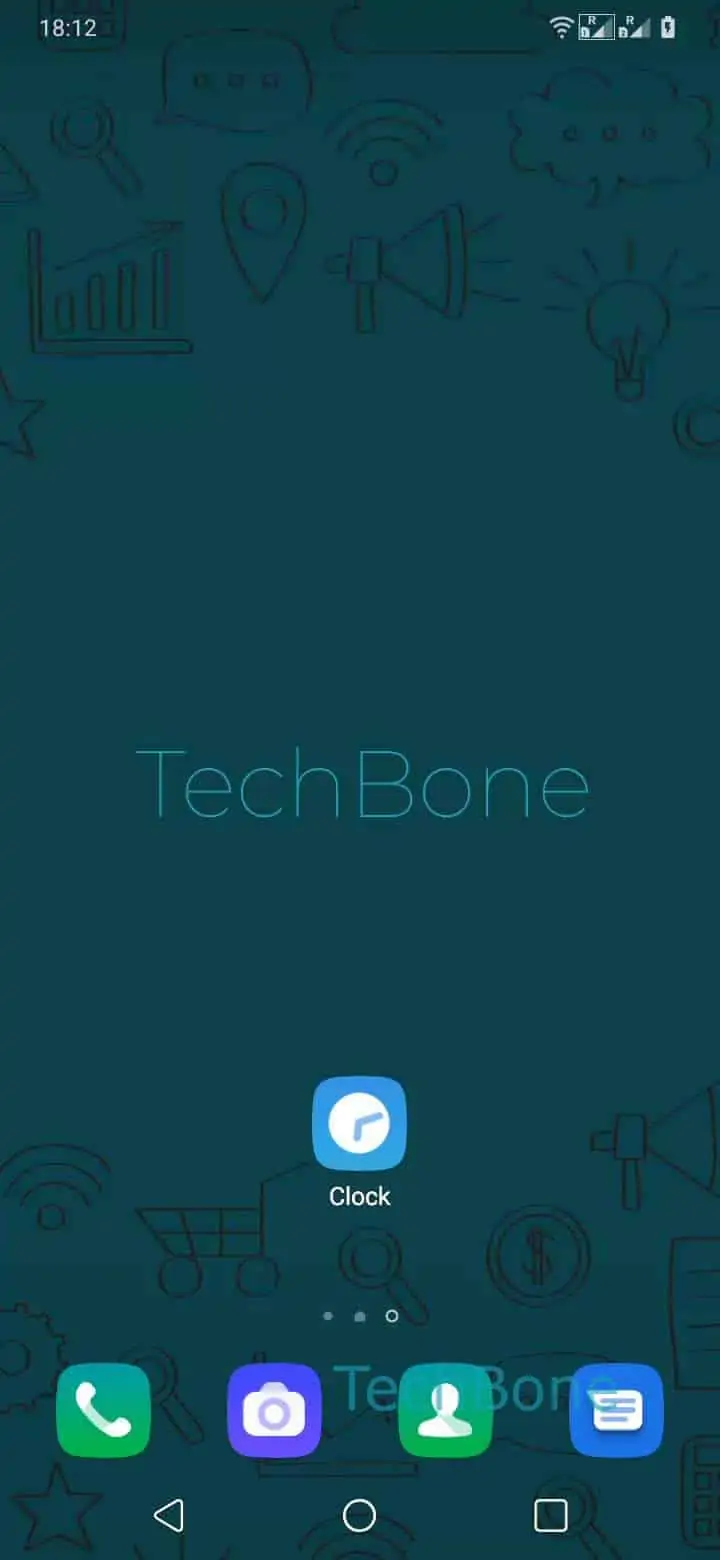
Step 1 of 6: Open the **Clock app**

1

Open the Clock app

Live simulator

Android 10 · Oxygenos 10
Set a Custom Alarm – Oxygenos 10: step 1 – Open the Clock app
Open the Clock app
1 / 6

Scroll or use the buttons for the next step

Feedback

Was the guide correct?

Help others: confirm the path or report a problem.

19

Confirmations

Forum verified this path

OnePlus

Set a Custom Alarm auf OnePlus

Each alarm on your OnePlus phone works as an independent entry inside the Clock app. You can give every alarm its own time, name, repeat pattern, sound and vibration setting without affecting the others.

To create a new alarm, open ClockAdd. Set the hour and minute for the wake time, then choose a repetition if the alarm should only trigger on specific weekdays. You can also turn Vibrate on or off before saving.

Tap Save to store the alarm. It stays in the list until you delete it manually or switch it off using the toggle next to the time.

This setup helps when you need different wake times for workdays, weekends or travel days. A single repeating alarm cannot cover all these cases, so separate entries with their own repetition pattern are the more reliable option.

If an alarm does not ring, check whether it was switched off by mistake or whether a custom alarm tone got muted by a system update. Alarms usually bypass silent mode, but a missing or corrupted sound file can still prevent playback.

Frequently asked questions

There is no practical limit in the Clock app. You can add as many alarms as you need, each with its own time, name and repetition.

Compatible devices

Tap your device — opens its hub with matching guides.