
Skip to content
TechBone
OnePlus

OnePlus: View Date and Location Info of a Photo or Video

Wondering exactly when a shot was taken or where you were standing at the time? OnePlus stores that data inside the file itself, but the Gallery thumbnail never shows it. Location tags only appear if geotagging was active in the camera app when the photo or video was captured.

3 min4 steps
VersionAndroid 10 · Oxygenos 10

Step by step

1 / 4

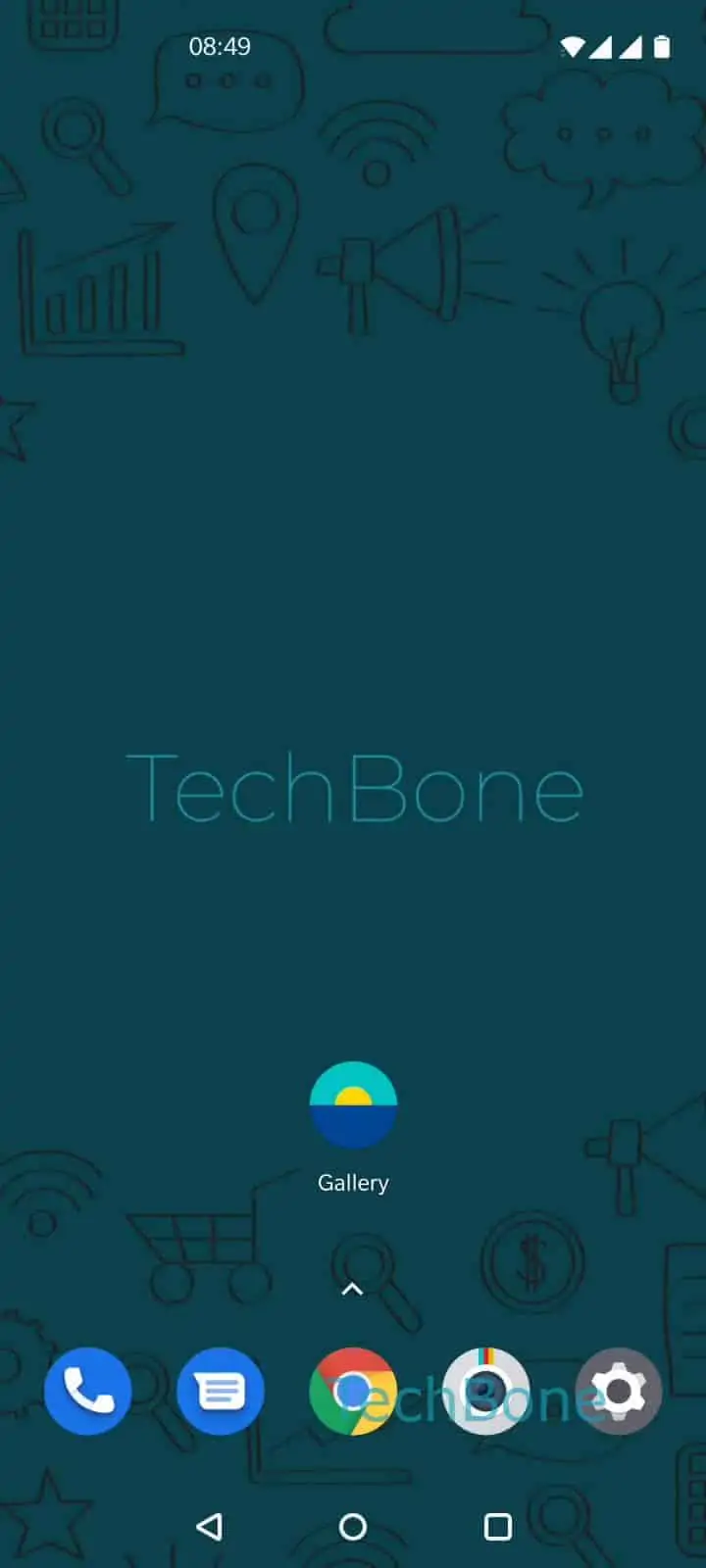
Step 1 of 4: Open the **Gallery app**

1

Open the Gallery app

Live simulator

Android 10 · Oxygenos 10
Show Date and Location of Photos and Videos – Oxygenos 10: step 1 – Open the Gallery app
Open the Gallery app
1 / 4

Scroll or use the buttons for the next step

Feedback

Was the guide correct?

Help others: confirm the path or report a problem.

16

Confirmations

Forum verified this path

OnePlus

Show Date and Location of Photos and Videos auf OnePlus

Every photo or video file carries metadata that records the exact moment it was captured. On OnePlus phones this information sits inside the file's EXIF data and never appears on the main gallery thumbnail.

Location data only gets added if geotagging was active in the camera app at the moment you pressed the shutter. If that setting was off, the details screen still shows date and time but leaves out any map or coordinates.

To check both pieces of information: Open the Gallery appChoose a photo/videoOpen the menuTap on Details.

The details screen lists capture date, file size, resolution and, if available, GPS coordinates or a small map thumbnail. If no location shows up, geotagging was disabled during capture or the file arrived through a messaging app that strips metadata on send.

Screenshots and heavily edited images often lose their original metadata too, so the details screen may only reflect the edit date rather than the original shot.

Frequently asked questions

Some messaging apps and cloud backups strip metadata during compression, so the copy you are viewing may lack the original location tag.

Compatible devices

Tap your device — opens its hub with matching guides.