Skip to content
TechBone
OnePlus

OnePlus: Enable or Disable Switch Access

If touch input is not an option for you, controlling a OnePlus phone can feel out of reach. Switch Access lets you navigate, select items, scroll and type using an external switch connected over USB or Bluetooth instead of tapping the screen. Turning the feature on or off happens in the accessibility settings, not through a hidden gesture.

6 min8 steps
VersionAndroid 10 · Oxygenos 10

Step by step

1 / 8

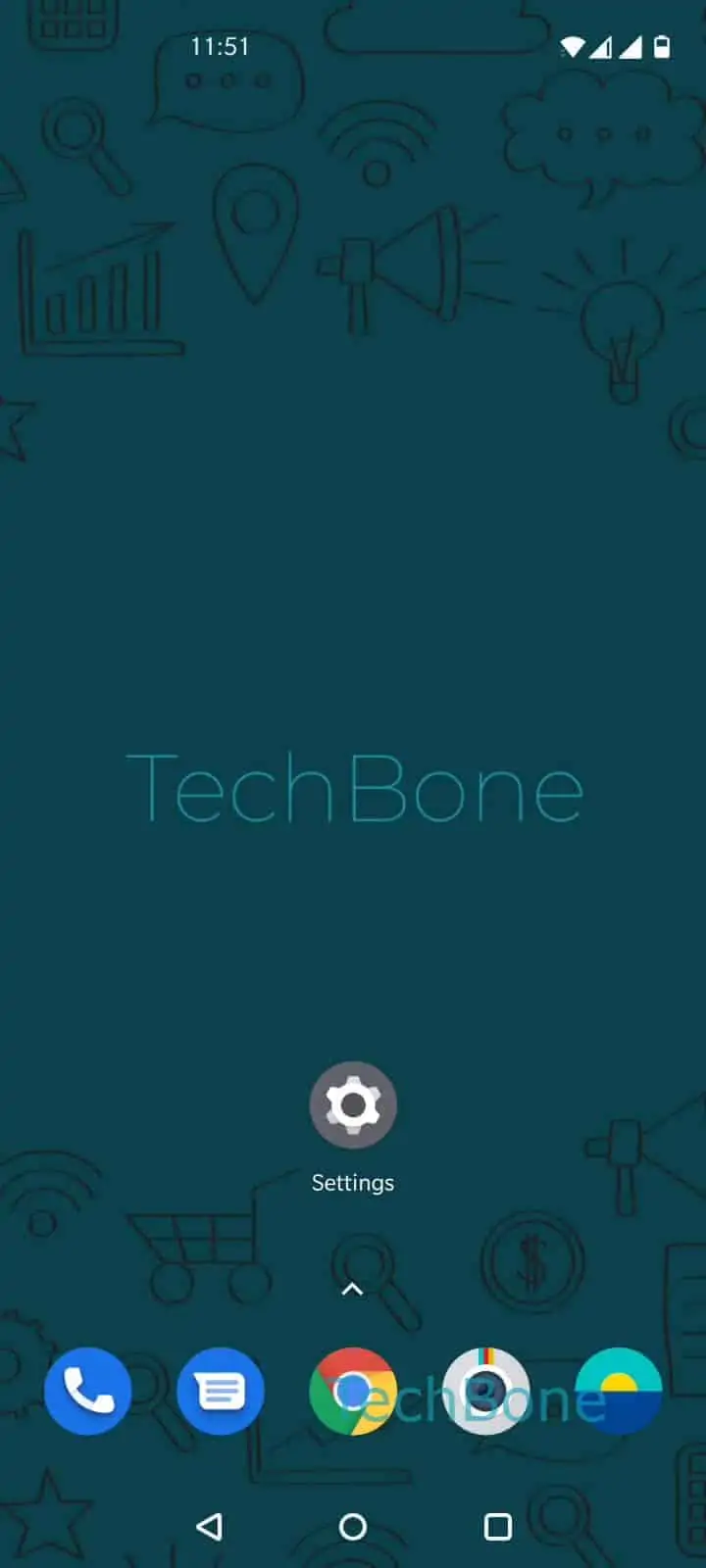
Step 1 of 8: Open the **Settings**

1

Open the Settings

Live simulator

Android 10 · Oxygenos 10
Enable or Disable Switch Access – Oxygenos 10: step 1 – Open the Settings
Open the Settings
1 / 8

Scroll or use the buttons for the next step

Feedback

Was the guide correct?

Help others: confirm the path or report a problem.

94

Confirmations

Forum verified this path

OnePlus

Enable or Disable Switch Access auf OnePlus

Switch Access is part of Android's accessibility framework and lets people who cannot use the touchscreen operate a OnePlus phone through an external switch. A switch can be a single button, a joystick or a dedicated accessibility device, connected via USB or Bluetooth, that takes over taps and swipes.

The setting lives inside the accessibility section rather than general display or sound options, since it changes how the phone processes input system-wide once active.

To turn it on or off: Open the SettingsTap on SystemTap on AccessibilityTap on Switch AccessEnable or disable Switch Access. Confirm with Tap on Allow, then Choose USB switch or Bluetooth switch and finish with Tap on Next and follow the instructions on screen.

Once enabled, normal touch gestures behave differently, because the connected switch now handles item selection, scrolling and text entry. If you only need occasional accessibility support, features such as larger touch targets or a screen reader might suit you better than a dedicated switch. Disabling Switch Access again returns the phone to standard touch control right away.

Frequently asked questions

Most standard USB or Bluetooth switches that Android recognizes as an input device work. During setup you confirm the connection type at Choose USB switch or Bluetooth switch, then pair or plug in the device before it appears as a control option.

Compatible devices

Tap your device — opens its hub with matching guides.