Skip to content
TechBone
OnePlus

OnePlus: Set Time Zone and Region Manually

If your OnePlus phone shows the wrong time or date after traveling, the automatic time zone detection is likely still pulling data from your carrier network. This happens because the network-based time zone setting stays active by default, overriding any manual change you try to make. You need to turn that function off before you can pick your own region and time zone.

7 min9 steps
VersionAndroid 10 · Oxygenos 10

Step by step

1 / 9

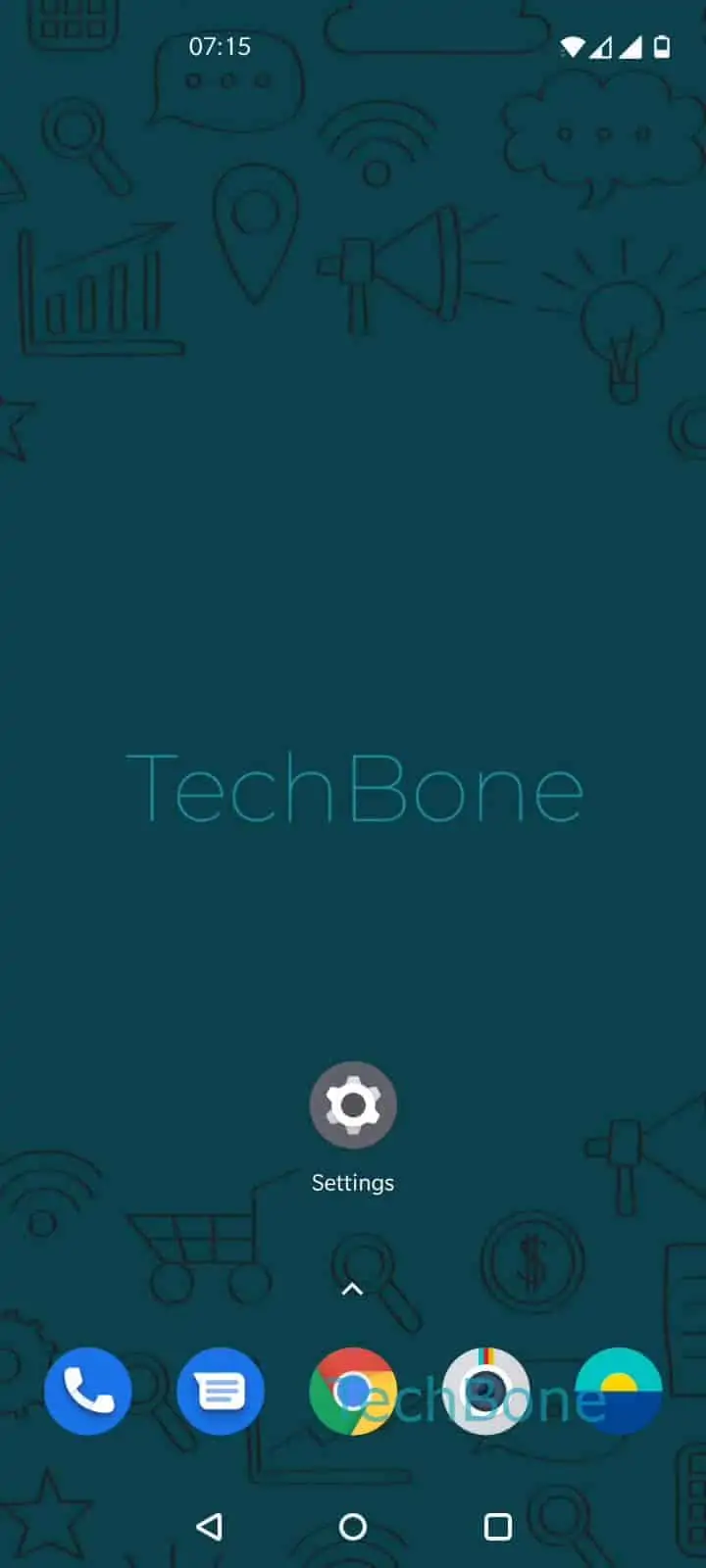
Step 1 of 9: Open the **Settings**

1

Open the Settings

Live simulator

Android 10 · Oxygenos 10
Change Time Zone and Region Manually – Oxygenos 10: step 1 – Open the Settings
Open the Settings
1 / 9

Scroll or use the buttons for the next step

Feedback

Was the guide correct?

Help others: confirm the path or report a problem.

40

Confirmations

Forum verified this path

OnePlus

Change Time Zone and Region Manually auf OnePlus

Your OnePlus phone keeps resetting to the wrong time after you switch regions because Use network-provided time zone stays enabled by default. This setting pulls the time zone straight from your mobile carrier, so any manual change gets overwritten the moment the phone reconnects to the network.

Turning that function off is the first step. Open SettingsSystemDate & timeDisable Use network-provided time zone. Once automatic detection is off, tap Time zoneRegion (country/region)Select a country or enter a nameChoose a suggestionChoose a time zone to lock in the correct zone.

This setup matters if you travel often or use a SIM from another country while keeping local settings. Leaving network time enabled works fine at home, since it updates automatically for daylight saving changes. Once you switch to manual mode, you are responsible for updating the time zone yourself if you move to a different region again.

Frequently asked questions

As long as Use network-provided time zone stays enabled, your carrier network overwrites any manual setting. Disable it under SettingsSystemDate & time before picking your own time zone.

Compatible devices

Tap your device — opens its hub with matching guides.