
OnePlus
Use Google Lens in the Camera App auf OnePlus
Google Lens does not run automatically inside the OnePlus Camera app. It is a separate mode that has to be tapped on before it starts analyzing whatever is inside the viewfinder, which is why landmarks, text or products often go unrecognized on the first try.
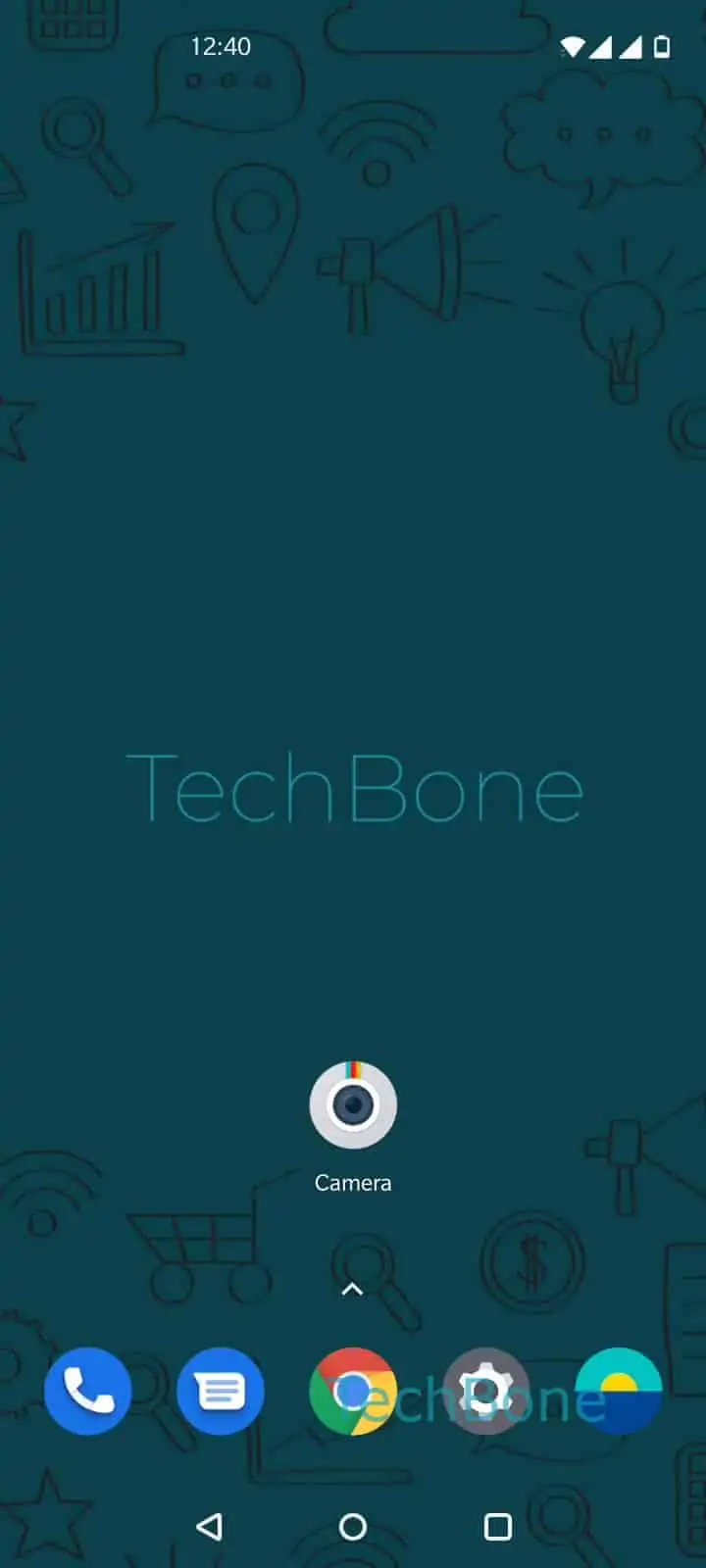
To use it, open Open the Camera app ➔ Tap on Google Lens. Once Lens is active, Swipe left or right to browse the categories and Choose a category that matches what you want to scan, for example text, products or landmarks. Then Tap on the shutter release to search for corresponding contents and Lens returns matching results, a translation, or a search based on the selected category.
Lens depends on a stable internet connection, since matching results are pulled from Google servers rather than processed only on the device. Poor lighting or a shaky frame also lowers recognition accuracy, so holding the phone steady for a second before tapping the shutter release usually gives better results.
If you only need to translate text on screen without opening the camera, a dedicated translation app is often faster. Lens inside the Camera app is best suited for scanning real objects, locations or printed text that are directly in front of the lens.