Skip to content
TechBone
Realme

Realme: Change the Home Screen Grid Layout

If your home screen looks cramped with too many icons per row, or app icons feel scattered with too much empty space between them, the grid size is likely set wrong. Realme UI lets you control exactly how many columns and rows appear on each home screen page, but many users never find this setting. The default layout does not always match how many apps you actually keep on your screen.

4 min5 steps
VersionAndroid 11 · Realme UI 2

Step by step

1 / 5

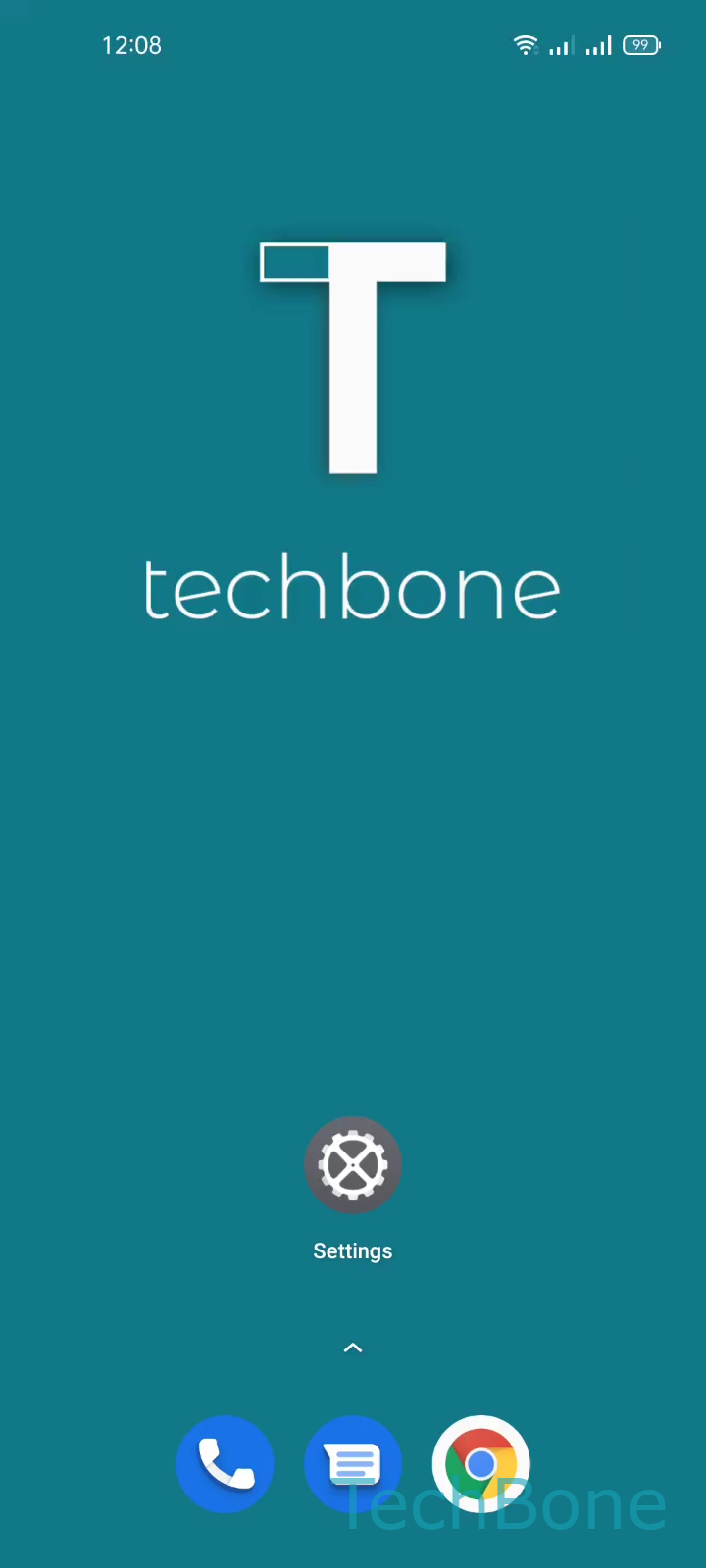
Step 1 of 5: Tap on **Settings**

1

Tap on Settings

Live simulator

Android 11 · Realme UI 2
Change Home Screen Layout – Realme UI 2: step 1 – Tap on Settings
Tap on Settings
1 / 5

Scroll or use the buttons for the next step

Feedback

Was the guide correct?

Help others: confirm the path or report a problem.

52

Confirmations

Forum verified this path

Realme

Change Home Screen Layout auf Realme

Realme UI stores the home screen grid size separately from the icon arrangement itself. If you add more apps than the current grid supports, icons get pushed onto extra pages instead of shrinking to fit. Switching to a denser grid keeps more apps visible per page, while a looser grid gives icons and labels more room.

To change it, open SettingsHome screen & Lock screenHome screen layout. Pick the number of columns and rows you want, then tap on a free area to exit and apply the change.

The new grid size applies to every home screen page at once, not just the one you are viewing. Existing icons rearrange automatically to fill the updated layout, so some apps may end up on a different page than before. Widgets keep their own size settings and are not affected by the column and row count you set for app icons.

If icons look uneven right after changing the grid, a manual reorder usually fixes it faster than switching the layout again.

Frequently asked questions

No, all apps and widgets stay installed. They only rearrange automatically to fit the new column and row count.