
Skip to content
TechBone
Realme

Realme: Turn the Accessibility Menu Shortcut On or Off

If the floating accessibility button or the two-finger swipe-up gesture won't show up on your Realme phone, the Accessibility Menu shortcut is probably switched off. This shortcut controls quick access to the Assistant menu and other accessibility functions in an enlarged view. Toggling it the wrong way can leave you without any quick way to reach those settings.

5 min6 steps
VersionAndroid 11 · Realme UI 2

Step by step

1 / 6

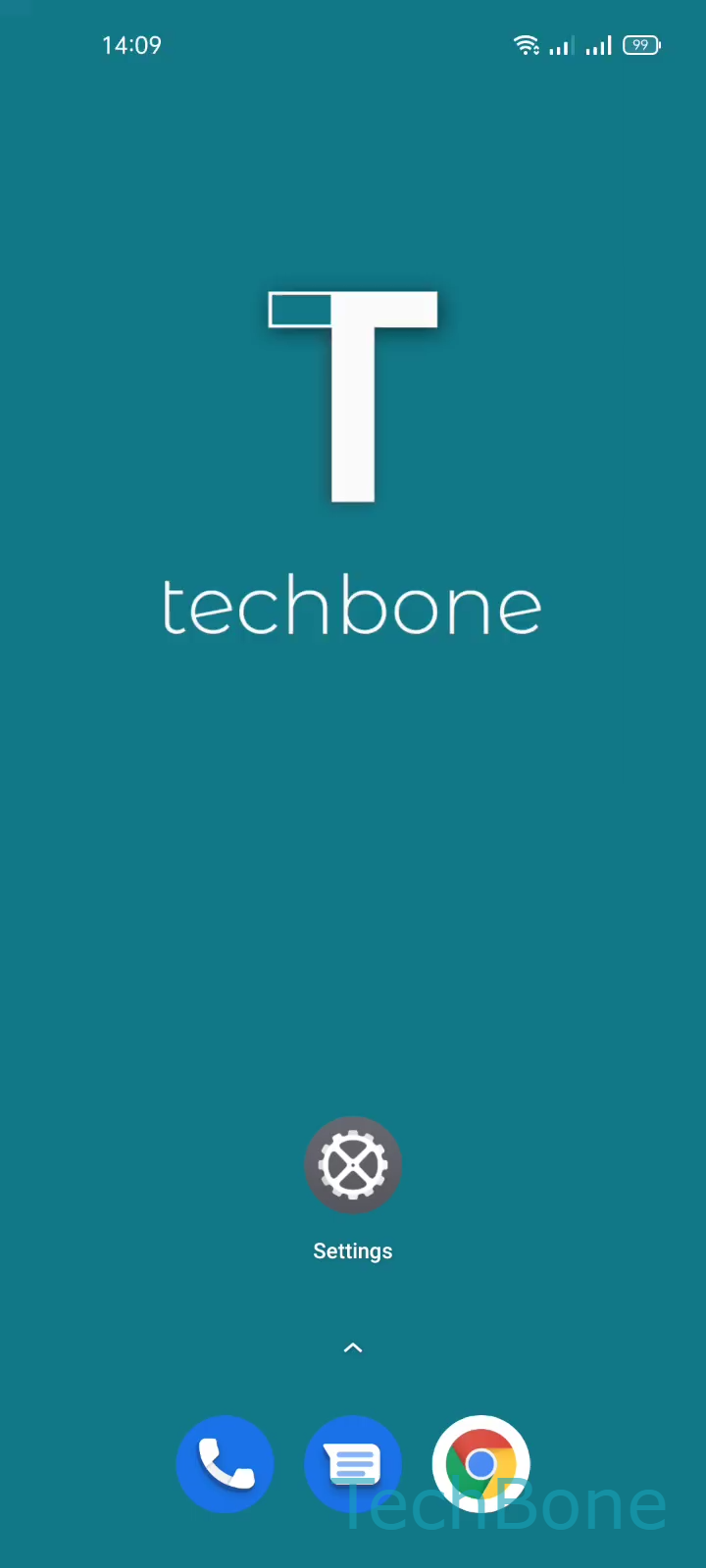
Step 1 of 6: Tap on **Settings**

1

Tap on Settings

Live simulator

Android 11 · Realme UI 2
Turn On/Off Accessibility Menu Shortcut – Realme UI 2: step 1 – Tap on Settings
Tap on Settings
1 / 6

Scroll or use the buttons for the next step

Feedback

Was the guide correct?

Help others: confirm the path or report a problem.

78

Confirmations

Forum verified this path

Realme

Turn On/Off Accessibility Menu Shortcut auf Realme

The Accessibility Menu on Realme phones adds a floating button in the corner of the screen or a two-finger swipe-up gesture. Both act as shortcuts to a larger overlay with Assistant and other accessibility functions.

If neither the button nor the gesture appears, the shortcut itself is turned off in the system settings. This is a separate toggle from the individual accessibility features, so disabling it does not remove those features, it only removes the quick-access overlay.

Menu path

Go to SettingsAdditional settingsAccessibilityAccessibility Menu. There you enable or disable the Shortcut toggle and confirm with OK.

Once enabled, the floating button or the two-finger swipe gesture gives you fast access to the enlarged Assistant view without digging through settings every time. Turning it off is useful if the button gets in the way during gaming or video playback, but you then lose the quick shortcut and have to open the Accessibility Menu manually from settings whenever you need it.

Frequently asked questions

The floating button and the two-finger swipe-up gesture disappear. All individual accessibility functions stay active, you just lose the quick overlay and have to open each setting separately under SettingsAdditional settingsAccessibility.