Skip to content
TechBone
Realme

Realme: Enable Auto Sort Notifications

When notifications from different apps pile up in random order, the notification shade turns into a scroll marathon. Realme UI can group and sort notifications automatically per app, but this behavior stays off until you switch it on yourself. Without it, alerts just stack in the order they arrive, no matter which app sent them.

4 min5 steps
VersionAndroid 11 · Realme UI 2

Step by step

1 / 5

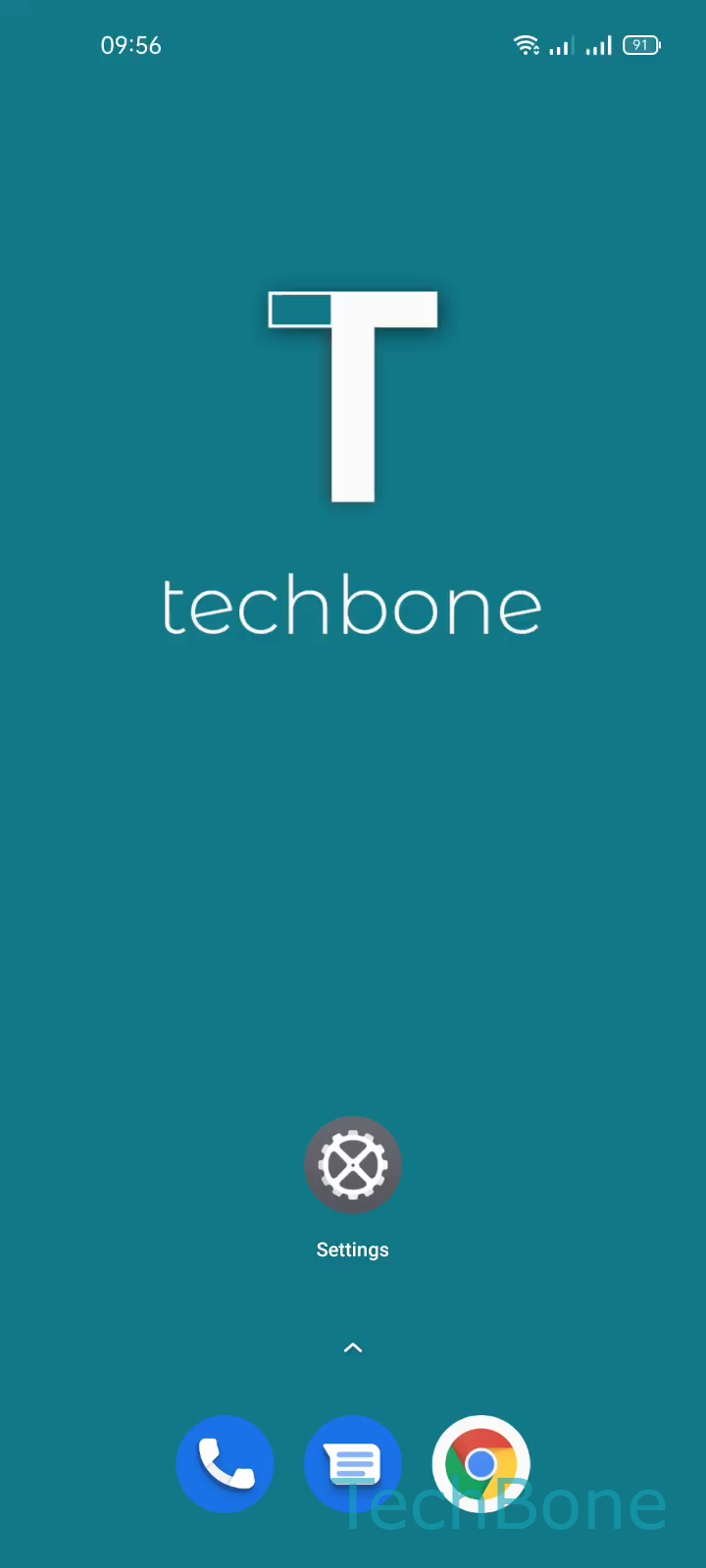
Step 1 of 5: Tap on **Settings**

1

Tap on Settings

Live simulator

Android 11 · Realme UI 2
Auto Sort Notifications – Realme UI 2: step 1 – Tap on Settings
Tap on Settings
1 / 5

Scroll or use the buttons for the next step

Feedback

Was the guide correct?

Help others: confirm the path or report a problem.

45

Confirmations

Forum verified this path

Realme

Auto Sort Notifications auf Realme

Realme UI can sort incoming notifications so alerts from the same app stay grouped instead of showing up strictly in arrival order. With this enabled, the notification shade becomes easier to scan once several apps send messages around the same time.

This setting only changes how notifications are arranged after they arrive. It does not affect which apps are allowed to send notifications or how loud they are, those permissions live in a separate menu.

To enable or disable it:

Tap on SettingsTap on Notifications & status barTap on Manage notificationsTap on MoreEnable or disable Auto sort notifications

If notifications still look unsorted after turning this on, the app itself might be using its own grouping logic that overrides the system-level sort. Turning the option off returns to plain chronological order, which some people prefer for messaging apps where timing matters more than app grouping.

Frequently asked questions

No. The setting only changes the display order and grouping inside the notification shade. Every notification you would normally receive still appears, just arranged differently.