Skip to content
TechBone
Realme

Realme: Show or Hide the Media Playback Panel in Notifications

When you play music, a podcast, or a video on your Realme phone, a playback panel can pop up right below Quick Settings in the notification shade, pushing every other notification further down. If that panel keeps getting in the way, or disappears when you actually want quick access to pause and skip controls, a single switch in the notification settings is behind it.

3 min3 steps
VersionAndroid 11 · Realme UI 2

Step by step

1 / 3

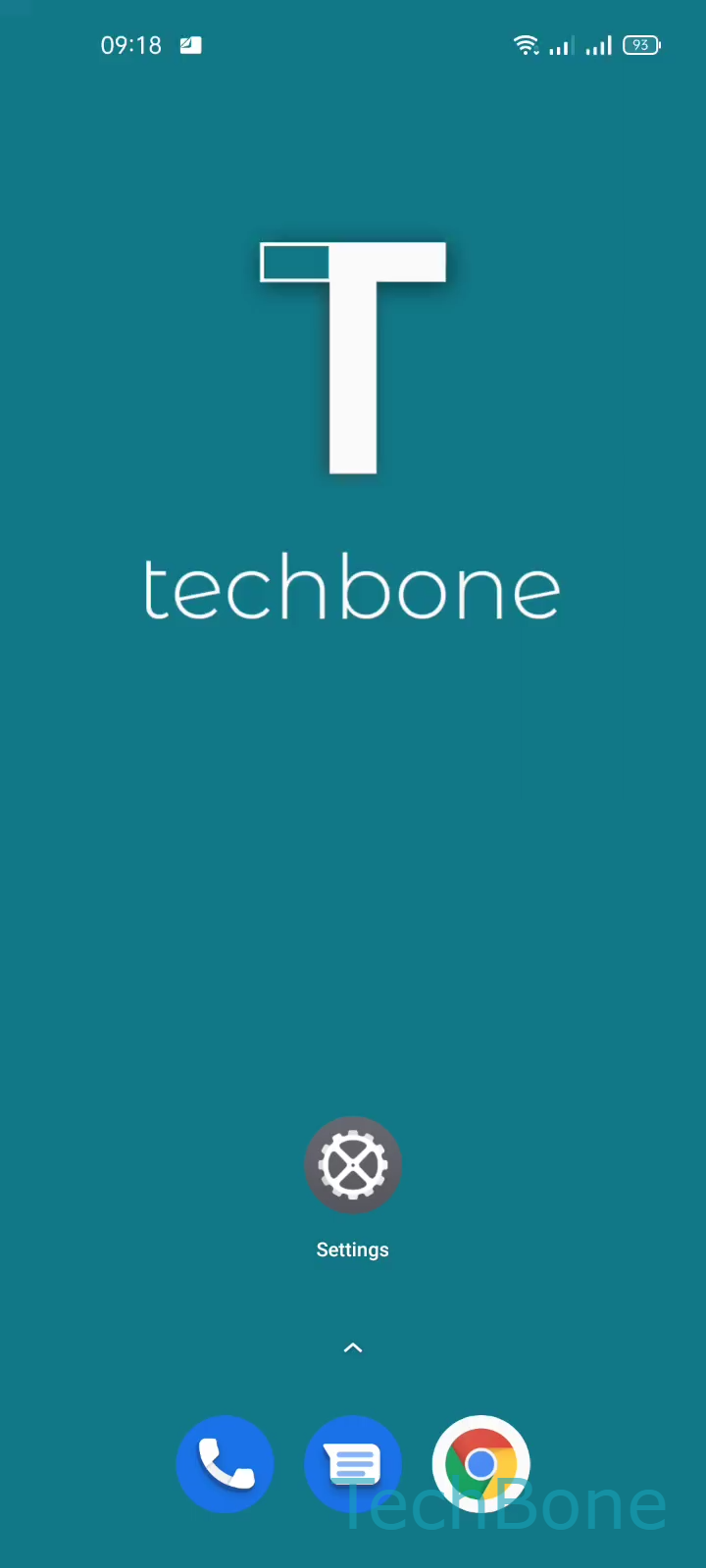
Step 1 of 3: Tap on **Settings**

1

Tap on Settings

Live simulator

Android 11 · Realme UI 2
Show or Hide Media Playback Control in Notification Shade – Realme UI 2: step 1 – Tap on Settings
Tap on Settings
1 / 3

Scroll or use the buttons for the next step

Feedback

Was the guide correct?

Help others: confirm the path or report a problem.

29

Confirmations

Forum verified this path

Realme

Show or Hide Media Playback Control in Notification Shade auf Realme

The media playback panel sits directly under Quick Settings whenever a song, podcast, or video is active. It shows play, pause, and skip controls without opening the app, but it also pushes regular notifications lower in the shade.

This behavior is controlled by a single toggle inside the notification settings on Realme phones. Turning it off removes the panel completely, so playback controls only appear on the lock screen or inside the app itself.

Menu path

Open SettingsNotifications & status bar ➔ find Media playback control and switch it on or off.

Disable this option if you mainly listen to audio with the screen locked and do not need the panel while scrolling through notifications. Keep it enabled if you often check on ongoing playback while reading messages or app alerts.

There is no separate setting for individual apps. The toggle applies to any app that reports media playback to the system, including music, podcast, and most video apps.

Frequently asked questions

Check that Media playback control is still enabled under SettingsNotifications & status bar. Some apps also need notification permission to report playback state; without it, no panel appears regardless of this setting.