
Skip to content
TechBone
Realme

Realme: Change the Preferred Network Type

If your Realme phone shows weak or no 4G signal, calls and mobile data can stop working even though the SIM is active. Switching the preferred network type to a lower generation like 3G often restores a stable connection in these dead zones. This setting also matters when your carrier has not fully rolled out newer coverage in your area.

4 min5 steps
VersionAndroid 11 · Realme UI 2

Step by step

1 / 5

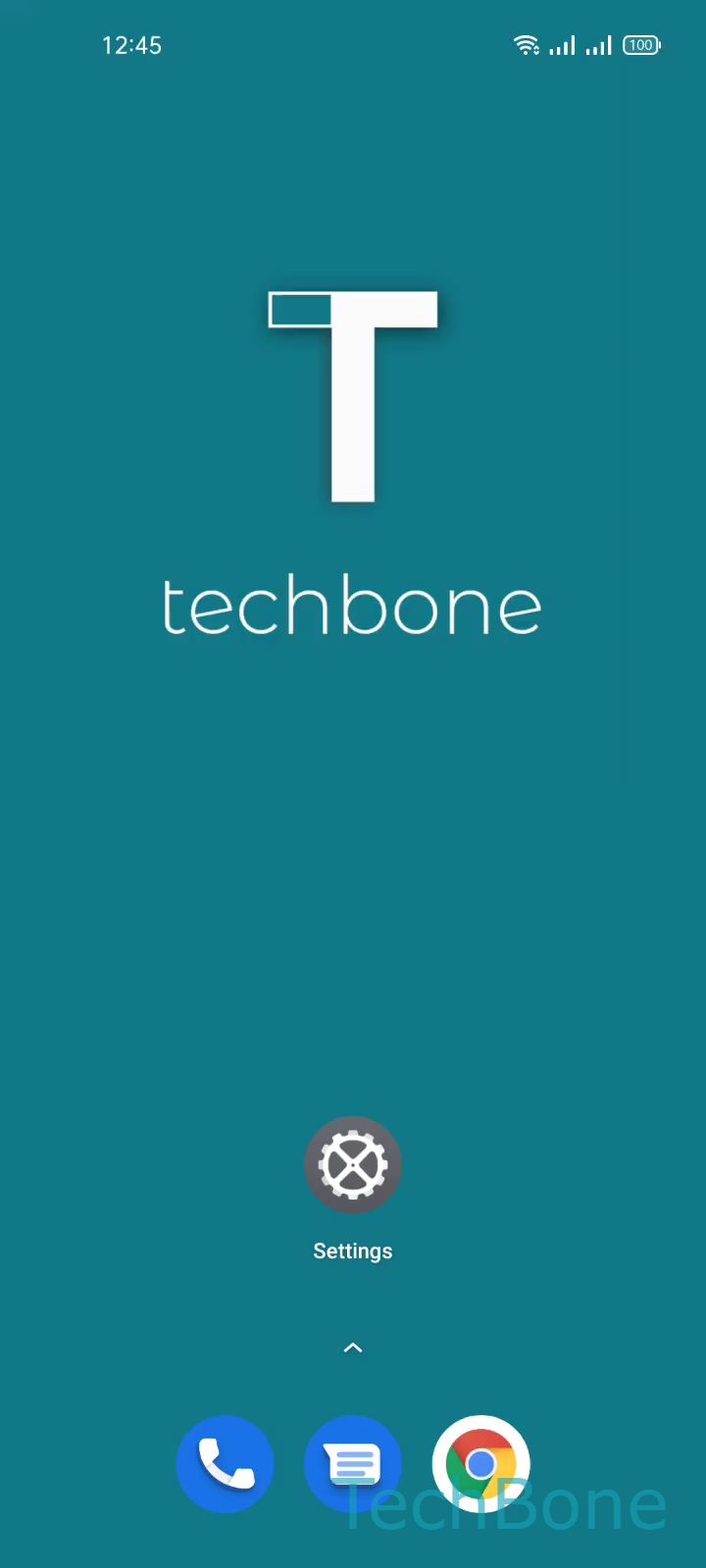
Step 1 of 5: Tap on **Settings**

1

Tap on Settings

Live simulator

Android 11 · Realme UI 2
Change Preferred Network Type – Realme UI 2: step 1 – Tap on Settings
Tap on Settings
1 / 5

Scroll or use the buttons for the next step

Feedback

Was the guide correct?

Help others: confirm the path or report a problem.

31

Confirmations

Forum verified this path

Realme

Change Preferred Network Type auf Realme

Realme phones let you lock the modem to a specific network generation instead of letting it search automatically. This matters most in areas where 4G coverage is patchy or your carrier has not switched on newer bands everywhere.

The setting lives inside the mobile network preferences and decides which network the device tries first for calls and data. If you force a lower generation like 3G, the modem stops hunting for 4G and connects faster in weak-signal zones, at the cost of top data speeds.

To change it, go to Tap on SettingsTap on SIM card & mobile dataChoose a SIM card (Dual SIM)Tap on Preferred network typeSet the Preferred network type. On dual SIM devices you set this separately for each SIM card.

The exact options shown depend on your device model and the bands your carrier supports. Switch back to automatic or 4G once you leave the weak-coverage area, otherwise data speeds stay capped.

Frequently asked questions

Many carriers only offer VoLTE and HD voice over 4G. Forcing Preferred network type down to 3G can disable these call features, so voice quality may drop even if the connection itself is more stable.