Skip to content
TechBone
Realme

Realme: Change Navigation Button Order

If you use button navigation on your Realme phone, Back, Home, and Recent apps stay in a fixed order until you change it yourself. A layout that does not match your grip can make one-handed use awkward and lead to mis-taps. Realme UI lets you flip between two button arrangements to fit how you actually hold and use your phone.

3 min4 steps
VersionAndroid 11 · Realme UI 2

Step by step

1 / 4

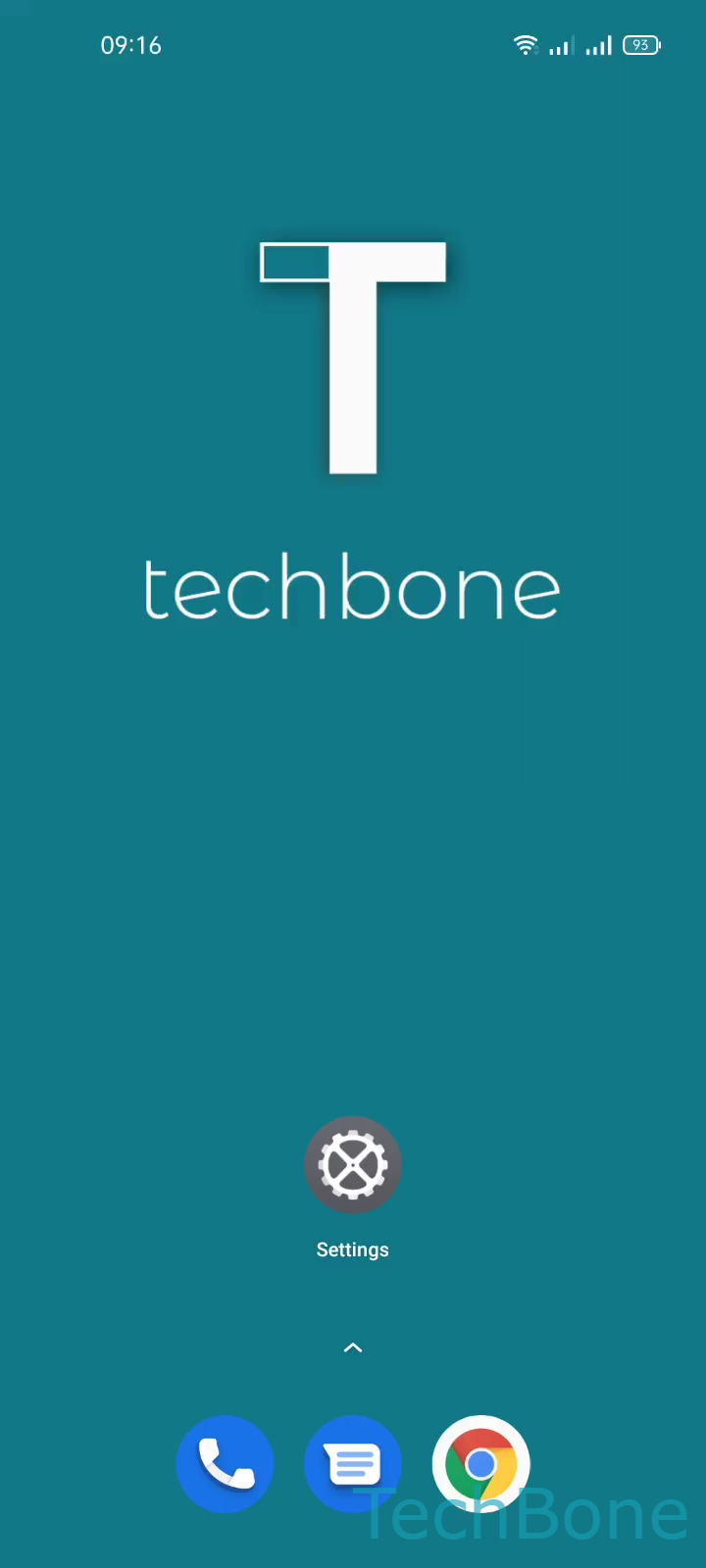
Step 1 of 4: Tap on **Settings**

1

Tap on Settings

Live simulator

Android 11 · Realme UI 2
Change Navigation Button Order – Realme UI 2: step 1 – Tap on Settings
Tap on Settings
1 / 4

Scroll or use the buttons for the next step

Feedback

Was the guide correct?

Help others: confirm the path or report a problem.

87

Confirmations

Forum verified this path

Realme

Change Navigation Button Order auf Realme

Button navigation on Realme phones ships with one fixed order for Back, Home, and Recent apps. If that order does not match how you hold your phone, taps land on the wrong control more often, especially with one hand.

Realme UI stores the button order under the navigation settings, separate from gesture navigation. The setting only appears when button navigation is active, not when gesture navigation is selected.

To change it, go to SettingsConvenience toolsNavigationButton layout. Here you choose between two arrangements: Recent apps - Home - Back, or Back - Home - Recent apps.

Pick the layout that puts Back closest to your thumb if you swipe back often, or move Recent apps to that spot if multitasking matters more. The change applies immediately across the system, so no restart is needed.

If you switch to gesture navigation later, this button order setting becomes irrelevant since gestures replace the on-screen buttons entirely.

Frequently asked questions

The Button layout option only shows up when button navigation is active. Check SettingsConvenience toolsNavigation and confirm the navigation type is set to buttons, not gestures.